General view:
execute ping fds1.fortinet.com
execute ping directregistration.fortinet.com
show system central-management
The above servers must be reachable from the FortiGate. When FortiManager manages the system, skip the next steps as the tokens should be provided by FortiManager itself.
Current status check:
diagnose fortitoken info
diagnose test application forticldd 7
show user fortitoken
Run the following command:
show full-configuration | grep -f FTK
If the token has the 'set seed...' displayed in 'show user fortitoken', but shows an error in 'diagnose fortitoken info', delete this FortiToken first.
If the token is displayed without 'set seed...' displayed in the 'show user fortitoken' table, the token can be activated by using step 5b.
Turn on activation debugging:
diagnose debug disable
diagnose debug reset
diagnose debug console timestamp enable
diagnose debug application forticldd -1
diagnose fortitoken debug enable
diagnose debug enable
diagnose debug info
The FortiToken-200 is activated through the FortiGuard network and is locked upon first activation (one-time activation lock). If the token's lock was released recently, there is only one chance to activate, and catch an error if an issue occurs.
2 situations:
config user fortitoken
    edit <FortiTokenSN>
end
execute fortitoken activate <FortiTokenSN>
Only supports hard token activation.
diagnose fortitoken info | grep -v active
All tokens should be active and should have the seed in the config: diagnose fortitoken info
show user fortitoken
To stop the debug:
diagnose debug reset
diagnose debug disable
To verify whether the FortiToken activation code is being sent over e-mail, collect the following command output: In cases with a multi-VDOM environment, run the following commands from the global VDOM: show system email-server
diagnose debug reset
diagnose debug application alertmail -1
diagnose debug console timestamp enable
diagnose debug enable
After running the commands above, trigger an activation request and analyze the output. This is done by selecting 'Send Activation Code' under User & Authentication -> User Definition -> Edit the user.
It is important to understand that the troubleshooting steps above primarily concern themselves with the activation of a token when binding to a specific user.
If the problem relates to attempting to activate additional FortiToken Mobile on the FortiGate and errors are seen in the GUI or CLI, like the examples below, follow the additional troubleshooting steps further below. 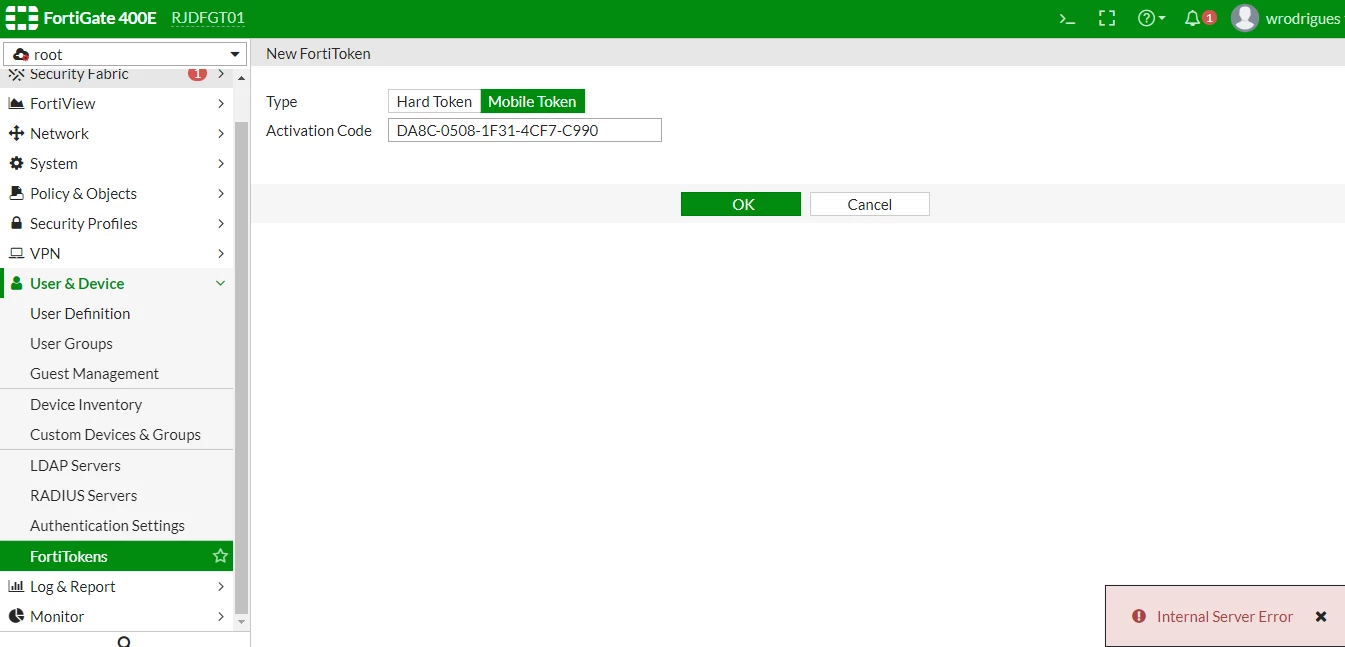  Step 1: Run the FortiToken debug.
diagnose debug disable
diagnose debug reset
diagnose debug console time enable
diagnose fortitoken debug enable
diagnose debug enable
execute fortitoken-mobile import <ActivationCodeFromRedemptionCertificate>
Step 2: Get the logs and analyze the output for possible errors, as seen below.
Error_message: 'forticare license expired'.
{ "d": { "__type": "SoftToken.ActivationLicenseRequest", "__version": "4",
"license_activation_code": "XXXX-XXXX-XXXX-XXXX-XXXX",
"serial_number": "FGTXXXXKXXXXXXXX", "__device_version": "6.0",
"__device_build": "6325", "__clustered_sns":
[ { "sn": "FGTXXXXKXXXXXXXX" }, { "sn": "FGTXXXXKXXXXXXXX" } ] } }
ftm_fc_comm_recv_response[477]:receive packet from forticare success.
{"d":{"__type":"SoftToken.ActivationLicenseResponse","__version":"4",
"serial_number":"FGTXXXXKXXXXXXXX",
"__device_version":"6.0","__device_build":"6325","__clustered_sns":
[{"sn":"FGTXXXXKXXXXXXXX","error":null},{"sn":"FGTXXXXKXXXXXXXX","error":null}],
"license_activation_code":"DXXXX-XXXX-XXXX-XXXX-XXXX","license":"","tokens":null,"result":0,"error":
{"error_code":14,"error_message":"forticare license expired"}}}
ftm_fc_command[564]:received error from forticare [-7564]
import fortitoken license error: -7564
This log indicates the license code entered has expired. The solution is to get a new license code via the sales channel and to register it on the FortiGate. Note: In the debug output above, it is possible to see two Serial Numbers ([{"sn":"FGTXXXXKXXXXXXXX","error":null},{"sn":"FGTXXXXKXXXXXXXX","error":null}]) because it is a cluster. Otherwise, it is ok to see only one serial number listed there. Error_message: 'forticare license card not found'.
{"__type":"SoftToken.ActivationLicenseResponse","__version":"4",
"serial_number":"FGTXXXXKXXXXXXXX","__device_version":"6.0",
"__device_build":"xxxx","__clustered_sns":[],"license_activation_code"
:"xxxxxxxxxxxxxxxx","license":"","tokens":null,"result":0,"error":{"error_code":10,
"error_message":"forticare license card not found"}}}
Refer to the solution in Technical Tip: 'FortiCare license card not found'. Error_message: 'forticare unkown error', 'received error from forticare [-7549]'.
ftm fc_comm_recv_response [267] : receive packet success.
{"d":{"__type": "SoftToken. ActivationLicense Response", "version":"4",
"serial_number":"FGxxxxxxxxxxxxxx","__device_version": "7.8",
"__device_build": "1740","__clustered_s ns":[{"sn": "FGxxxxxxxxxxxxxx", "error":null},
{"sn": "FGxxxxxxxxxxxxxx", "error":null}],"license_activation_code":"XXXX-XXXX-XXXX-XXXX-XXXX",
"license": "", "tokens": null, "re sult": 0, "error":{"error_code": -1,
"error_message": "forticare unkown error"}}}
ftm_fc_command [615]: received error from forticare [-7549]
Delete the Trial Tokens. If the tokens are already assigned to users, assign other tokens to these users. Then it will be possible to delete the Trial Tokens. Activate the licensed FortiTokens by using the activation code. Activation should be completed successfully. Then select 'Import Free Trial Tokens'.
Note: This method can also be used for verifying connectivity to the FortiToken Mobile Provisioning server. Activating a trial license restores communication with FortiCloud.
'forticare license already activated', 'import fortitoken license error: -7561'.
{"__type":"SoftToken.ActivationLicenseResponse","__version":"4","serial_number":"FGT81F*******","__device_version":"7.0","__device_build":"0366","__clustered_sns":[{"sn":"FGT81F*******","error":null},{"sn":"FGT81F*******","error":null}],"license_activation_code":" AAAA-BBBB-CCCC-DDDD-EEEE ","license":"","tokens":null,"result":0,"error":{"error_code":11,"error_message":"forticare license already activated"}}}2022-09-16 09:36:40 ftm_fc_command[615]:received error from forticare [-7561]import fortitoken license error: -7561
Refer to the solution in this article: Technical Tip: License Error while importing the Mobile/soft FortiToken.
In some scenarios, FortiTokens may automatically transition to a locked state. This commonly occurs during the transfer of FortiTokens between different FortiGate devices or following a license renewal. To verify the current status of a FortiToken, use the following CLI command: show user fortitoken | grep status
This will display the current state (e.g., active, locked) of the FortiToken(s). Example of locked FortiToken entry: config user fortitoken
edit "FTKMOB26B6XXXXXX3"
set status lock
next
end
To change the status of the FortiToken from lock to active, execute the following commands in the FortiGate CLI: config user fortitoken
edit "FTKMOB26B6XXXXXX3"
set status active
next
end
After confirming that the token status is Active, run the following command to re-provision or renew the token:
execute fortitoken-mobile renew FTKMOB26B6XXXXXX3
Note: Replace 'FTKMOB26B6XXXXXX3' with the actual FortiToken serial number relevant to the environment.
Unable to reach globalftm2.fortinet.net:443.
2026-07-06 15:50:50 ftm_cfg_import_license[370]:import license C319-4CA4-7XXX-8XXX-CXXX
2026-07-06 15:50:51 [3560] fds_handle_request: Received cmd 117 from pid-4976, len 4
2026-07-06 15:50:51 [3360] fds_check_request: Image list was updated within 86400 secs.
2026-07-06 15:50:51 [527] fds_send_reply: Sending 6060 bytes data.
2026-07-06 15:50:51 ftm_fc_comm_connect[60]:ftm TCPS conn failed: ssl_connect() failed: 0 (error:00000000:lib(0)::reason(0))
2026-07-06 15:50:51 ftm_fc_command[624]:forticare [globalftm2.fortinet.net:443] unreachable
Check if the firewall can reach globalftm2.fortinet.net on port 443:
execute telnet globalftm2.fortinet.net 443
Getting the 'Unable to communicate with FortiCloud' error when assigning a token to a user.
When assigning a FortiToken to a user, the FortiGate communicates with FortiCloud through the FortiGuard connection to verify the FortiToken registration.
If the FortiGuard settings are configured with the default Anycast setting and the FortiGate is unable to connect to the server, it is recommended to disable Anycast and switch back to the unicast servers to determine if this resolves the connectivity issue.
config system fortiguard
set fortiguard-anycast disable
set protocol udp
set port 8888
set sdns-server-ip 208.91.112.220
end
After applying the configuration, retry assigning the FortiToken to the user.
Notes:
If the password for the email account that FortiGate uses to send FortiToken activation emails has expired, the activation emails cannot be sent successfully. The password must be updated in the FortiGate to restore email delivery.
A known issue has been identified when adding hardware tokens using the serial number on FortiGate devices running firmware versions 7.4.11, 7.6.3, 7.6.4, 7.6.5, and 7.6.6.
See Technical Tip: Resolving CMDB save errors for hardware FortiToken on FortiGate for detailed information and the recommended workaround.
Related articles: |