




Technical Tip: Using the firmware manager CLI and API
| Description | This article describes how to use the Firmware Manager CLI and API. |
| Scope | FortiManager v6.2, v6.4, v7.0. |
| Solution | The firmware manager within FortiManager is available for use with the CLI and through an API, as well as from the GUI.
To upgrade a FortiGate using Firmware Manager CLI, follow the steps below:
In the example below, the device is a VM64 running v5.6.14 and upgraded to v6.4.7.
FMG # diagnose fwmanager show-dev-upgrade-path FGT 6.4.7
diagnose fwmanager set-dev-schedule <device name> <target version> <flags> <date in format "YYYY/MM/DD_hh:mm:ss">
The main flags options are as follows:
See the following example:
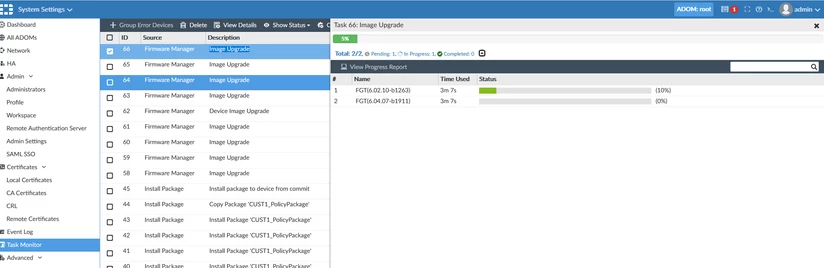
FMG # diagnose fwmanager set-dev-schedule FGT 6.4.7 null 2021/12/27_01:00:00 platform FGVMK6, upgrade path from 6.0.14-457 to 6.4.7-1911: [6.2.10-1263 --> 6.4.7-1911] possible path: [6.2.9-1234 --> 6.4.7-1911] Upgrade to image 6.4.7 Do you want to continue? (y/n)y set_dev_schedule: task id = 66
FMG # diagnose fwmanager get-all-schedule <-- The command has been removed since v7.0.2. schedule: device_id: 134 serial: FGVM010000011238 boot_alt: 0 firmware: 06002000 release: 6.2.10 buldnum: 1263 scheduled time: 2021/12/27_01:00:00 taskid: 66 sched_seq: 1640604693 prev_seq: 0 status: accepted
The scheduled task of the upgrade appear at GUI:
New command added via CLI :
Ertiga-kvm09 # diagnose fwmanager profile list --> To show Schedule Upgrade for one device. Ertiga-kvm09 # diagnose fwmanager profile list-by-device --> To show Schedule Upgrade for more than one device. Ertiga-kvm09 # diagnose fwmanager clear --> To delete all Schedule Task Upgrade.
FMG # diagnose dvm task list root running ADOM: root ID Source Description User Status Start Time -------------------------------------------- 66 fwm Image Upgrade admin running Mon Dec 27 12:31:29 2021
Note that in a similar way to the CLI, the Firmware Manager API can be used as follows:
{ "session" : "{{session}}", "id" : 1, "method" : "exec", "params" : [{ "data": { "adom": "root", "create_task": "enable", "device": [{ "name": "FGT" }], "flags": 7, "image": { "release": "6.4.7" }}, "url": "um/image/upgrade" }], "verbose" : 1 }
The flags correspond to the CLI flags:
Null=0, skip_retrieve=1, skip_multi_steps=2, fortiguard_img=4, fortiguard=8, preview=16, force=16. Multiple flags may be added together to combine the different options. For example, fortiguard + skip_retrieve = 9.
Troubleshooting: If the upgrade fails, run the following log retrieval process while running the upgrade:
diagnose fwmanager fwm-log
Alternatively, restart the service:
diagnose fwmanager service-restart
Related article: Technical Tip: How to download and import firmware images into FortiManager |
