



Troubleshooting Tip: Cannot access the FortiGate web admin interface (GUI)
Description
This article describes some possible causes for non-working GUI access. In some cases, it is possible to reach the FortiGate unit through a Ping, Telnet, or SSH, yet not through the web admin GUI.
Scope
FortiGate.
Solution
Shortlist:
- The HTTP/HTTPS service is not enabled on the interface.
- Trusted hosts are enabled on all admin users, and the source IP that is in use is not listed as a trusted host.
- MTU along the path.
- GUI PORT (HTTP/HTTPS) is used on another service. Admin HTTPS port is 443, which conflicts with the DNS Server DNS-over-HTTPS.
- VIP Overlap.
- Local-in policy with a deny action.
- Issues with the HTTPS Daemon.
- Routing issue.
- TLS/SSL issue.
- HA Monitor interface.
- VDOMs issue.
- ACME listening port conflict (TCP 80 & TCP 443).
- IKE/IPsec port conflict if TCP port 443 is used as transport mode.
- Banned cipher suite.
- Traffic not reaching FortiGate.
- Blank GUI page due to high CPU or memory usage.
- Two different interfaces with IP addresses assigned in the same subnet on the same VDOM.
- GUI certificate validity.
- GUI certificate key length.
Details:
To initiate access, start by pinging the management IP address to verify that the FortiGate is actively listening on the specified management IP. This step helps isolate whether the FortiGate is operational and responsive, assuming that ping is enabled on the management port.
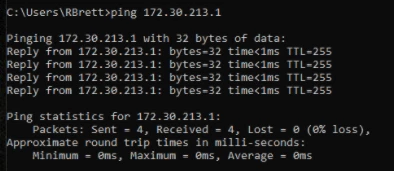
When the endpoint is unable to ping the FortiGate interface IP address, the next step is to determine if the endpoint is in the same broadcast domain using ipconfig /all. In some cases, the IP address must be assigned statically on the endpoint device if DHCP is not enabled on the FortiGate interface or when the endpoint is unable to connect to the internal DHCP server.
Connect to FortiGate via SSH through PuTTY as demonstrated below, ensuring that SSH is enabled on the management port:
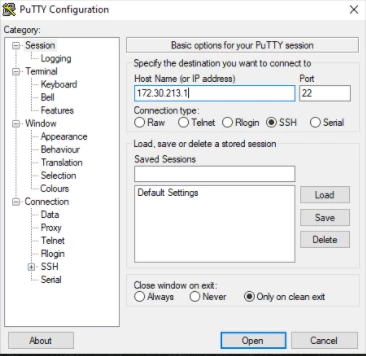
If SSH access is unsuccessful, then use the following article to access the FortiGate via console cable and move on to the next steps:
Technical Tip: How to connect to the FortiGate and FortiAP console port
- Interface settings. GUI access, HTTP, and/or HTTPS have to be enabled on the interface.
CLI commands:
config system interface
edit <interface name>
set allowaccess ping http https
end
- Trusted host configuration. If 'trusted hosts' are configured, the IP address of the computer used for the GUI access must be allowed as a trusted host. A whole subnet can be allowed as a trusted host. By default, trusted host settings are not configured, and administrative access is not restricted to any specific user IP addresses. Sample trusted host configuration:
GUI: Define Trusted hosts by going to System -> Administrators.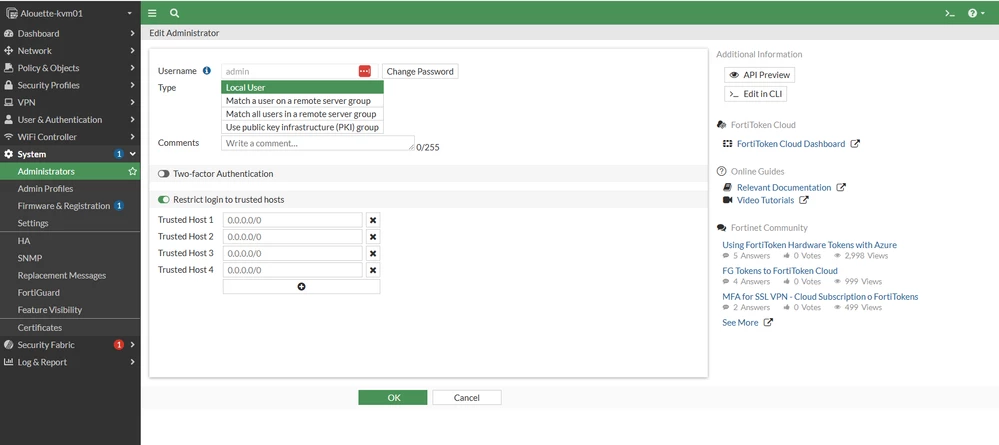
- See the inbound request: there is no reply.
- The debug flow will show the 'policy 0, drop'.
- It will not indicate anything about TRUSTED HOSTS.
- Debug HTTPS will not show any log.
diagnose sniffer packet any "host 10.1.1.10 and port 443" 4 0
port3 in 10.1.1.1.55826 -> 10.1.1.10.443: syn 3127611448
port3 in 10.1.1.1.55825 -> 10.1.1.10.443: syn 2440393440
Debug flow:
msg="iprope_in_check() check failed on policy 0, drop"
Check if trusted hosts are configured in all admin users, which is the case:
show sys admin
config system admin
edit "admin"
set trusthost1 10.1.7.0 255.255.255.0
set accprofile "super_admin"
...omit
next
end
Add the source IP as a trusted host:
config system admin
(admin) # edit admin
(admin) # set trusthost2 10.1.1.0/24
(admin) # show
config system admin
edit "admin"
set trusthost1 10.1.7.0 255.255.255.0
set trusthost2 10.1.1.0 255.255.255.0
next
- MTU along the path. After the first few synchronisation and handshake packets, the web admin GUI HTTP and HTTPS packets can become larger than 1500 bytes.
For example:
When a FortiGate network interface is connected to a network segment that supports such extended-size packets.
For Telnet or SSH, packets typically remain of a smaller size.
To then be able to use the web admin GUI, the fragmentation must be allowed at certain points in the network infrastructure (points where a jumbo frame reaches a network segment that does not support it), or jumbo frames must be allowed along the whole communication path.
Note about Jumbo frames: Jumbo frames are packets that are larger than the standard 1500 maximum transmission unit (MTU) size. Jumbo frames increase data transfer speeds by carrying more data per frame, reducing the overhead from headers.
All networks that carry jumbo frames must have network units that all support jumbo frames. Otherwise, jumbo frames will be dropped when they reach network devices that do not support them.
- Admin access ports. By default, for admin login via GUI, the HTTPS port is configured to 443 and the HTTP port to 80.
If those default settings are changed, access to the GUI will not be possible without specifying the custom port used at the end of the URL. To verify which HTTPS/HTTP ports are configured for admin access:
show full | grep admin-port
set admin-port 8080 <-- The ports were changed from the default.
show full | grep admin-sport
set admin-sport 8443 <-- The ports were changed from the default.
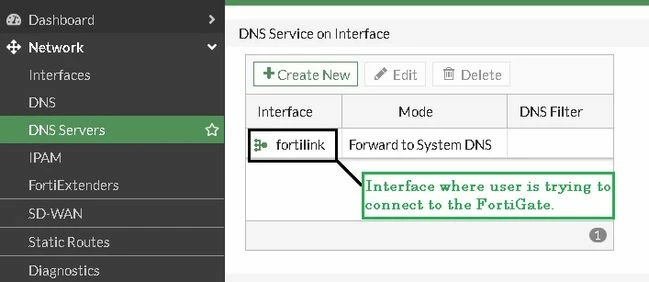
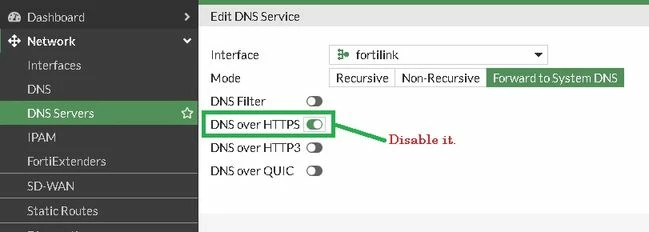
CLI Reference:
config system dns-server
edit "fortilink" <-- It can be any FortiGate Interface where the user is trying to log in.
set doh disable <--
next
end
If the default ports have been changed, consider directly accessing the GUI using the specific port that is currently defined: http(s)://<address_of_appliance>:<custom port>.
For example: http://192.168.0.101:222, where 222 is the non-default port used to access the GUI via HTTP. If the ports need to be changed to a new value or the default value, use the following syntax for HTTP access:
config system global
set admin-port <integer>
end
- The existing virtual IP is overriding the admin HTTP or HTTPS ports.
When a Virtual IP (VIP) has the same IP address as the FortiGate interface and forwards the same ports used for HTTP/HTTPS access (example 80 or 443), the VIP will override the administrative access.
This should either be removed or changed such that it does not overlap with FortiGate HTTP/HTTPS ports. This can be verified by checking the VIP list on FortiGate (Policy & Objects -> Virtual IPs) or running the debug flow.
Troubleshooting:
The sniffer will show that the INBOUND request has been forwarded to another IP.
HUB01 # diagnose sniffer packet any "host 192.168.247.1 and port 443" 4 0 a
port2 in 192.168.247.1.57530 -> 192.168.247.20.443: syn 174545504
port4 out 192.168.247.1.57530 -> 10.255.255.11.443: syn 174545504 <-- Same Source IP and Same Source Port.
A debug flow will show the traffic matches a VIP:
diagnose debug reset
diagnose debug flow filter clear
diagnose debug flow show function-name enable
diagnose debug flow show iprope enable
diagnose debug flow filter saddr 192.168.247.1 <--Adjust to the source IP of the testing PC.
diagnose debug flow filter daddr 192.168.247.20 <-- Adjust to the GUI FortiGate IP.
diagnose debug flow filter dport 443 <-- Adjust the port if it is not the default port.
diagnose debug console timestamp enable
diagnose debug flow trace start 1
diagnose debug enable
Among all the lines it will receive on the DEBUG, the following will appear in the first lines:
msg="find DNAT: IP-10.255.255.11, port-0(fixed port)"
This indicates there is a VIP matching the request. Check the VIPs on the GUI under Policy & Objects -> Virtual IPs.
- Check if any local-in policy is configured to deny access to the related interface.
config firewall local-in-policy
show full
edit 1
set intf "wan1"
set srcaddr "all"
set srcaddr-negate disable
set dstaddr-negate disable
set action deny
set service "HTTPS"
set service-negate disable
set schedule ''
set status enable
set comments ''
next
end
end
- If the issue happens after creating IPSEC DIAULUP VPN, check if ike-tcp port is changed to port 443 from the default port 4500. This should be checked if the firewall is on FortiOS v7.6.1 or later.
In v7.6.3, a warning will be presented to remind users that the HTTPS port conflicts with the ike-tcp-port.
- Restart the HTTPS Daemon: If none of the processes above fixed the issue, try restarting the HTTPS Daemon.
- Routing Issue: If there are two default routes to 0.0.0.0 with the same distance and priority (for example, 5), it will not be possible to access the GUI. To find default routes in the CLI, run 'get router info routing-table database | grep 0.0.0.0'.
- Change the distance for one route to 10 as an example.
- Now it should be possible to log in to the GUI, and it should not freeze or hang.
- Disable the setting: Retrieve the default Gateway from the server on the internal network interface.
- If trying to access FortiGate using the WAN interface, make sure that the route is active or valid in the routing table.
By default, TLS 1.1 and TLS 1.2 are enabled when accessing the FortiGate GUI via a web browser.
To verify what version is enabled, run the following commands:
config system global
get | grep 'min-proto'
-
HA Monitor Interface GUI Issue: The FortiGate can reach the GUI via a username/password from the local interface IP, like 192.168.1.99, but it cannot connect through other specified LAN interfaces using the same credentials. It is essential to verify if these interfaces are part of the HA Monitor interface, and if they are, eliminate them; additionally, create a specific interface for HA Monitor. It will enable user verification for GUI access.
Notes:
- When an interface is configured as an HA monitor, its primary purpose is to monitor the health and status of the HA cluster. This configuration may impose certain restrictions, such as limited management access.
- Access Restrictions: The HA monitor interface may not be set up to allow management access (for example, GUI access) because of its monitoring role.
-
VDOMs issue:
config global
config system global
get | grep 'min-proto'
To change this setting from the CLI:
config system global
set admin-https-ssl-versions (shift + ?) <- To list the available TLS version.
tlsv1-0 TLS 1.0.
tlsv1-1 TLS 1.1.
tlsv1-2 TLS 1.2.
set admin-https-ssl-versions tlsv1-2 <- With this setting, only TLS 1.2 is allowed.
end
From v6.4, tlsv1-0 is no longer supported and instead, tlsv1-3 was introduced:
config system global
set admin-https-ssl-versions
tlsv1-1 TLS 1.1.
tlsv1-2 TLS 1.2.
tlsv1-3 TLS 1.3.
end
-
ACME listening port conflict (TCP 80 & TCP 443): If the FortiGate GUI admin is listening to the WAN interface, which is also the ACME listening interface, then it is necessary not to use the default (TCP 80/443) port for the GUI management.
config system acme
set interface "wan1" <-----
end
config system interface
edit "wan1"
set allowaccess ping https ssh http telnet fgfm <-----
next
end
-
The default IKE-TCP port value of 443 applies only to new FortiGate configurations running FortiOS 7.6.1 or later. When upgrading to FortiOS 7.6.1 or later, the pre‑existing ike‑tcp‑port setting is preserved. If both the ike‑tcp‑port and the administrative port are set to 443, the administration page cannot be accessed through the interface where the IPsec tunnel terminates. To resolve this, enable administrative GUI access on a different interface or change the administrative port.
-
Banned cipher suite: Administrators can configure the system to block or disable weak ciphers for SSH and HTTPS connections. However, if the cipher suite used by the web browser to establish the HTTPS session is disabled, access to the web-based management interface (web GUI) will be blocked:
config system global
set admin-https-ssl-banned-ciphers <>
If the admin-https-ssl-banned-ciphers set, try to unset or change the banned only weak cipher encryption. Here are the specific cipher suites supported by each TLS version: FortiGate encryption algorithm cipher suites
-
Traffic not Reaching FortiGate: If packets are not reaching the web server or interface, or responses from the web interface are not transmitted back to the user, it will not be possible to access the GUI. To verify, run a packet capture via CLI and see how the TCP handshake is made and if follow-up packets are visible.
The command is:
diagnose sniffer packet any 'port 8443' 4 0 a <------ Replace the port if the web interface is reachable via a different port.
Filters, adding a host IP, if the connecting IP is known, can be added:
diagnose sniffer packet any 'host 192.168.48.2 and port 8443' 4 0 a
Example output:
FGT# diagnose sniffer packet any 'port 8443' 4 0 a
Using Original Sniffing Mode
interfaces=[any]
filters=[port 8443]
2024-08-28 16:36:30.527027 port1 in 192.168.48.2.56662 -> 10.191.19.1728443: syn 1919112407
2024-08-28 16:36:30.527238 port1 out 10.191.19.1728443 -> 192.168.48.2.56662: syn 3263049518 ack 1919112408
2024-08-28 16:36:30.527648 port1 in 192.168.48.2.56662 -> 10.191.19.1728443: ack 3263049519
Legacy (for v5.6 and above only). admin-server-cert (for v5.6 and above only).
Enable the following debug and try to access the GUI again:
diagnose debug application httpsd -1
diagnose debug enable
-
Blank GUI page due to high CPU or memory usage: If the GUI opens with a blank (white) screen and no error message, such as connection refused or timeout, check system CPU and memory utilization. When CPU or memory is high due to the httpsd process, the httpsd process may accept connections but fail to render the GUI. If httpsd shows high usage, restart it as described in point 8. Verify this using the command below:
diagnose system top
In some cases, CPU and memory usage remain stable, but the GUI page is blank. This behavior is often caused by continuous brute-force login attempts. To verify if there are multiple attempts, run the following command:
diagnose alertconsole list | grep login
To address this issue, disable HTTPS access on the Public Interface if it is not needed and/or apply security hardening for admin access. Refer to the following article: Technical Tip: Hardening best practices: Secure network and devices.
- Two different interfaces with IP address assigned in the same subnet on same VDOM: If two different interfaces are assigned IP in the same network in the same VDOM, it can create issues with intermittent GUI access. It is recommended to avoid assigning IP in same network to two different interfaces. This will only occur when subnet overlap is allowed (allow-subnet-overlap is enabled) as described in Technical Tip: Enable subnet overlap to set IP addresses of multiple interfaces in the same subnet.
- The GUI certificate might have expired. Check the certificate below to make sure it is valid:
config system global
set admin-server-cert <new_cert>
end
- The FortiGate GUI cannot be accessed after upgrading to FortiOS 7.6.1, 7.4.8, or 7.2.11 if the admin server certificate is using an RSA key of less than 2048 bits: GUI cannot be accessed when using a server certificate with an RSA 1024 bit key.
Related documents:
- Steps to enable remote management
- Configuring Administrator access to a FortiGate unit using Trusted Hosts
- Troubleshooting Tip: debug flow messages 'iprope_in_check() check failed, drop' - 'Denied by forward policy check' - 'reverse path check fail, drop'
- GUI warnings for IKE-TCP port conflicts
- Technical Tip: Restoring a configuration causes HTTP/HTTPS access failure
- Technical Tip: The GUI access on the SD-WAN or ECMP interface is lost after upgrading to v7.4.1, v7.4.2 or v7.4.3
- Technical Tip: FortiGate GUI stops loading after firmware upgrade to FortiOS v7.6.3 or v7.6.4
- Technical Tip: In FortiOS 7.6.4 and later, administrator web authentication is handled by the http_authd process

