


Technical Tip: Resetting a lost admin password
Description
This article describes the situation where the FortiGate needs to be accessed or the admin account’s password needs to be changed, but no one with the existing password is available. This article describes resetting the admin password on version 7.2.3 and below using the 'maintainer' account and on version 7.2.4 and above using an alternate method.
Warning: This procedure will require rebooting the FortiGate.
Scope
FortiGate.
Solution
Using the 'Maintainer' account: For version 7.2.3 and below.
Prerequisites:
A console cable.
Terminal software such as PuTTY.exe (Windows) or Terminal (macOS).
The serial number of the FortiGate.
Procedure:
Step 1: Connect the computer to the firewall via the Console port on the back of the unit. In most units, this is done either by a Serial cable or an RJ-45 to Serial cable. Some units use a USB cable and FortiExplorer to connect to the console port.
Resetting a lost admin password for the VMs using the maintainer account is not possible. However, resetting the admin password with the maintainer account works for the firewall with the Azure VM.
In this case, reverting to a snapshot or re-provisioning the VM and restoring the configuration (without a password for the admin account) is the only solution.
But resetting the Admin password for the VMs in Azure and AWS can be done as shown in the link at the bottom.
Step 2: Start the terminal software.
Step 3: Connect to the firewall using the following:
Setting - Value.
SpeedBaud - 9600.
Data Bits - 8 bits.
Parity - None.
Stop Bits - 1.
Flow Control - No Hardware Flow Control.
COM Port - the correct COM port.
Step 4: The firewall should then respond with its name or hostname. (If it does not, try pressing 'Enter').
Step 5: Reboot the firewall. If there is no power button, disconnect the power adapter and reconnect it after 10 seconds. Plugging in the power too soon after unplugging it can cause corruption in the memory in some units.
Step 6: Wait for the Firewall name and login prompt to appear. The terminal window should display something similar to the following:
FortiGate (08:52-08.16.2024)
Ver:04000010
Serial number: FGTxxxxxxxxxxxxx
CPU(00): 525MHz
Total RAM: 512 MB
NAND init... 128 MB
MAC Init... nplite#0
Press any key to display configuration menu...
......
reading boot image 1163092 bytes.
Initializing firewall...
System is started.
login:
Step 7: Type in the username 'maintainer'.
Step 8: The password is bcpb + the serial number of the firewall (the letters of the serial number are in uppercase format). For example, bcpbFGT60C3G10xxxxxx.
Note: On some devices, after the device boots, only an entry window of 14 seconds or less is available to type in the username and password.
It might therefore be necessary to have the credentials ready in a text editor to copy and paste into the login screen.
There is no indicator of when the time runs out, so it may take more than one attempt to succeed.
Step 9: A connection to the firewall should be established. To change the admin password, type the following:
In a unit where VDOMs are not enabled:
config system admin
    edit admin
        set password <new password>
end
In a unit where VDOMs are enabled:
config global
    config system admin
        edit admin
            set password <new password>
end
If a user has deleted the default 'admin' account and has another super_admin profile account, then using this method, the super_admin profile admin user password can also be reset. Usually shows an error like the one below if trying to edit the admin:

config system admin
    edit ?
        name    User name
        sadmin
    edit sadmin
        set password <new password>
end
edit ? <----- Will show all the super_admin accounts.
sadmin <----- The username that the firewall has for a super_admin account.
If the FortiGate is running v6.0.3 or above, enter the following command to reset the FortiGate to its factory default configuration.
This can be useful if the administrator account has been deleted.
execute factoryreset
Note: The maintainer account is not available if FortiOS is running in FIPS-CC mode. In FIPS-CC mode, physical and console access is tightly locked down, and password recovery or admin access follows strict certified guidelines rather than relying on the standard maintainer account.
Warning: Some users may be concerned that this process offers a backdoor into the system.
The maintainer feature/account is enabled by default, but there is an option to disable it. However, if the feature is disabled and the password is lost without any users who can log in as a super admin profile administrator, there will be no options available to access FortiGate.
If 'PASSWORD RECOVERY FUNCTIONALITY IS DISABLED' shows on the console while attempting to access the maintainer account, the maintainer account has been disabled.
To disable the maintainer feature/account, run the following command in the CLI:
config system global
    set admin-maintainer disable
end
To enable it:
config system global
    set admin-maintainer enable
end
In case of an HA cluster:
The process to reset a lost admin password should consider the following steps.
Turn off the secondary unit, and unplug the cables from the same secondary unit. At this point, the user can use the maintainer user account as described at the beginning of this document, then change the admin password (the device password recovery done should be primary again), and it will sync with another cluster member.
Alternative method: For v7.2.4 and above.
Starting with v7.2.4, the 'maintainer' account is removed, meaning this method to reset a password will no longer work. For v7.2.4 and above, where the maintainer account is no longer available, follow these steps to reset the admin password:
See the FortiOS v7.2.4 Release Notes: Changes in default behavior.
Prerequisites:
Recent working configuration backup of the FortiGate.
Notepad++ or any text-comparing tool.
Console access to the FortiGate.
Maintenance Window.
Step 1:
Edit the existing configuration using Notepad++.
Turn on the YAML by selecting Language -> YAML from the main menu. This will help collapse the configuration.
Search for 'config system admin' and select the '-' symbol in the 'config gui-dashboard' line to collapse the gui-dashboard configuration.
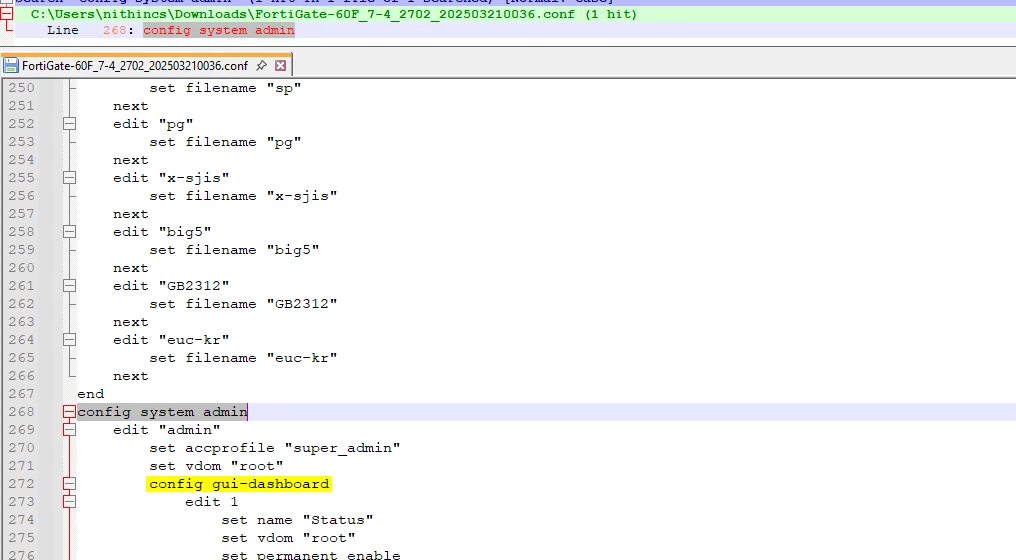

Delete the 'set password' line from the configuration and save the file as a new file with a .conf extension.
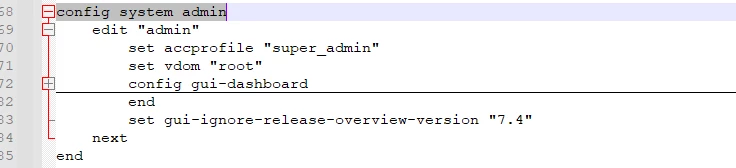
Note: When the backup file is exported, it will be possible to see the super_admin accprofile in the results of the 'config system admin' command. However, the results of the 'config system accprofile' command will not show the super_admin accprofile, as it is device-specific.
Administrator accounts with the super_admin profile will not appear in a configuration file if the file is exported by an admin with a lower privilege profile. In this case, the admin account will be missing and must be added manually to the configuration file.
For more information, refer to this article Technical Tip: Admin cannot see super-admin profile when create another Admin user.
Step 2:
Do a flash format of the device and load the same firmware version as the one in the existing configuration backup.
Refer to Technical Tip: Formatting and loading FortiGate firmware image using TFTP.
Alternately, some FortiGate models can reset to default configuration using external button. Refer to Technical Tip: How to reset to Factory Default configuration using external button.
Step 3:
Access the device with the default management address 192.168.1.99 and log in to the device using the default credentials: username: admin/password: <no password>.
Upload the modified configuration file to the FortiGate.
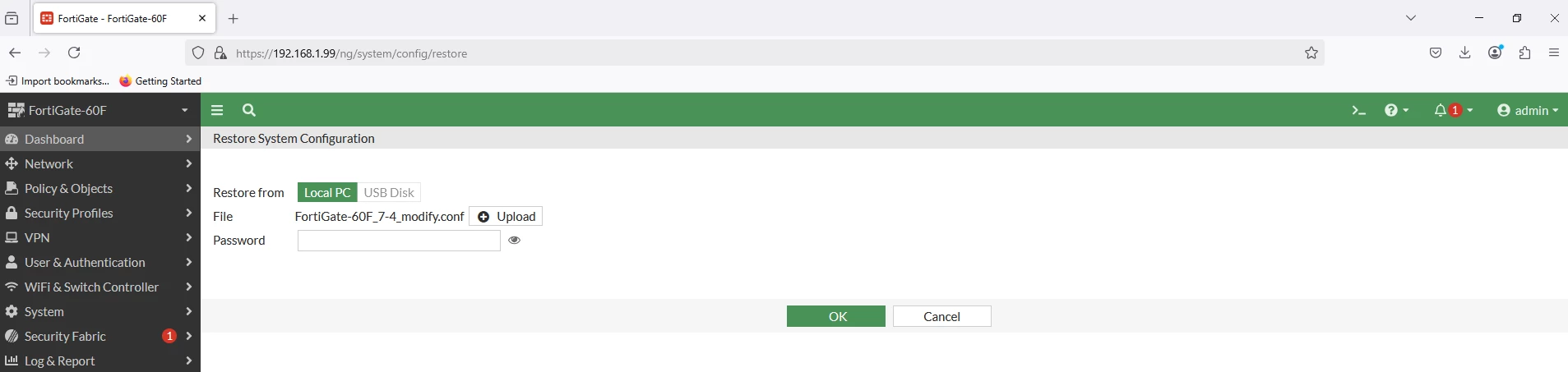
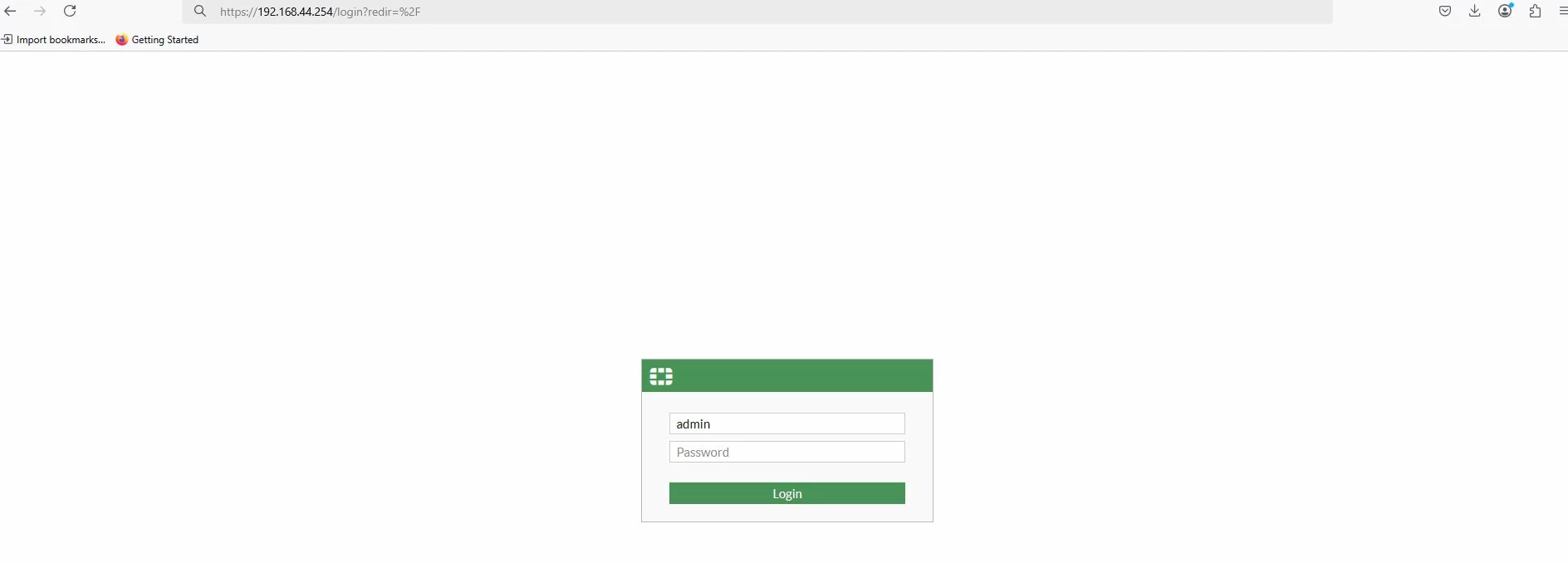
The device will be rebooted and will be accessible with the previously configured management IP. Log in to the device using the default credentials: username: admin/password: <no password>. Post-login, reset the admin account password.
Additional info:
If having access to the firewall with another 'super_admin' and want to reset the 'admin' account password that has been lost/forgotten, follow the steps below:
Take a config backup with the existing logged-in 'super_admin'.
Under account admin, remove the whole line of 'set password ENC ---whatever hash----' and prepare the configs like below: config system admin:
    edit "admin"
        set accprofile "super_admin"
        set vdom "root"
    next
end
Restore the config from the existing logged-in 'super_admin'. After rebooting, it will prompt to set the password, and it is possible to set the new password.
Once logged into the FortiGate with the maintainer account (as described below), if the FortiGate is running v6.0.3 or later, enter the 'execute factoryreset' command to return the FortiGate to its default configuration.
This can be useful if the administrator account is deleted.
In newer versions of the BIOS, expect some changes to the behavior of the maintainer account. These changes will include:
The countdown timer for how to log in has increased. Starting from when the device powers up, there will be 60 seconds instead of 30.
Using the maintainer account and resetting a password causes a log to be created, making these actions traceable for security purposes.
The account will be able to reset the password for any super-admin profile user in addition to the default admin user. This takes into account the possibility that the default account has been renamed.
The only thing the maintainer account has permission to do is reset the passwords of super-admin profile accounts.
If the maintainer is no longer supported by FortiGate and there is an existing copy of the backup configuration, resetting the admin password is still possible by following this article: Technical Tip: How to restore the default admin account.
Additional info:
The admin password can also be recovered if the FortiGate has a 'FortiGate Cloud paid Subscription' and is currently connected/managed on FortiGate Cloud: Technical Tip: Reset FortiGate admin password via FortiGate Cloud.
The admin password can also be recovered for the FortiGate VM in Azure: Technical Tip: Guide to Resetting Azure FortiGate-VM Password via Azure Cloud Shell and GUI.
The admin password can also be recovered for the FortiGate VM in AWS: Technical Tip: AWS FortiGate Password Recovery.
Note: The maintainer account, which allowed users to log in through the console after a hard reboot, has been removed. For security reasons, users who lose the password must have physical access to the FortiGate and perform a TFTP restore of the firmware in order to regain access to the FortiGate. Find additional information at the following link: Remove maintainer account.
Related documents:
Remove maintainer account 7.2.4
Installing firmware from system reboot
Reset FortiGate admin password via FortiGate Cloud
Technical Tip: Guide to Resetting Azure FortiGate-VM Password via Azure Cloud Shell and GUI
Technical Tip: AWS FortiGate Password Recovery
Technical Tip: Recommendations and common scenarios for Administrator access on FortiGate
Technical Tip: Reset FortiGate admin password via FortiGate Cloud
