




Technical Tip: Local Reports
Description
This article describes steps to generate and analyze local reports.
Scope
FortiGate.
Solution
FortiGate devices that have disk storage can generate local reports. The FortiGate local report has a default template, and creating custom reports is not supported.
To verify the disk storage status, execute the command:
get sys status | grep disk
If the log hard disk status is available, then follow the steps below to enable the feature.
If the log hard disk is not available, the FortiGate Model is not supported for the Log Disk report; it is only possible to get it from FortiGate Cloud or FortiAnalyzer with a paid license: Reports.
On the FortiGate GUI (FortiOS v7.2.3 and below):
- Go to System -> Feature Visibility. Enable Local Reports and select 'Apply'.
- Go to Log & Report -> Log Settings and make sure 'Enable Local Reports' is enabled.
It can also be enabled from the CLI with the following commands:
config report setting
set pdf-report enable
end
config system setting
set gui-local-reports enable
end
Note: In the VDOM environment, enter VDOM with the following commands:
config vdom
edit <name of vdom>
- To generate reports, go to Log & Report -> Local Reports -> Generate Now. The reports can be scheduled at the required times under Report Schedule.
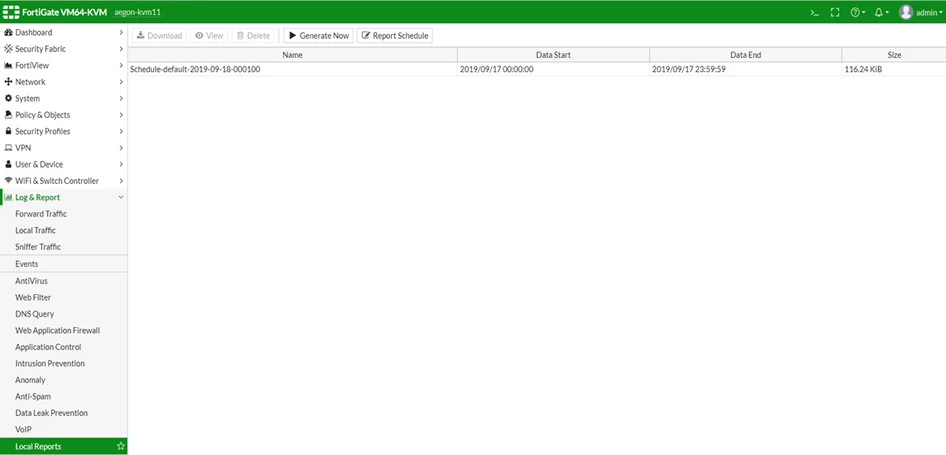
On the FortiGate GUI (FortiOS v7.2.4 and above), Local reports are visible by default. To enable Local reports:
- Go to Log & Report -> Log Settings -> Local Logs, and enable 'Local reports'.
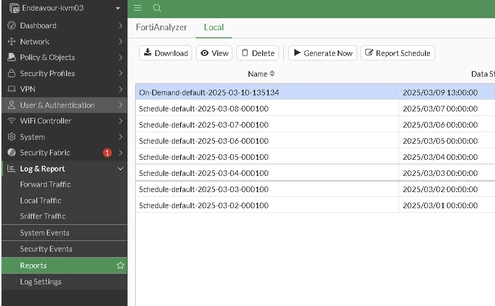
- Go to Log & Report -> Reports -> Local -> Generate Now.
It can also be enabled from the CLI using the following commands:
config report setting
set pdf-report enable
end
Note: This command is generally only available for models with internal log disks. Supported models are listed in:
- The reports can be scheduled at the required times under Report Schedule. It is also possible to enable 'Email Generated Reports' to receive reports via email.
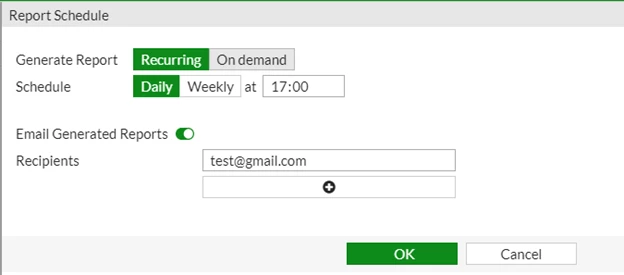
Note:
The Email Generated Reports option is available only if the email server and alert mail are configured. If the option is grayed out, refer to this article: Technical Note: How to enable 'Email Generated Reports' when the checkbox is grayed out.
Local Report Contents and Analysis:
To get the reports with all the details, use the respective UTM in the policy.
Example: If logs regarding websites are required, then Web Filter should be enabled in the firewall policy.
Report Contents:
- Bandwidth and Applications.
- Web Usage.
- Emails.
- Threats.
- VPN Usage.
- Admin Login and System Events.
FortiGate local reports are not customizable and can be scheduled for daily or weekly reports only.
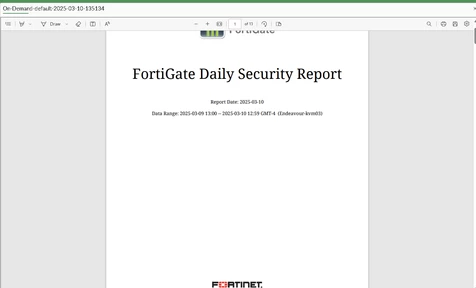
Reports can be viewed from the FortiGate: Log & Report -> Reports -> Local -> View.
Related articles:
Technical Note: How to enable 'Email Generated Reports' when the checkbox is grayed out
Troubleshooting Tip: Email Generated Reports button is grayed out

