



Technical Tip: Implicit deny logs
Description
This article describes how to generate logs for matches to the implicit deny policy, as well as a more specific alternative method to capture deny logs.
Scope
FortiGate.
Solution
While verifying the functionality of an implicit deny policy or a newly configured allow policy it is sometimes necessary to view logs for traffic that was denied.
By default, FortiGate will not generate the logs for denied traffic in order to optimize logging resource usage. In some environments, enabling logging on the implicit deny policy which will generate a large volume of logs.
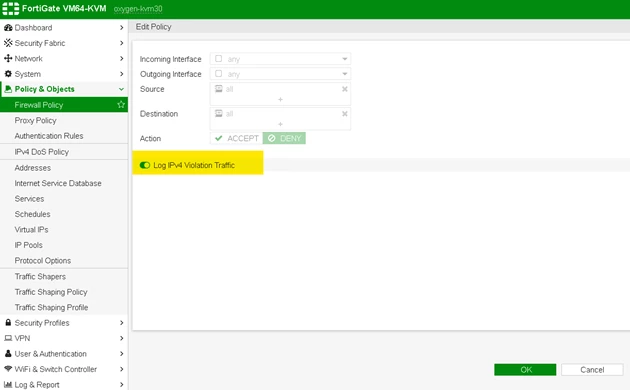
It is possible to enable the ‘Log IPv4 Violation Traffic’ under ‘implicit deny policy’.
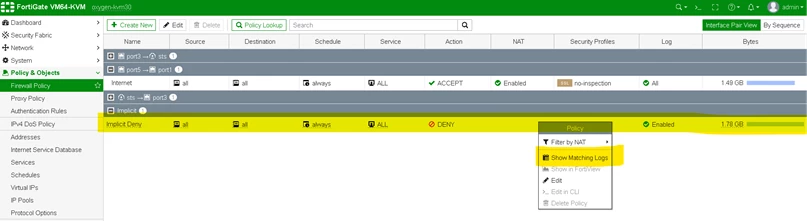
To view the logs: 'Right-click' on the Implicit Deny policy and select 'Show matching logs'.
Enabling logging for implicit-deny dropped sessions can also be done from CLI.
config log setting
set fwpolicy-implicit-log enable
end
Additionally, if the firewall administrator wants to receive alert emails when traffic matches a deny policy, configure alertemail with the following settings:
config alertemail setting
set violation-traffic-log enable
end
Alternative Method:
A 'Deny' policy below the intended 'Accept' policy can assist in logging interesting denied traffic, without needing to log all denied traffic.
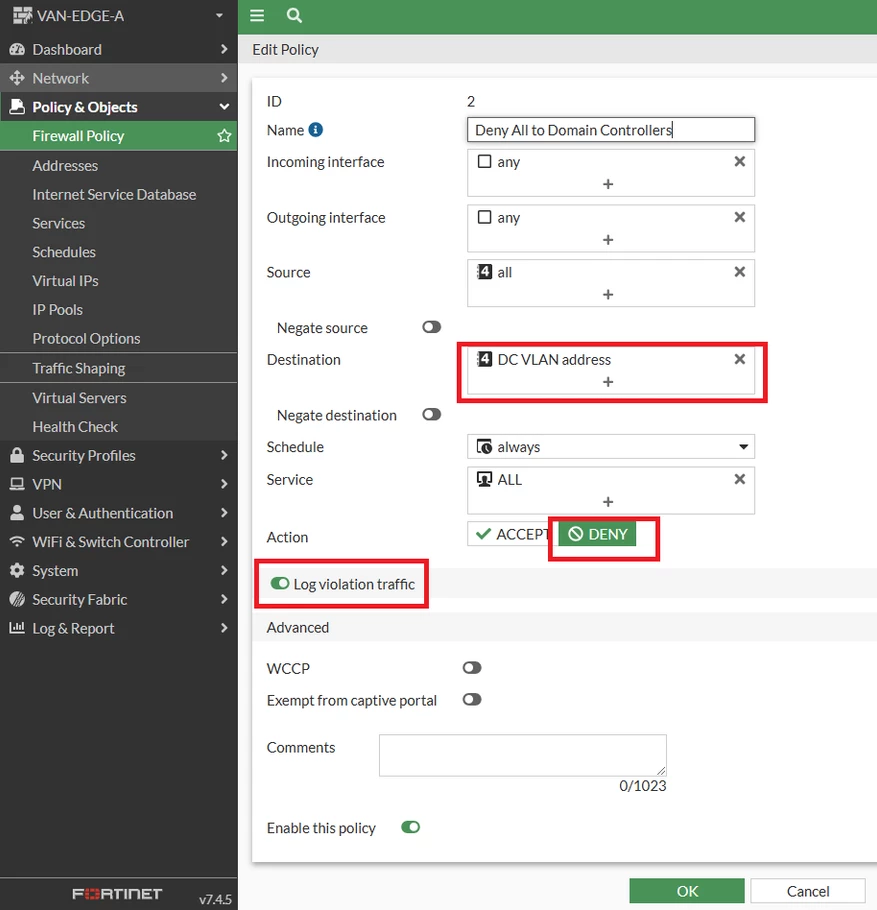
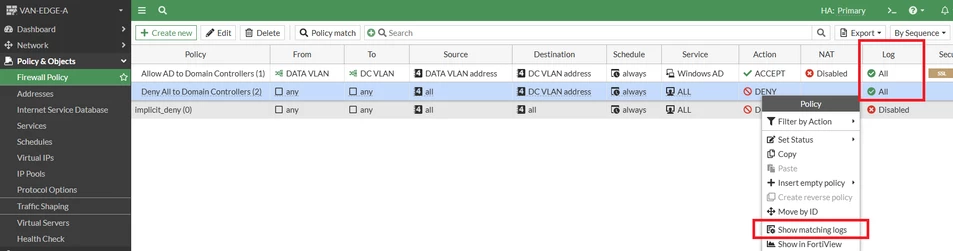
By only logging denied traffic with a destination IP address in the DC VLAN, the volume of deny logs is reduced. Viewing the logs is done in the same way as the implicit deny logs: 'Right-click' on Firewall Policy and select 'Show matching logs'.
Note:
If the policies in the FortiGate are managed by the FortiManager policy packages, logging for the implicit deny must be enabled in the FortiManager. To perform this change in FortiManager, select the implicit deny policy in the policy package.

Navigate to the Log column in the policy, 'right-click' on the 'No Log', and select the option 'Log IPv4 Violation Traffic'. Perform the policy package installation to push the configuration to the FortiGate.
