Technical Tip: Configure a virtual server
Description
This article describes how to configure a virtual server.
Scope
FortiGate.
Solution
From the GUI:
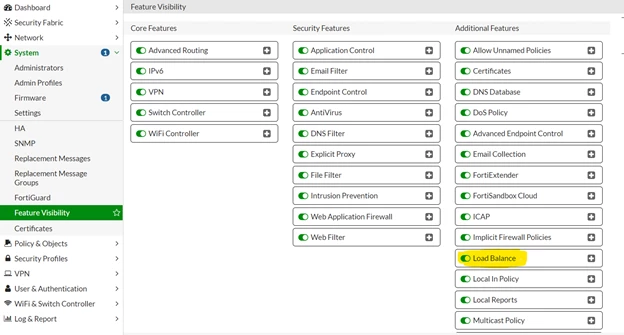
- Go to System -> Feature Visibility and enable 'Load Balance'.
- Go to Policy & Objects -> Virtual Servers and select 'Create New'.
The virtual server IP is an external IP. The real server is an internal IP address for load-balancing purposes. - Health Check can also be added from Policy & Objects -> Health Check.
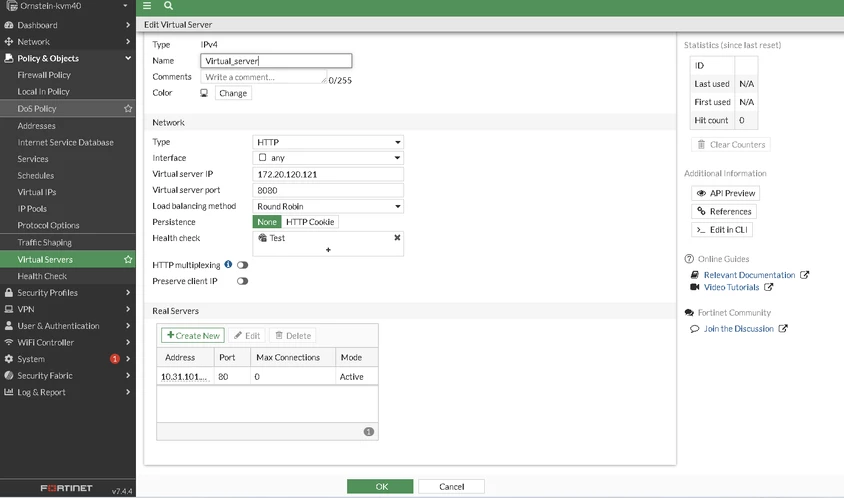
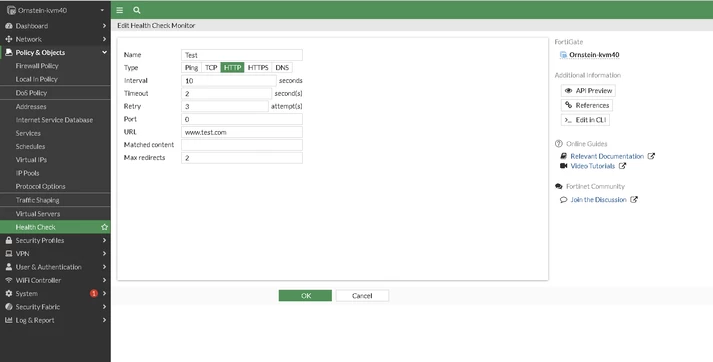
In a virtual server, a health check is used to monitor the members' availability in the real server pool. It tests whether an application is accessible by polling the servers. If a server fails the health check and retries also fail, it is considered unavailable, and traffic is disabled to that server. This helps ensure that only healthy servers receive connections, improving overall system performance.
-
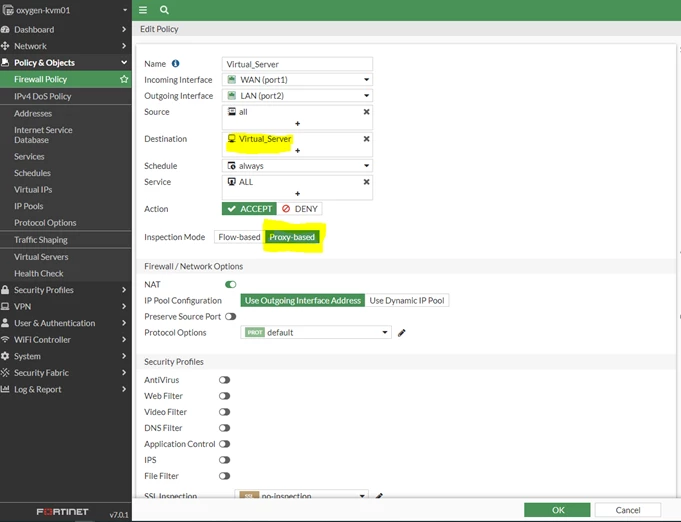
Go to Policy & Objects -> Firewall Policy and select 'Create New'.
Remember to change the inspection mode to 'proxy-based'. If this step is not taken, it will not be possible to find the 'object virtual_server' in the policy.
Note: If the option to change the inspection mode from flow-based to proxy-based is not visible, refer to the following article:
Technical Tip: Inspection mode option is not visible under Policy
Now, the virtual server will be working and will use load balancing for the internal server.
- Enable Load Balancing:
config system settings
set gui-load-balance enable
end
- Create a virtual server:
config firewall vip
edit "Vserver"
set type server-load-balance
set extip 172.20.120.121
set extintf "any"
set server-type http
set monitor "Test"
set ldb-method round-robin
set persistence http-cookie
set extport 8080
config realservers
edit 1
set type ip
set ip 10.31.101.30
set port 80
end
end
Ornstein-kvm40 (Test) # sh full
config firewall ldb-monitor
edit "Test"
set type http
set interval 10
set timeout 2
set retry 3
set port 0
set src-ip 0.0.0.0
set http-get "www.test.com"
set http-match ''
set http-max-redirects 2
end
Note:
If one or more real servers are located outside of the FortiGate network and connected through an IPsec tunnel, use the 'set src-ip' to specify a valid IP address that will be accepted over the tunnel.
- Add the virtual server to a policy as the destination address:
config firewall policy
edit 2
set name "Virtual_Server"
set inspection-mode proxy <- Inspection needs to be in Proxy mode.
set srcintf "wan"
set dstintf "LAN"
set srcaddr "all"
set dstaddr "Vserver"
set action accept
set schedule "always"
set service "ALL"
set utm-status enable
set ssl-ssh-profile "certificate-inspection"
set av-profile "default"
set fsso disable
set nat enable
end
set server-type https
set ssl-algorithm custom <- This can be set to low, medium, high, and custom.
set cipher TLS-ECDHE-RSA-WITH-CHACHA20-POLY1305-SHA256
next
edit 2
set cipher TLS-ECDHE-ECDSA-WITH-CHACHA20-POLY1305-SHA256
next
edit 3
set cipher TLS-DHE-RSA-WITH-CHACHA20-POLY1305-SHA256
- ICMP Protocol is often considered better than HTTPS for health checks of virtual servers because it is more resource-efficient, requiring less processing power since it only verifies network reachability.
- It is simpler, focusing solely on network connectivity without the complexities of SSL handshakes or HTTP requests.
- It is faster, avoiding the overhead of establishing secure connections, which makes it suitable for frequent checks.
- ICMP has lower overhead overall, reducing the load on both client and server during continuous monitoring.
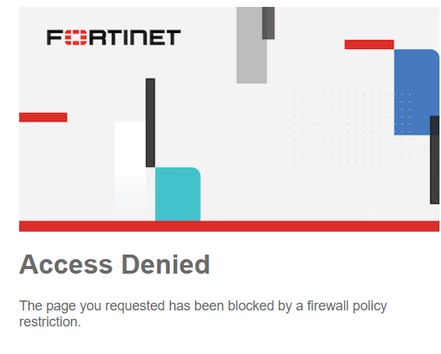
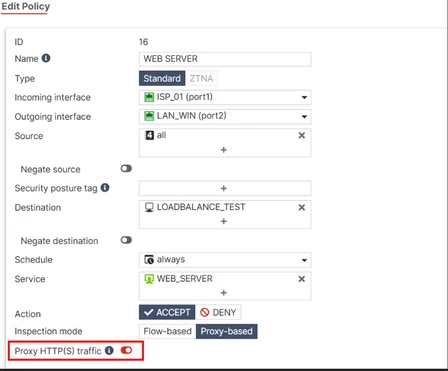
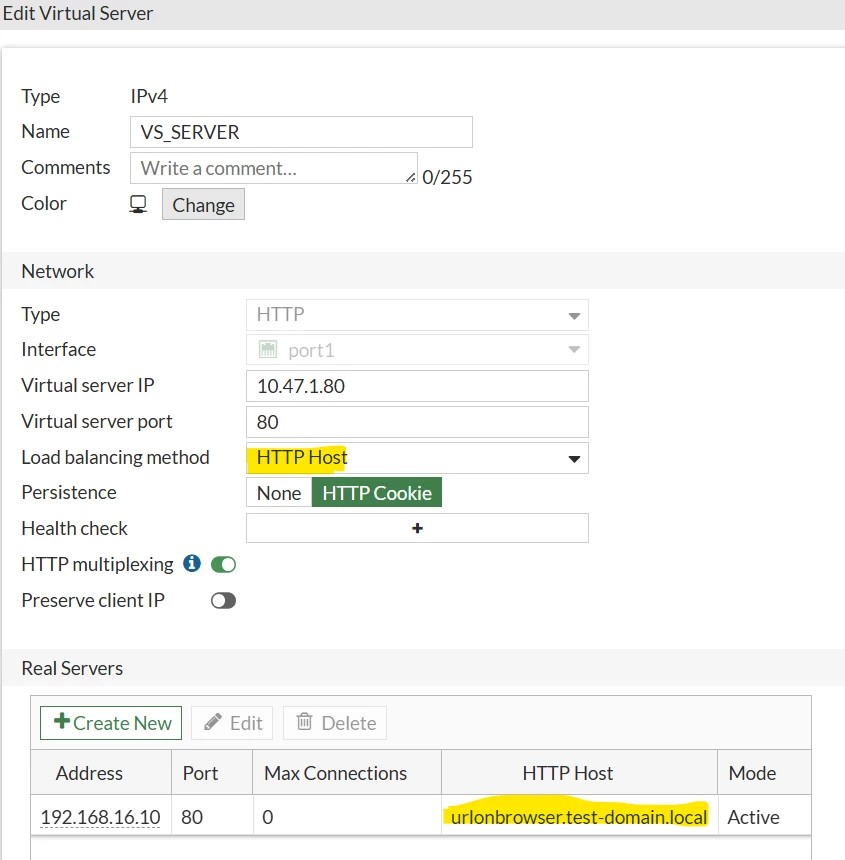
Another reason for the block page is the difference in URL used on the browser compared to the configured Real Servers HTTP Host value.
Information about Virtual Servers can also be viewed in the GUI under Monitoring -> Load Balance Monitor.
The Load Balance Monitor (which provides health check results) should be verified.
If the monitored real servers are shown as down due to health-check failures, the error page may still be displayed, even when the packet capture shows a complete traffic flow.
Related documents:
Technical Tip: Round-robin virtual server load balancing method
Technical Tip: Configuring Virtual server with two real servers when central NAT is enabled
Proxy-related features not supported on FortiGate 2 GB RAM models
Technical Tip: Recommended configuration for HTTPS Virtual Server with deep inspection