

Technical Tip: Schedule Resync Interfaces for multiple Inventory devices
Description
This article describes the function of the 'Resync Interfaces' option in FortiNAC and how to create a schedule to run it periodically.
Scope
FortiNAC.
Solution
The 'Resync Interfaces' option will have FortiNAC read and update port status information from the modeled device in inventory. This provides accurate representation of a device's interfaces in FortiNAC.
In many cases, Network administrators may perform various changes in the network infrastructure such as creating new SSIDs, performing link aggregation on specific ports which will be incoherent to the current representation that FortiNAC may have for that device.
In such cases, manually performing a resync of interfaces will update the changes and reflect them in FortiNAC.
However, there are separate teams/admins in many environments who manage FortiNAC and specific network devices changes. The changes applied on the network might not be properly tracked, leading to conflicts with FortiNAC operation on the specific ports during terms of polling or enforcing control.
Configuration
- Put the required devices in the 'Device Interface Status' if they were not automatically added there after discovery or if they were manually removed for any reason.
Go to Inventory in the GUI, then select the device and open the context menu. Select 'Group membership' and enable the 'Device Interface status'.
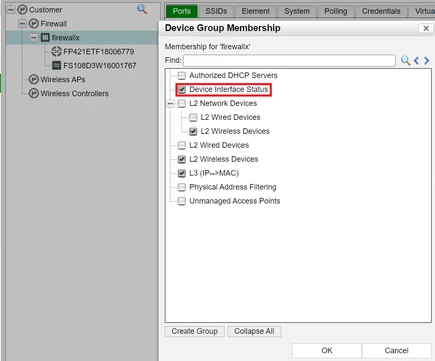
When the devices are part of the 'Device Interface status', this group can be leveraged in conjunction with the task scheduler to periodically update the interface status for each device in the group.
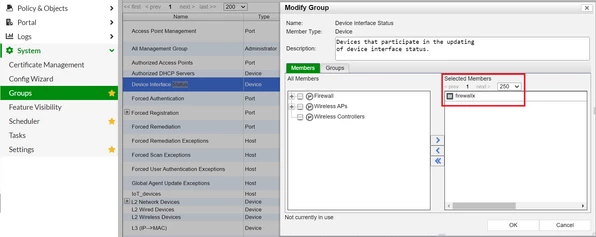
- Verify the Devices which are members of this group.
Go to System -> Groups -> 'Device Interface status'.
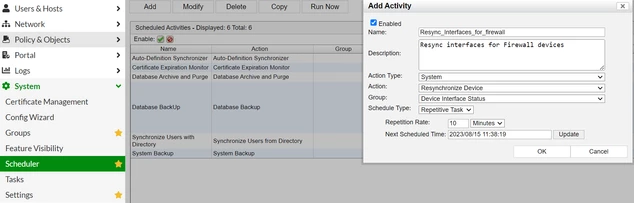
- Create a Task to Resync Interfaces every 10 minutes.
Normally, this will be set to occur every day or every seven days in order to prevent the generation of unnecessary traffic, depending on the environment and number of devices.
Go to System -> Scheduler and select 'Add' to create a new task.
Make sure the 'Device Interface Status' group is selected. Select 'Update' in the Next scheduled Time to have it automatically populated depending on the set 'Repetition Rate'.
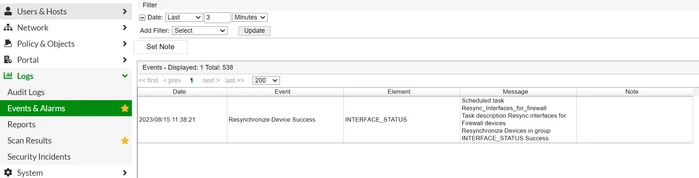
- Verify the Resync has been performed.
Go to Logs -> Event & Alarms -> Events. Select 'update' after setting the needed filter to be presented with the events.
Related documents:
Related articles:
- Troubleshooting Tip: Port descriptions in the GUI do not update.
- Troubleshooting TIp: Newly added SSID does not appear in topology.
- Troubleshooting Tip: Port operational status mismatch.
- Troubleshooting Tip: Administrative statuses of switch ports do not update based on SNMP Link State Traps.
- Troubleshooting Tip: Cannot see hosts connected to upgraded switch or router.