


Technical Tip: API requests by using the API token authentication method with Postman
Description
This article describes how to send an API request by using an API token over the request URL as an authentication method with Postman. There are three types of requests for authentication, which are Request URL, Request Body, and Request Headers.
If the username/password as the authentication method is used without a proper logout from each of the logins, it will fill up the login session for each API login request until the limit is reached, whereupon the device will deny the next login request. To avoid this issue, it is recommended to use an API token instead. The API token is also referred to as the API key in this context.
REST API administration using the token authentication method is introduced in FortiManager/FortiAnalyzer version 7.2.2 and above.
Scope
FortiManager/FortiAnalyzer.
Solution
In FortiManager:
GUI Method:
Create the REST API admin under System Settings -> Administrators -> Create New -> REST API Admin.
Generate the API key, edit the REST API admin that has just been created (for example, restapi_admin), and re-generate the API key. The generated API key is used to authenticate API requests from Postman.
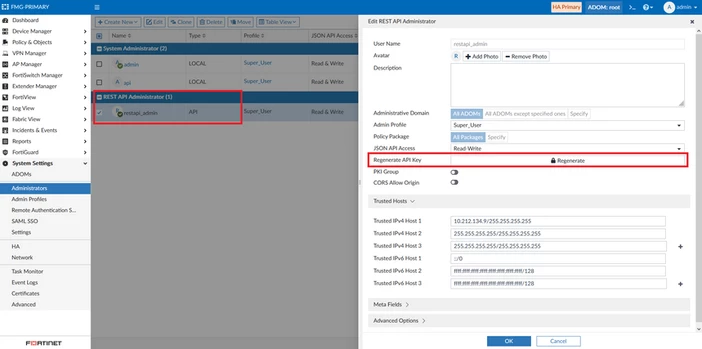
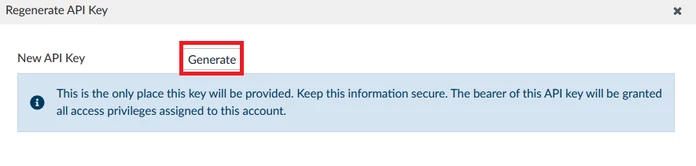
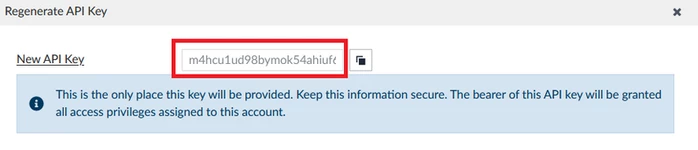
When using an API key as the authentication method, the trusted host must be provided to allow the source IP address.
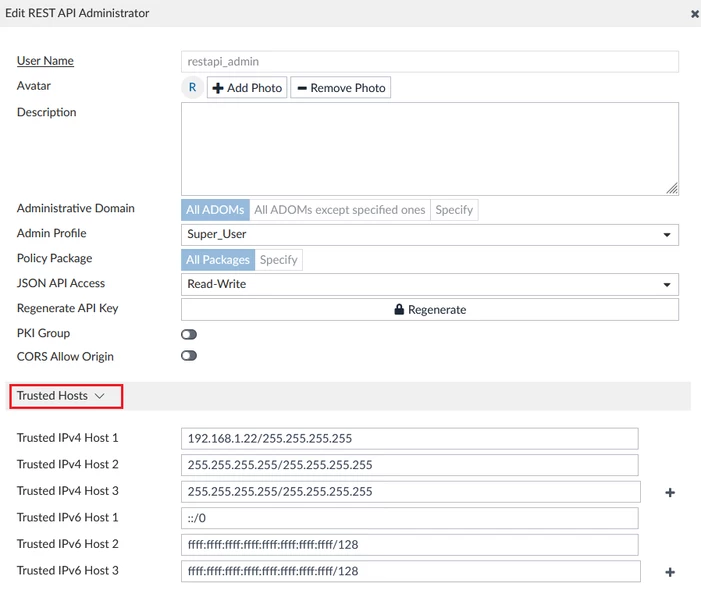
CLI Method:
To create the REST API admin using SSH or the console CLI, run the following configuration:
config system admin user
    edit <username>
        set trusthost1 <source subnet> <mask>
        set profileid "Super_User"
        set user_type api
        set rpc-permit read-write
    next
end
Use the same CLI command to re-generate the API key:
execute api-user generate-key <API username>
For example:
execute api-user generate-key restapi_admin
New API key: m4hcu1ud98bymok54ahiuf646gepnekm
In Postman:
In Postman, the sending URL can be configured as follows. The variable {{host}}will be the FortiManager/FortiAnalyzer IP address, while {{api-key}}will be the API key obtained from the steps above in the FortiManager/FortiAnalyzer.
Two methods can be used. One uses the Authorization HTTP header (and is recommended), while the other uses the URL query string. The Authorization HTTP header method is recommended as it is more secure, and the URL query string method is not available anymore as of v7.4.7 and v7.6.2.
Legacy method – URL query parameter.
Passing the API key using ?access_token=<API_KEY> is not supported in FortiManager v7.4.7, or in v7.6.2 and above. Use the Authorization: Bearer <API_KEY> header instead.
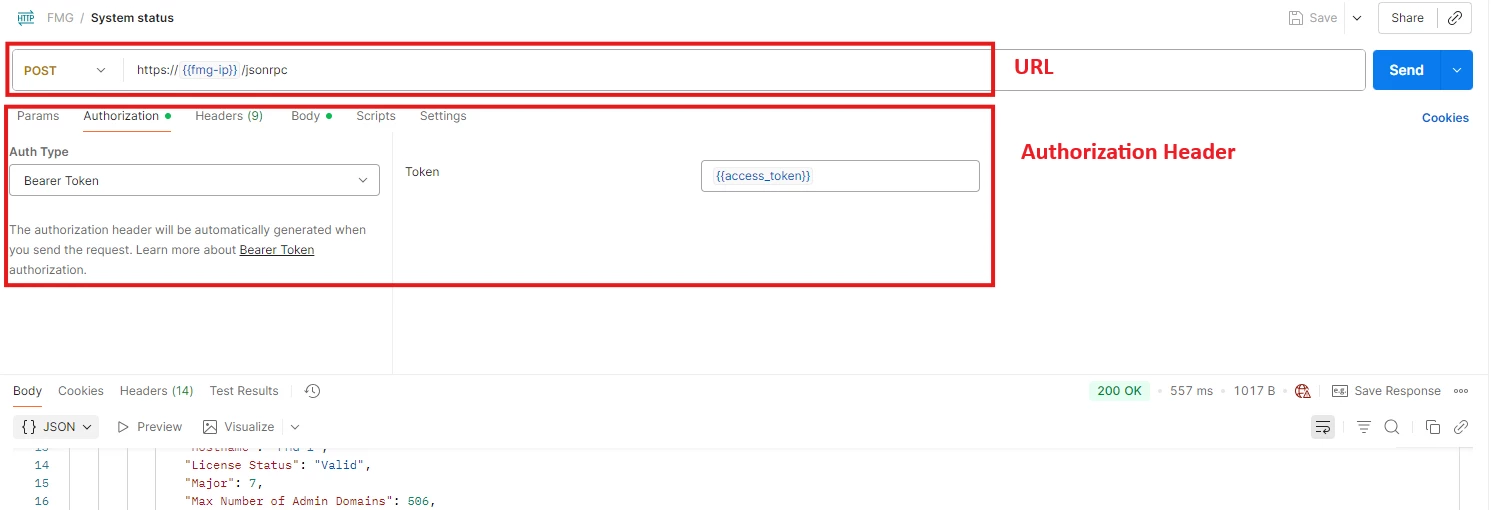
Method 1: Using Authorization HTTP header (recommended):
POST method:
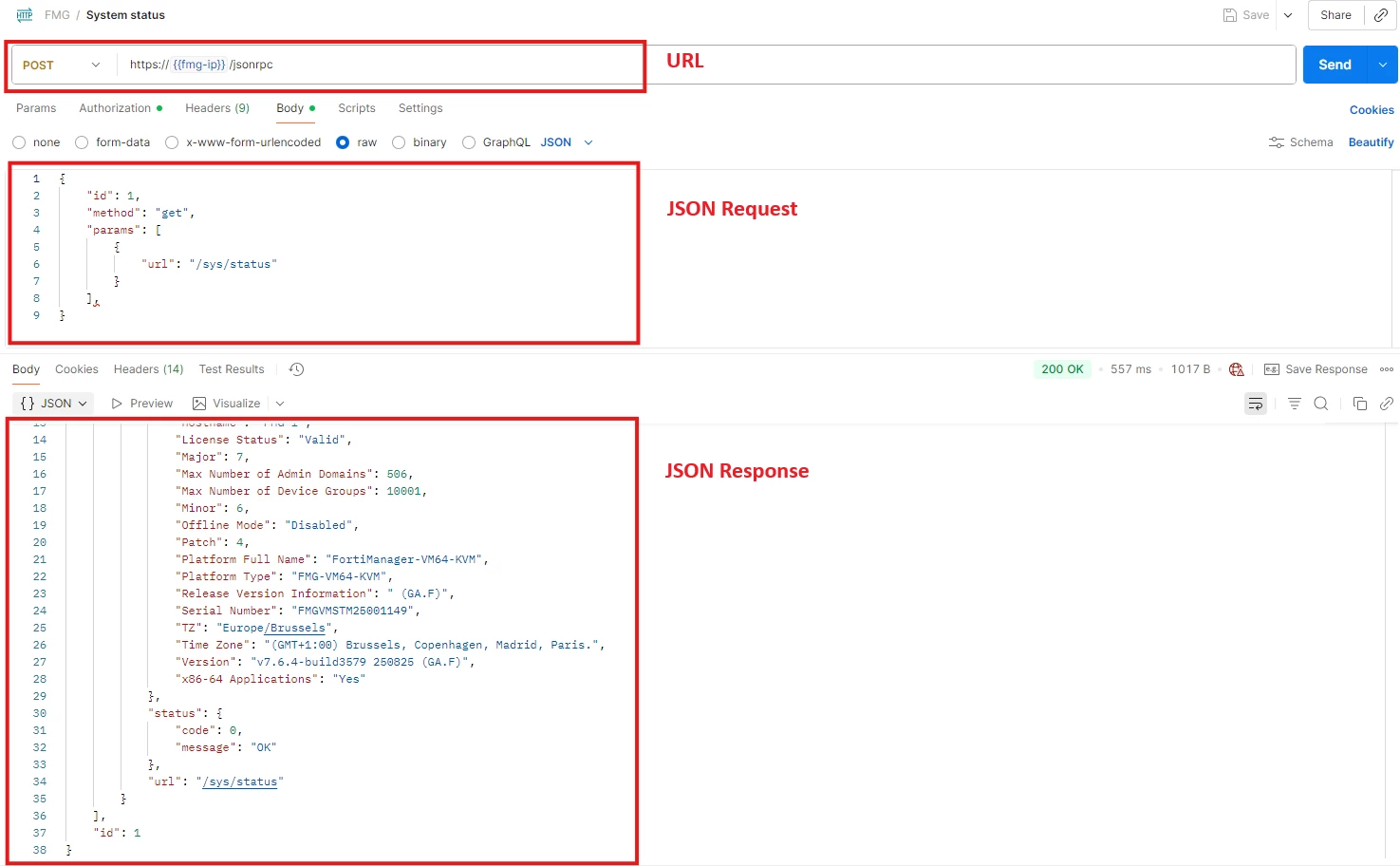
https://{{host}}/jsonrpc
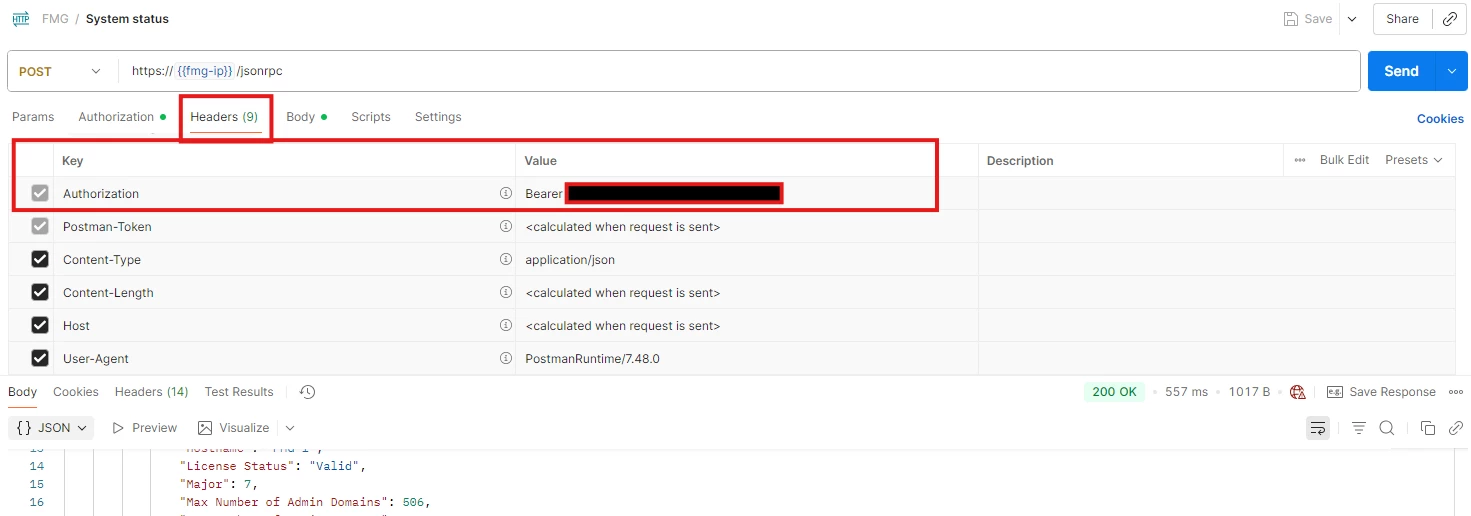
HTTP header:
Authorization: Bearer {{access_token}}
JSON request body:
{
    "id": 1,
    "method": "...",
    "params": [ ... ]
}
JSON response:
{
    "id": 1,
    "result": [
    "data": [ ... ],
    "status": {
    "code": 0,
    "message": "OK"
    },
    "url": "..."
    ]
}
Example of sending a JSON request to obtain system status /sys/status:
Method 2: Using URL query string method (not available anymore from v7.4.7 and v7.6.2):
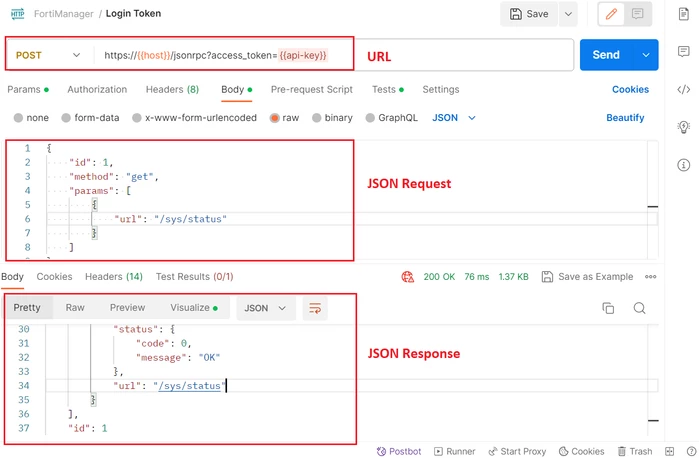
POST method:
https://{{host}}/jsonrpc?access_token={{api-key}}
JSON request body:
{
    "id": 1,
    "method": "...",
    "params": [ ... ]
}
JSON response:
{
    "id": 1,
    "result": [
    "data": [ ... ],
    "status": {
    "code": 0,
    "message": "OK"
    },
    "url": "..."
    ]
}
Example of sending a JSON request to obtain system status /sys/status:
For a complete guide and reference on the JSON-RPC request, refer to and subscribe to the Fortinet Developer Network.
Note: Assign an Admin Profile with only the permissions required for the intended API operations. Avoid using a full-access administrator profile unless required.
Related articles:

