Solution | When a 'Configuration File Error' appears on the FortiGate GUI during script upload, but the same script executes successfully via the CLI, the issue is often caused by incorrect file encoding or the presence of a Byte Order Mark (BOM).
Below is a list of the supported and unsupported encodings of the file.
Supported and unsupported encodings:
Encoding Type | Supported | Notes | UTF-8 (no BOM) | Yes | Recommended | ANSI | Yes | Supported | UTF-8 with BOM | No | Not supported | UTF-16 BE BOM | No | Not supported | UTF-16 LE BOM | No | Not supported |
The error:
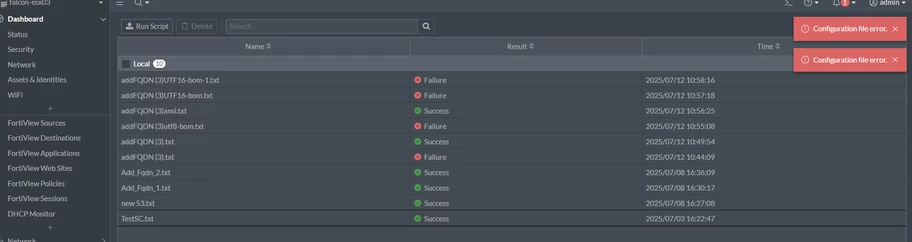
To avoid running into this issue:
Save script files as 'UTF-8' (without BOM) or ANSI. Avoid the 'UTF-8 with BOM', 'UTF-16 BE BOM', and 'UTF-16 LE BOM' formats.
Notepad++: Windows Notepad: macOS TextEdit: Open the script file in TextEdit. Go to Format -> Make Plain Text (if it is not already plain text). Select File -> Save As. In the Plain Text Encoding drop-down menu (at the bottom), select 'Unicode (UTF-8)'. Save the file.
Ensure the option 'If no extension is provided, use .txt' is checked as needed. Save the file. After saving the file with the correct encoding, upload the script again to the FortiGate.
A successful operation:
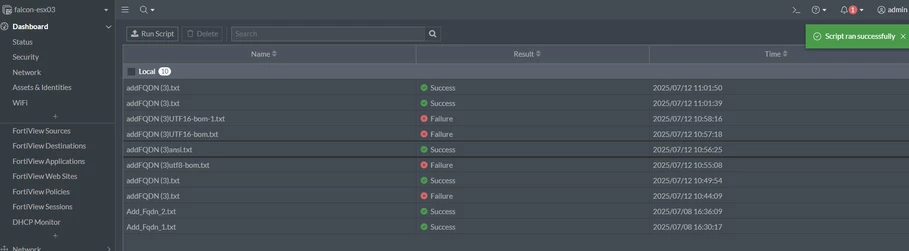
Note:
Remove any hidden or special characters introduced during editing. If issues persist, paste the script directly into the FortiGate CLI to verify for syntax or formatting errors. Correct encoding selection ensures successful script uploads and prevents configuration file errors on FortiGate systems.
If the issue is not fixed through the steps above, add the following configurations on the top of the script and try again to upload it:
config system ntp
    set ntpsync disable
    set server-mode disable
end
Related article:
Technical Tip: Automated script execution |