Technical Tip: Slowness issue while accessing an Application server
| Description | This article describes how to verify whether the application server is slow due to a network issue or an application issue. |
| Scope | All supported versions of FortiOS. |
| Solution | While troubleshooting slowness issues for an application server, it is recommended to investigate the HAR files in the browser. The common troubleshooting steps are as follows:
Network steps:
To verify the network aspects of the setup, confirm the following:
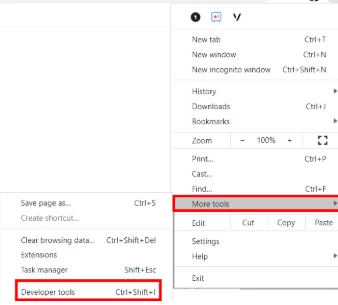
Application/server steps: After confirming no network issues were observed with the steps above, verify the following: Navigate to the Developer tool.
Press Ctrl + Shift + I to go to Developer Tools logs.
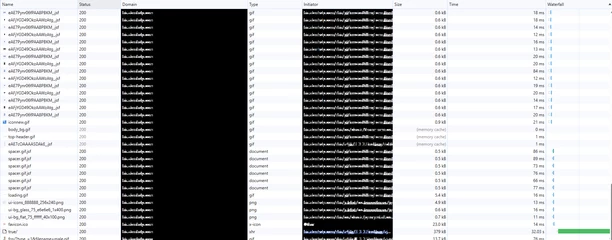
The server URLs have been redacted above for security reasons.
In the HAR sample output above, examine the 2nd last time column. Note that this redirection is taking more time than usual. For more details about path or redirected URLs, select the name field for the corresponding path or URL.
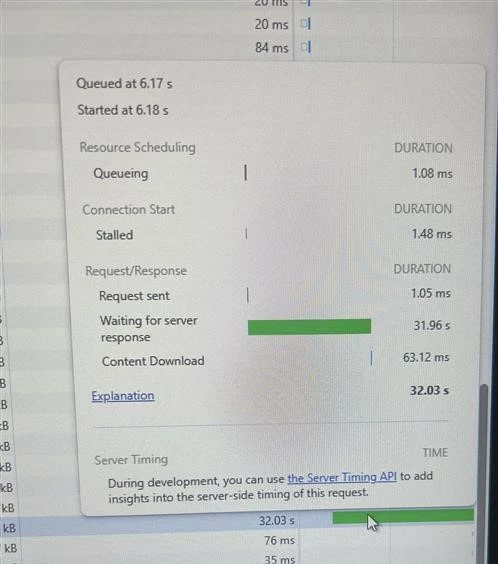
Now, put the cursor over the green icon (waterfall model output). This will provide more insights about request and response times:
On the waterfall time tab for this green section above, details will appear. The details shown above confirm that the request was sent to the server in time, but the server took too long to respond. The 'Waiting for server' section indicates that the browser was waiting for server response.
To further confirm the delay above, consider verifying the delta time in Wireshark captures on the source machine and FortiGate.
For more details, select the explanation section, which will provide more details about each time section. This will confirm that the issue is a server-side issue and not a network problem.
Related articles: |