


Internal Server error while importing FortiToken Mobile
Description
How to connect to the FortiToken server to be able to download FortiToken Mobile. This issue occurs if the source IP used by the FortiGate is not allowed to be routed, as illustrated below:
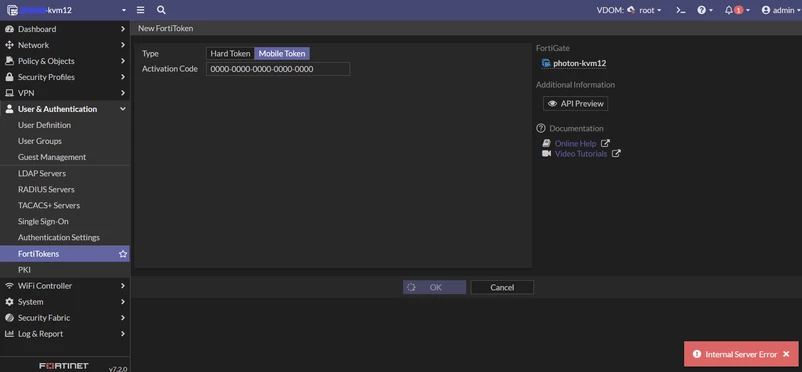
Scope
FortiGate.
Solution
In case of an Internal Server Error while trying to import the FortiTokens, one of the reasons could be a routing issue. To change the source IP used to connect to the FortiGuard, use the following method:
For FortiGuard Services:
config system fortiguard
    set source-ip x.x.x.x
end
However, this method does not work for FortiToken servers; in that case, create a static route toward the FortiToken server using the preferred gateway as follows:
config router static
    edit 0
        set dst 96.45.36.92 255.255.255.255
        set gateway x.x.x.x
        set device <Interface Name>
    next
end
Note:
IP addresses used here are examples; actual FortiToken/FortiGuard IPs can change. Always resolve the FQDN (for example, execute ping directregistration.fortinet.com) and use the IP returned.
If the previous method is unsuccessful, then review the existing FortiGuard configuration. Check the interface selection method and verify FortiGuard connectivity to ensure it is properly established.
config system fortiguard
    set interface-select-method specify
    set interface "wan2"
end
set interface-select-method auto <----- Set outgoing interface automatically.
sdwan <----- Set outgoing interface by SD-WAN or policy routing rules.
specify <----- Set outgoing interface manually.
If a specific interface is selected, ensure that the FortiGate has a default route configured for that interface. Verify this by checking the routing table (using the 'get router info routing-table' command) and confirming internet connectivity by pinging an external IP address from that interface.
Related article:
diagnose ip address list <- This command will help obtain the desired source IP address.
execute ping-options reset
execute ping-options source <wan2_IP_Address>
execute ping 8.8.8.8
To know more about ping options:
Troubleshooting Tip: Using PING options from the FortiGate CLI
If SD-WAN is configured for WAN connections, then review the SD-WAN configurations to ensure they are correctly set up. Additionally, verify that the FortiGuard configuration has 'set interface-select-method sdwan'.
Related article:
Technical Tip: Routing self-originated traffic on the FortiGate using SD-WAN
As of 6.0.7, this behaviour has been changed, and the FortiGuard Source IP can be used for connecting to the FortiToken server.
If the solution above does not solve the issue, run the following debug:
diagnose debug console timestamp enable
diagnose debug app forticldd -1
diagnose debug app alert -1
diagnose fortitoken debug enable
diagnose debug enable
execute fortitoken-mobile import <ActivationCodeFromRedemptionCertificate>
To stop the debug:
diagnose debug disable
diagnose debug reset
Examine the output of the debug:
2023-03-09 10:30:52 ftm_cfg_import_license[324]:import license 0000-0000-0000-0000-0000
2023-03-09 10:30:52 is_trial_tokens_available[55]:No trial tokens are available.
2023-03-09 10:30:52 ftm_fc_comm_connect[38]:ftm cannot resolve DNS
2023-03-09 10:30:52 ftm_fc_command[539]:forticare [ftm2.fortinet.net:443] unreachable
Based on the output above, it is possible to see that the FortiToken Mobile server is unreachable. This can be caused by a FortiGuard connectivity issue. It is possible to change the following settings to ensure connectivity to the server. In case of a multi-VDOM environment, run from the global VDOM:
config system fortiguard
    set fortiguard-anycast disable
    set port 8888
    set protocol udp
    set source-ip 0.0.0.0
    set sdns-server-ip 208.91.112.220 173.243.140.53 210.7.96.53
end
After making these changes, run the following commands to make the changes in effect under FortiGuard settings and ensure the update is successful.
diagnose debug reset
diagnose debug enable
diagnose debug app update -1
execute update-now
To stop the debug:
diagnose debug disable
diagnose debug reset
The default 'protocol' and 'port', alongside the disabled 'fortiguard-anycast' service, must be reachable. Default values can be found in the config system fortiguard.
FortiOS's Anycast FortiToken Mobile server domain for AWS has been changed to 'globalftm2.fortinet.net', and settings have been adjusted starting from v7.4.1. For branches below 7.4.1, it is still ftm2.fortinet.net.
Therefore, if the FortiGate is running below 7.4.1 Anycast with AWS, it will fail to add new FortiToken Mobiles. To be able to activate FortiToken Mobile, Anycast should be disabled or adjusted to the value 'fortinet'.
For physical devices running an OS version below 7.4.1, when trying to import the mobile tokens, sometimes the following error is observed from the 'diagnose debug application update -1': 'Error: 19 (Self-signed certificate in certificate chain)'. The following changes can be made on the FortiGate:
config system fortiguard
    set fortiguard-anycast enable
    set port 443
    set protocol https
end
Note:
An 'Internal Server Error' might occur if the FortiToken is still tied to another device and migration has not been completed. If that is the case, submit a ticket to Customer Service for support. For more information on how to contact Customer Service, visit this link: FortiCare Support: Customer Service.
This error may also occur if the FortiToken serial number is entered during the registration process instead of the required 20-digit activation code. Refer to the registration steps to ensure the token is registered correctly.
Related articles:
Technical Tip: Internal Server error while importing FortiToken Mobile.
Troubleshooting Tip: Import FortiToken license, 'Internal server error', error: -7650.
Troubleshooting Tip: FortiGate FortiToken configuration and troubleshooting resource list
Technical Tip: Migrating users and FortiTokens to another FortiGate/FortiAuthenticator
