Technical Tip: Initial troubleshooting for GUI or CLI access issue
| Description | This article describes the initial troubleshooting steps for a GUI or CLI access issue. |
| Scope | FortiGate. |
| Solution | To check the GUI or CLI access issues:
show system interface
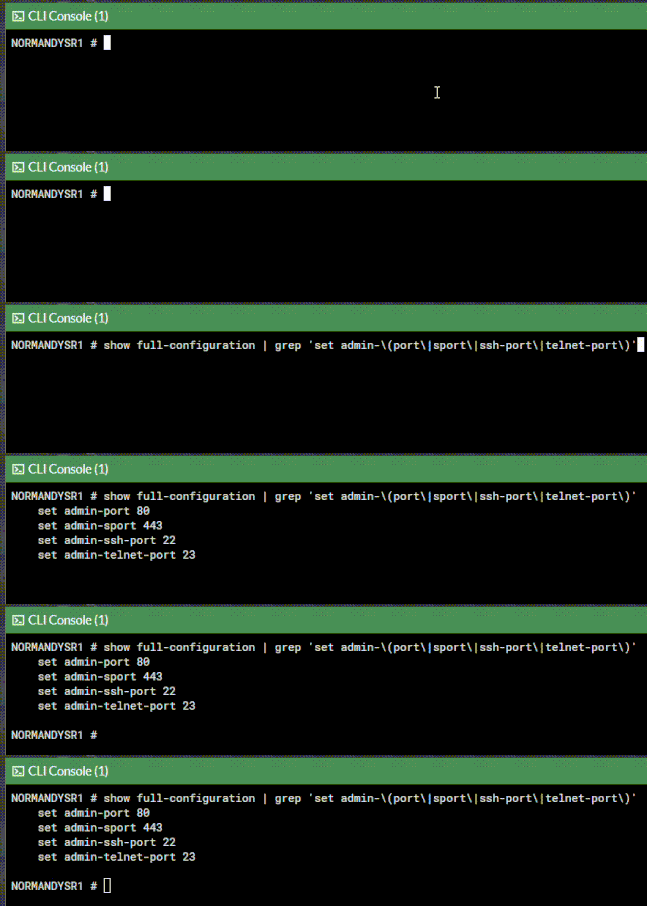
config system global show full-configuration | grep 'set admin-\(port\|sport\|ssh-port\|telnet-port\)'
Check if the above administrative accesses are enabled at the interface level:
show system interface
show system admin
Note: Check if the user IP address is getting S-NAT before reaching FortiGate. If yes, make sure that the IP address is part of the trusted host list.
show firewall local-in-policy
Debug:
diagnose debug console timestamp enable
Attempt to connect from the client.
diagnose debug disable
Sniffer:
diagnose sniffer packet any "host <Client_Source_IP>" 6 0 a
Attempt to connect from the client. Press Ctrl+C to stop the capture.
config system global set admin-sport <port> end
show system settings | grep ike-tcp
Starting from v7.6.1, GUI access may conflict with the IPSec tunnel IKE TCP port for interfaces bound to an IPsec tunnel where the GUI admin port is also using port 443. See the document for the GUI access conflict with IPSec TCP tunnel on the same interface.
A possible list of causes of the issue is covered in Troubleshooting Tip: Cannot access the FortiGate web admin. |