



Technical Tip: Imposing data cap for web access for end users
Description
This article describes how to impose a data cap for web access for end users in FortiGate.
Scope
FortiGate.
Solution
A data cap (bandwidth cap) is a service that imposes a limit on the amount of data transferred by a user in a given time period.
FortiGate supports traffic shaping to limit the bandwidth usage of the source user/IP to avoid user from consuming too much bandwidth; however, this will not act as a data cap to limit/restrict users to specific data usage.
FortiGate web filter profile provides a feature called Category Usage Quota.
The Category Usage Quota will allow access for a specified allocated traffic, calculated separately for each user.
The quota is applied to each user/IP individually, so the FortiGate must be able to identify each user/IP.
Configuration Example:
Let's assume having a group of users for whom we need to apply the Data Cap of 256MB per day.
- It is necessary to create the user and the user group.
config user local
edit testusr1
set type password
set passwd 123456
next
edit testusr2
set type password
set passwd 123456
next
end
config user group
edit testgrp
set member testusr1 testusr2
next
end
To create a user account and a user group from the GUI.
Refer to Local and remote users.
- Create a webfilter profile for user group testgrp.
Go to Security profiles and select 'create new'.
Select the FortiGuard category that needs to be allowed and set the action to monitor.
Select the other FortiGuard category that needs to be blocked and set the action to block.
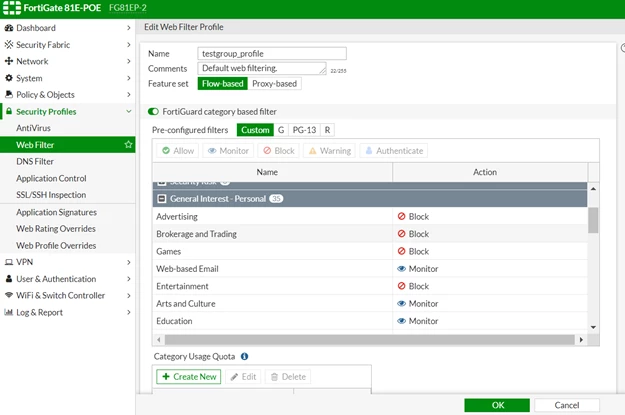
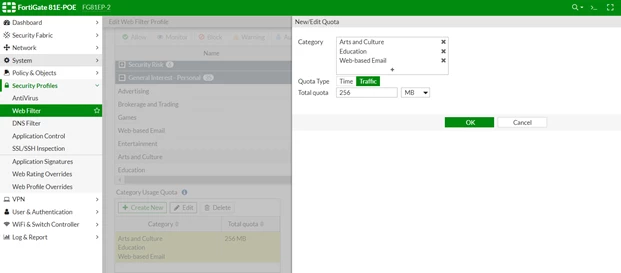
Under Category Usage Quota and select 'create new'.
Select all categories in the list.
Select Quota Type as Traffic and in Total quota mention the Data cap (in this example, 256MB).
- Create a user policy for 'testgrp'.

CLI configuration :
- Create a Category Group that covers 'All Web Traffic':
config webfilter category
edit "All-Web-Traffic"
set members "Bandwidth_Consuming" "General_Interest" "Streaming" "Social_Media" ... (add all desired categories)
next
end
-
Create a Web Filter Profile:
config webfilter profile
edit "Daily-Quota-500MB"
set feature-set proxy
config web
set category-usage-quota enable
end
config ftgd-wf
config filters
edit 1
set category "All-Web-Traffic"
set action monitor
next
end
config quota
edit 1
set category "All-Web-Traffic"
set type bandwidth
set value 500
set unit MB
next
end
end
next
end
-
Apply the Web Filter Profile to Internet Firewall Policy:
config firewall policy
edit <policy-ID>
set web-filter "Daily-Quota-500MB"
set ssl-ssh-profile "deep-inspection" # or intended deep-inspection profile
set utm-status enable
next
end
- Verify that the quota has been set correctly.
User will be prompted for authentication while accessing the internet, and after authentication, monitored category websites can be accessed. Once the bandwidth reaches quota then user can no longer access the resources listed in the bandwidth-consuming websites category.
To check the user and the remaining quota, use the command below:
diagnose webfilter quota list
VDOM User Web Filter Profile Quota ID Remaining Quota
root testusr1 testgroup_profile 1 268435456 Bytes
Total number of quotas: 1.
Important notes and limitations:
- Only web (HTTP/HTTPS) traffic is counted.
- Requires proxy-based inspection + deep SSL inspection.
- For all-protocol daily quotas or strict per-IP enforcement without authentication, consider adding a FortiAuthenticator (official best practice).