



Technical Tip: How to perform interface speed test
Description
This article describes how to do a speed test on the WAN interface from the GUI.
Scope
FortiGate.
Solution
The results of the test can be added to the interface's estimated bandwidth.
An SD-WAN Network Monitor license is required.
The License widget and the System -> FortiGuard page display the SD-WAN Network Monitor license status.
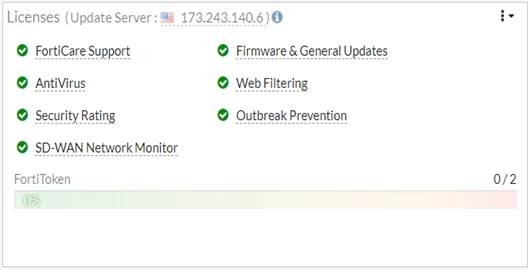
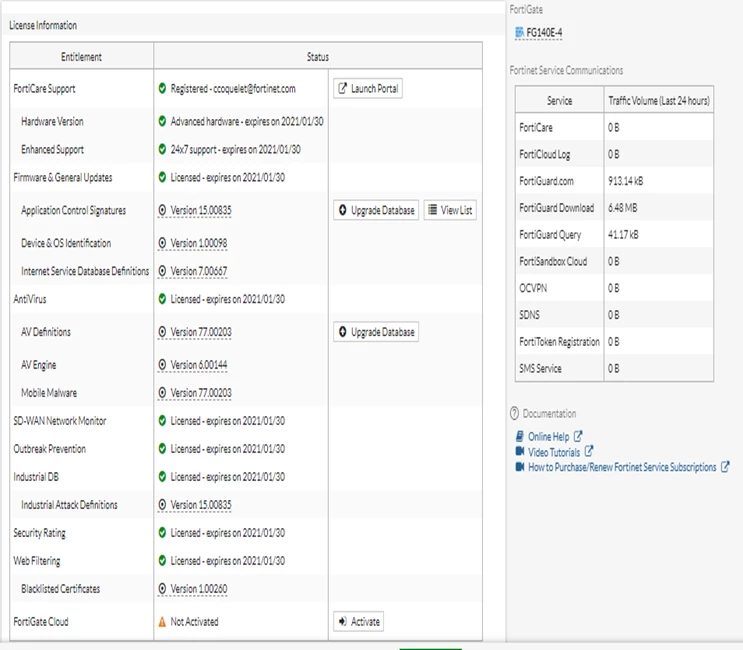
To run an interface speed test from the GUI:
Go to Network -> Interfaces.
Edit a WAN interface. The interfaces can be grouped by role using the grouping drop-down on the right side of the toolbar.
Select 'Execute speed test' in the right pane. (This button is only available with the 'super_admin' profile).
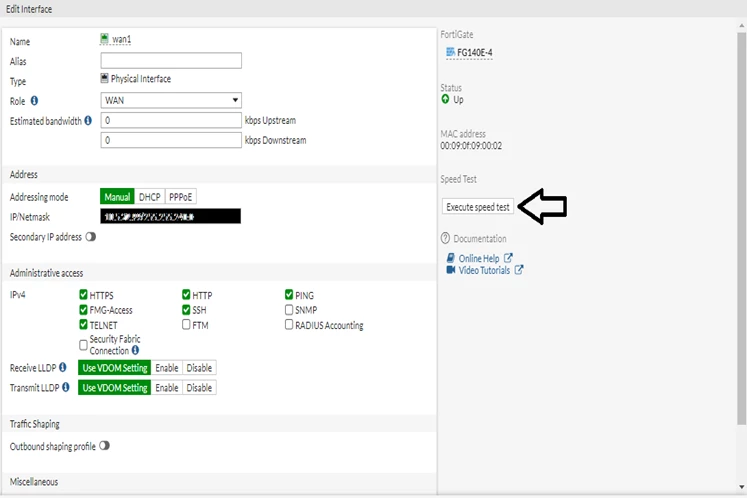
When the test completes, select 'Apply' results to estimated bandwidth.
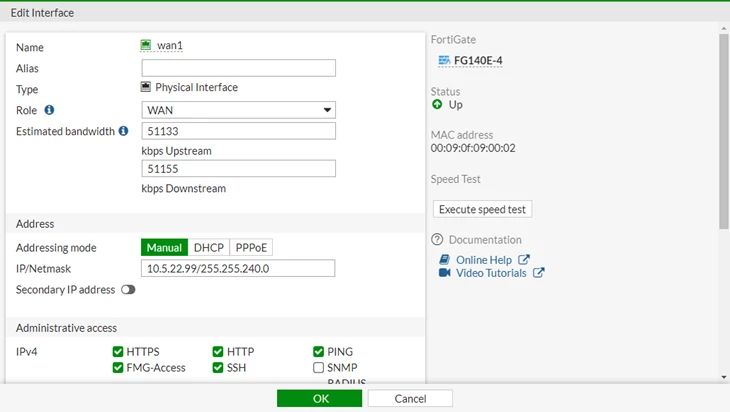
The speed test results are used to populate the estimated bandwidth fields.
Select 'OK'.
Note:
The FortiGate has to be connected to FortiGuard and able to reach either the AWS or Google speed test servers.
To run a speed test in the CLI, the following commands can be used:
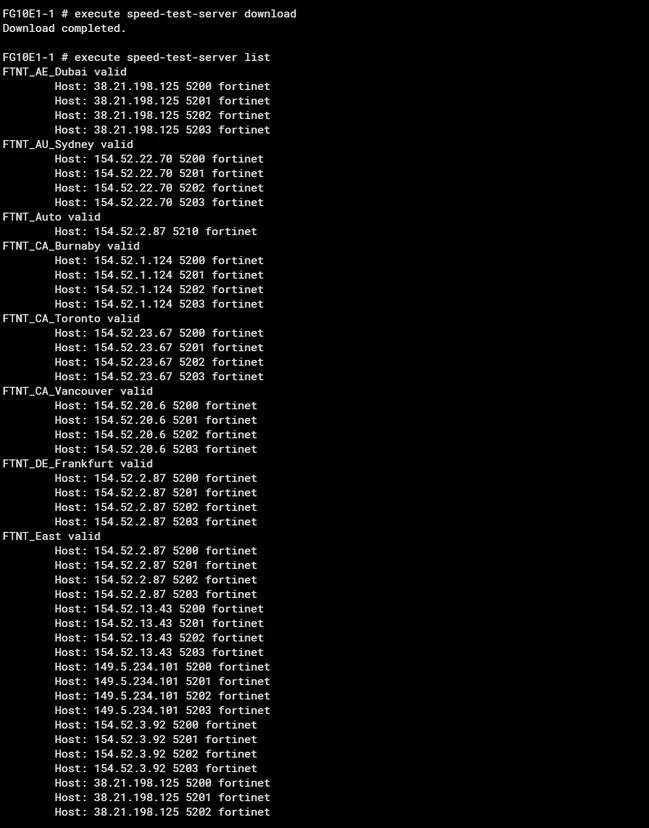
To download the speed test servers list:
execute speed-test-server download
To view the speed test servers list:
execute speed-test-server list
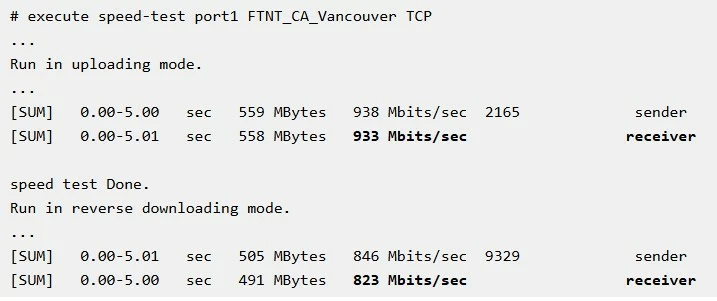
To run a speed test:
execute speed-test <interface> <server> {Auto | TCP | UDP}
Example:
diagnose netlink interface speed-test <interface> <server> {Auto | TCP | UDP}
Example:

If the FortiGate does not have a valid SD-WAN Network Monitoring License, the following error will be generated:
FGT # execute speed-test
Failed to get a valid SD-WAN Monitoring (SWNM) license to execute speed test.
Command fail. Return code 25
For more information, refer to the admin guide: Speed test examples.
Notes:
The following checks may be needed if the interface speed test result shows an abnormal zero-byte download speed.
Run the interface speed test in CLI to ensure the reverse downloading mode is running.
Check FortiGuard and FortiCloud connectivity on the running firewall.
Check AWS or Google speed test servers' connectivity on the running firewall.
Check that the HTTPSD daemon is running normally when performing the interface speed test.
Related article: