



Technical Tip: FortiToken multi-factor authentication
Description
This configuration adds multi-factor authentication (MFA) to the FortiClient VPN configuration. It uses one of the two free mobile FortiTokens that is already installed on the FortiGate.
This article describes how to configure multi-factor authentication.
Scope
FortiGate.
Solution
To configure MFA from GUI.
Edit the user:
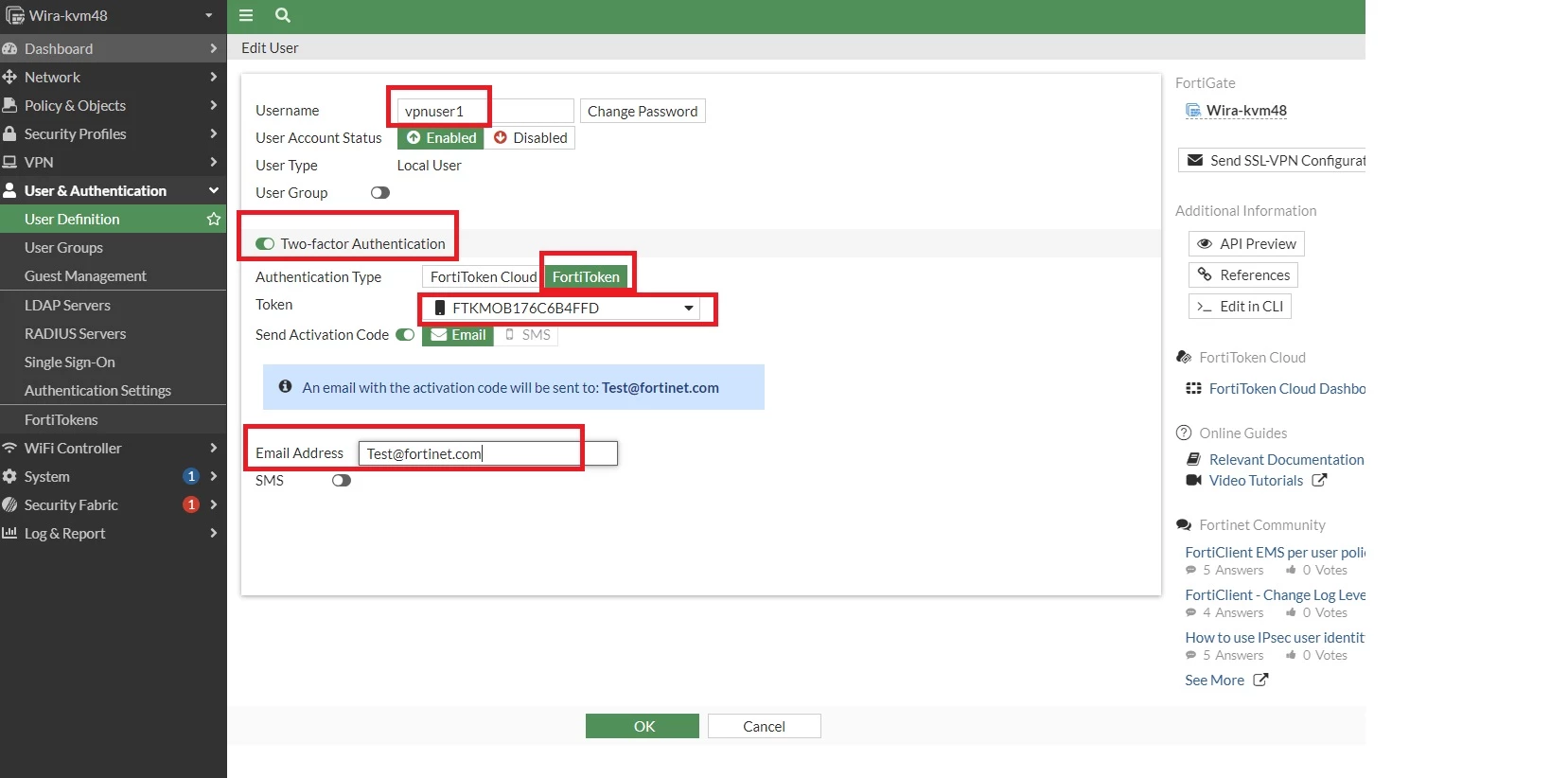
- Go to User & Authentication -> User Definition and edit local user vpnuser1.
- Enable Two-factor Authentication and select one valid mobile FortiToken from the list.
- Enable 'Send Activation Code' and select "Email" and enter the email address as shown below.
- Select 'OK' to save and submit the configuration changes.
- Activate the mobile FortiToken.
- When a FortiToken is added to user vpnuser1, an email is sent to the user's email address.Follow the instructions to install the FortiToken mobile application on the unit and activate the FortiToken.
To configure MFA from CLI.
- Edit the user and user group:
config user local
edit "vpnuser1"
set type password
set two-factor fortitoken
set fortitoken <select mobile token for the option list>
set email-to <user's email address>
set passwd <user's password>
next
end
- Activate the mobile FortiToken.
- When a FortiToken is added to user vpnuser1, an email is sent to the user's email address. Follow the instructions to install the FortiToken mobile application on the unit and activate the FortiToken.
