


Technical Tip: FortiOS WAN optimization
Description
FortiOS WAN optimization.
Organizations with multiple locations or businesses using the Cloud can provide license-free WAN optimization using FortiOS.
WAN Optimization is a comprehensive solution that maximizes the WAN performance and provides intelligent bandwidth management and unmatched consolidated security performance.
WAN optimization reduces the network overhead and removes unnecessary traffic for a better overall performance experience.
Efficient use of bandwidth and better application performance will remove the need for costly WAN link upgrades between data centers and other expensive solutions for the network traffic growth.
Solution
WAN optimization is available on FortiGate models with internal storage that also support SSL acceleration.
Internal storage includes high-capacity internal hard disks, AMC hard disk modules, FortiGate Storage Modules (FSMs) or over 4 GB of internal flash storage.
WAN optimization tunnels use port 7810.
The following features below are available through WAN optimization:
Protocol optimization.
Protocol optimization is effective for applications designed for the LAN that do not function well on low bandwidth, high latency networks.
FortiOS protocol optimization improves the efficiency of CIFS, FTP, HTTP, MAPI, and general TCP sessions.
CIFC, for example, requires many background transactions to successfully transfer a single file.
When transferring the file, CIFS sends small chunks of data and waits sequentially for each chunk’s arrival and acknowledgment before sending the next chunk.
This large amount of requests and acknowledgements of traffic can delay transfers.
WAN Optimization removes this complexity and improves the efficiency of transferring the file.
TCP protocol optimization uses techniques such as SACK support, window scaling and window size adjustment, and connection pooling to remove common WAN TCP bottlenecks.
Regular bandwidth usage.
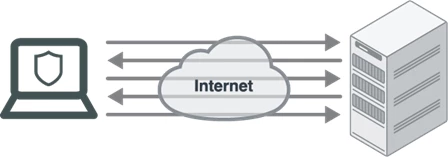
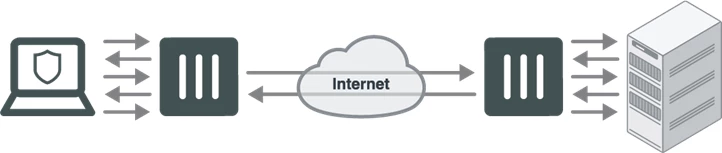
Byte caching improves caching by accelerating the transfer of similar, but not identical content.
Byte caching breaks large units of application data, such as email attachments or file downloads, into smaller chunks of data.
Byte caching is not application specific, and assists by accelerating all protocols supported by WAN optimization.
Web caching.
WAN optimization reduces download times of content from central files repositories through web caching.
In addition, web caching also recognizes requests for Windows or MS Office updates, and downloads the new update file in the background.
Controls data flow for specific applications, giving administrators the flexibility to choose which applications take precedence over the WAN.
SSL acceleration.
SSL is used by many organizations to keep WAN communications private.
Explicit web proxy server.
Allows users on the internal network to browse the Internet through the explicit web proxy server.
Explicit FTP proxy server.
Allows users on the internal network to access FTP servers through the explicit FTP proxy server.
Reverse proxy.
The web and FTP proxies can be configured to protect access to web or FTP servers that are behind the FortiGate using a reverse proxy configuration.
WCCP.
The Web Cache Communication Protocol (WCCP) allows to offload web caching to redundant web caching servers.
WAN optimization and HA.
Configure WAN optimization on a FortiGate HA cluster.
Configuring an explicit proxy with WAN optimization web caching.
For this configuration, all units on the wireless network will be required to connect to the proxy at port 8080 before it can browse the Internet.
Enabling WAN optimization and configuring the explicit web proxy for the wireless interface.
Go to System -> Feature Visibility and ensure that Explicit Proxy is enabled.
1) To make WAN optimization and web caching settings available from the GUI, enter the following CLI command:
# config system settings2) Go to Network -> Interfaces, edit the wireless interface and select' Enable Explicit Web Proxy'.
set gui-wanopt-cache enable
end
3) Go to Network > Explicit Proxy. Enable Explicit Web Proxy. Make sure that Default Firewall Policy Action is set to Deny.
Adding an explicit web proxy policy.
1) Go to Policy & Objects -> Proxy Policy and create a new policy.
2) Set Proxy Type to Explicit Web, the outgoing interface to the Internet-facing interface, and the remaining fields as required.
2) For Windows Vista/7/8, open Internet Properties. Go to Connections -> LAN Settings and enable and configure the Proxy Server.
3) For Mac OS X, got to System Preferences -> Network -> Wi-Fi -> Advanced -> Proxies, select Web Proxy (HTTP) and configure the proxy settings.
4) For iOS, go to Settings -> Wi-Fi, edit the wireless network. Scroll down to HTTP PROXY, select Manual, and configure the proxy settings.
5) For Android, in WiFi network connection settings, edit the wireless network. Select Show advanced options, configure a Manual proxy and enter the proxy settings.
Force HTTP and HTTPS traffic to use the web proxy.
Block HTTP and HTTPS access to the Internet from the wireless network so that the only path to the Internet is through the explicit proxy.

