


Technical Tip: Decrypt ESP packets
Description
This article describes how to decrypt captured Encapsulated Security Payload (ESP) packets initiated or terminated on FortiGate using Wireshark.
Scope
FortiGate.
Solution
In some cases, network administrators need to track specific packets that are encrypted and transferred through IPsec VPN tunnels.
ESP packets can be captured from the GUI under Network -> Packet capture or from the CLI with the following command:
diagnose sniffer packet any "esp and host x.x.x.x" 6 0 a <----- Where x.x.x.x is the IP address of the remote gateway.
Note:
If the tunnel is configured at port 4500, then packet capture needs to be taken at port 4500.
diagnose sniffer packet any "port 4500 and host x.x.x.x" 6 0 a <----- Where x.x.x.x is the IP address of the remote gateway.
Use the following command to capture both esp and port 4500 with the remote host:
diagnose sniffer packet any "(esp or port 4500) and host x.x.x.x" 6 0 a <----- Where x.x.x.x is the IP address of the remote gateway.
After capturing traffic with full packet payload ('6 0 a in the command above) from the CLI, the output will not be Wireshark readable.
The sniffer output needs to be converted from text to a Wireshark-readable PCAP file.
To convert, follow the instructions described in this KB article: Technical Tip: How to import 'diagnose sniffer packet' data to WireShark.
To decrypt ESP packets, Security Association (SA) information needs to be available. List it from the CLI using this command:
diagnose vpn tunnel list
The output must be similar to this:
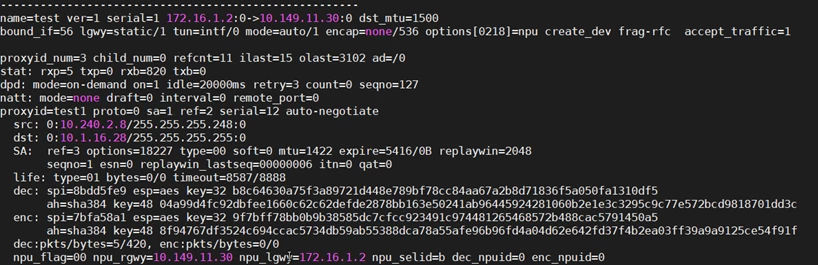

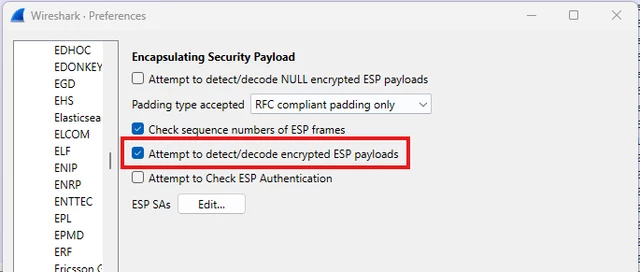
- Go to Edit -> Preferences -> Protocol -> ESP.
- Enable the last 3 check-boxes and select 'Edit' next to ESP SAs.
- Create two entries for the incoming and outgoing SAs.
- For each line, add the information obtained from the VPN tunnel list.
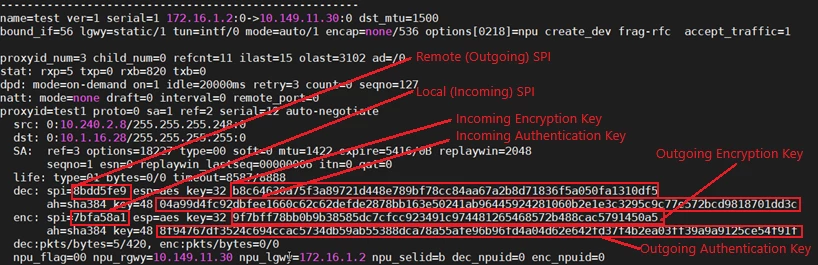
Outgoing ESP.
- Protocol: Choose the IP protocol version, for example, IPv4.
- Src IP: The IP address of the local gateway; for example, 172.16.1.2.
- Dst IP: The Ip address of the remote gateway; for example, 10.149.11.30.
- SPI: local SPI; for example, 0x7bfa58a1.
- Encryption: Choose the encryption type from the drop-down that matches the used algorithm; for example, AES-CBC [RFC3602].
- Encryption Key: The key after the encryption type; for example, 0x9f7bff78bb0b9b38585dc7cfcc923491c974481265468572b488cac5791450a5.
- Authentication: Choose the authentication type from the drop-down that matches the used algorithm; eg. HMAC-SHA-384-192 [RFC4868].
- Authentication Key: The key after the authentication type; for example, 0x8f94767df3524c694ccac5734db59ab55388dca78a55afe96b96fd4a04d62e642fd37f4b2ea03ff39a9a9125ce54f91f.
- Protocol: Choose the IP protocol version; e.g, IPv4.
- Src IP: The IP address of the local gateway; e.g, 10.149.11.30.
- Dst IP: The Ip address of the remote gateway; e.g, 172.16.1.2.
- SPI: remote SPI; e.g, 0x8bdd5fe9.
- Encryption: Choose the encryption type from the drop-down that matches the used algorithm; e.g., AES-CBC [RFC3602].
- Encryption Key: The key after the encryption type; e.g, 0xb8c64630a75f3a89721d448e789bf78cc84aa67a2b8d71836f5a050fa1310df5.
- Authentication: Choose the authentication type from the drop-down that matches the used algorithm; e.g, HMAC-SHA-384-192 [RFC4868].
- Authentication Key: The key after the authentication type; e.g, 0x04a99d4fc92dbfee1660c62c62defde2878bb163e50241ab96445924281060b2e1e3c3295c9c77e572bcd9818701dd3c.
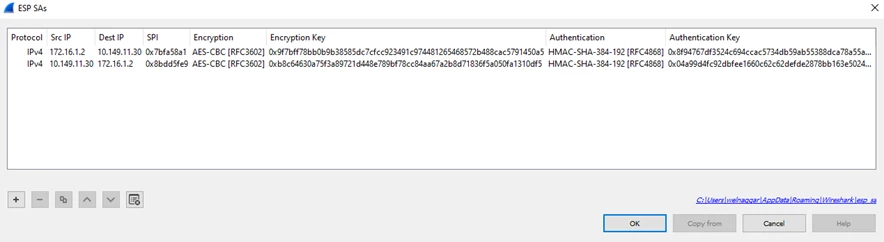
- Finally, select 'OK'. All encrypted packets can now be viewed.

When NAT Traversal is enabled, the ESP traffic will be encapsulated as UDP/4500 packets. Wireshark can read UDP/4500 packets as ESP traffic and decrypt them using the method described above. In FortiOS 7.0 and above, FortiGate has the functionality to change the IKE port:
config system settings
set ike-port <integer>
end
If a custom port has been defined, Wireshark will not be able to decrypt the UDP-encapsulated ESP packets. To resolve this issue, 'right-click' on the UDP-encapsulated ESP packets, select Decode As..., select Current, and select UDPENCAP from the drop-down menu, then select 'OK' to save the change.
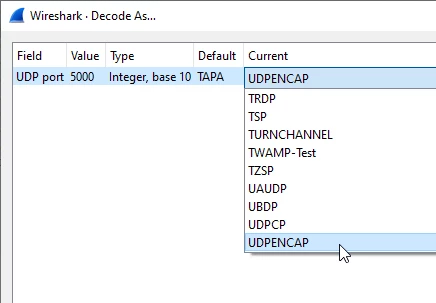
Wireshark will now read the custom port as UDP-encapsulated ESP traffic and can decrypt it.
Also, make sure to check "Attempt to detect/decode encrypted ESP payloads" option in Wireshark. Otherwise, packets will not be decrypted. To enable this option in Wireshark, navigate to Edit -> Preferences -> Protocols -> ESP -> Enable "Attempt to detect/decode encrypted ESP payloads" -> Apply -> OK.
...
2025-10-17 12:42:59.825484 ike V=root:0:VPN1_ISP1:77895: incoming proposal:
2025-10-17 12:42:59.825566 ike V=root:0:VPN1_ISP1:77895: proposal id = 1:
2025-10-17 12:42:59.825657 ike V=root:0:VPN1_ISP1:77895: protocol = IKEv2:
2025-10-17 12:42:59.825739 ike V=root:0:VPN1_ISP1:77895: encapsulation = IKEv2/none
2025-10-17 12:42:59.825819 ike V=root:0:VPN1_ISP1:77895: type=ENCR, val=AES_GCM_16 (key_len = 256)
...
2025-10-17 12:42:59.826063 ike V=root:0:VPN1_ISP1:77895: matched proposal id 1
...
2025-10-17 12:42:59.826376 ike V=root:0:VPN1_ISP1:77895: type=ENCR, val=AES_GCM_16 (key_len = 256)

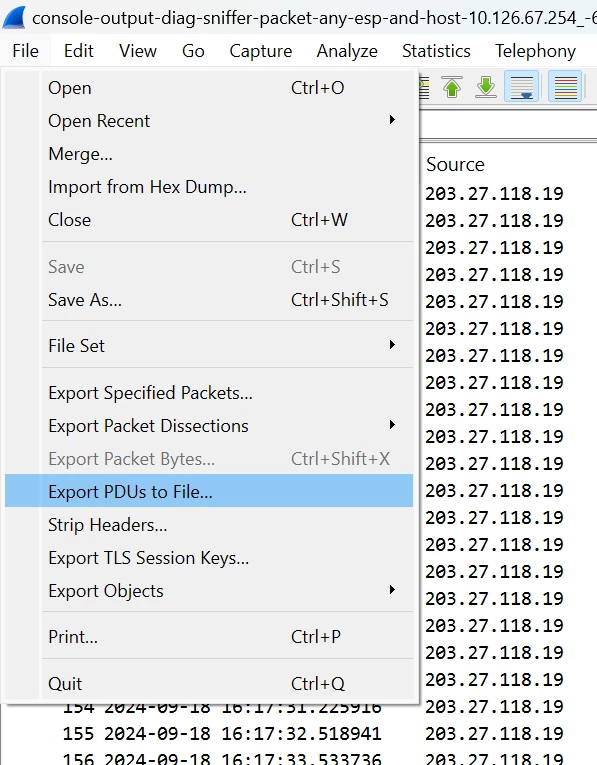
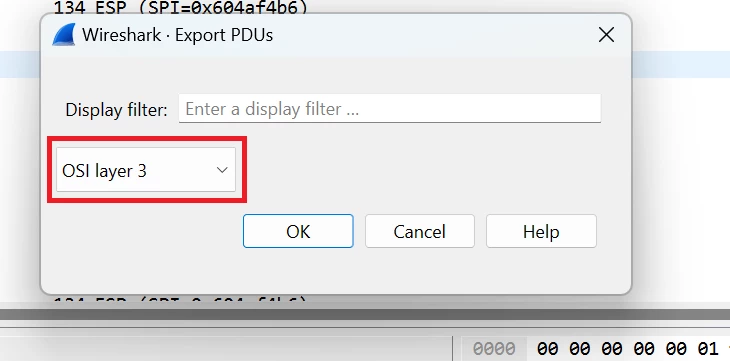
ESP preferences are local to the machine to which the details are added. To share the decrypted ESP packets with someone else, go to Wireshark, select File, export PDUs to File, and select OS I Layer 3 from the dropdown:
Related documents:
Technical Tip: Troubleshooting IPsec VPN tunnel errors with large size packets
Technical Tip: How to decrypt IPsec Phase-2 (ISAKMP) packets IKEv2
Technical Tip: How to decrypt IPsec Phase-1(ISAKMP) packets
How can I save the payload of ESP as separate packet after decryption ?
Technical Tip: How to import 'diagnose sniffer packet' data to WireShark
Technical Tip: How to import 'diagnose sniffer packet' data to WireShark - Ethereal application

