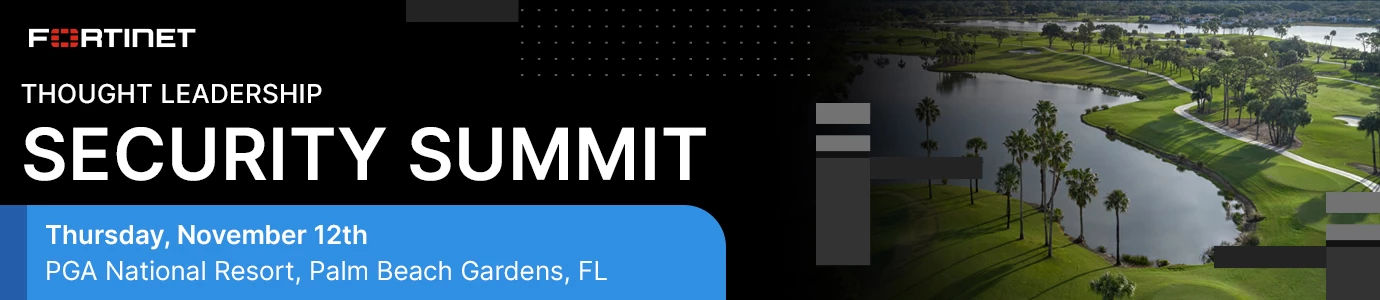
To run a debug flow in FortiGate GUI, go to Network -> Diagnostics and select the Debug Flow tab.
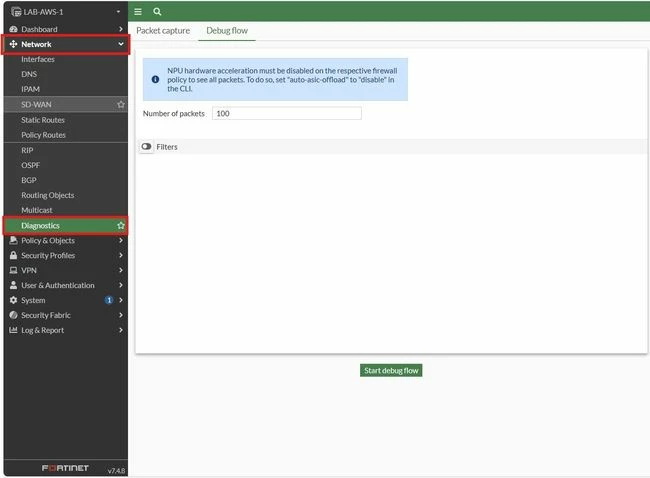 Note: The warning at the top of the page stating 'NPU hardware acceleration must be disabled on the respective firewall policy to see all packets. To do so, set 'auto-asic-offload' to 'disable' in the CLI. This is a reminder to disable offloading: 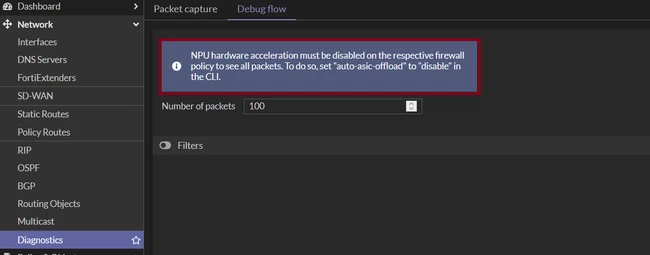 Offloading on the firewall policy is disabled in the CLI using the following commands:
config firewall policy
    edit <policy id number>
        set auto-asic-offload disable
end
By default, the number of packets is 100, maximum is 1000.
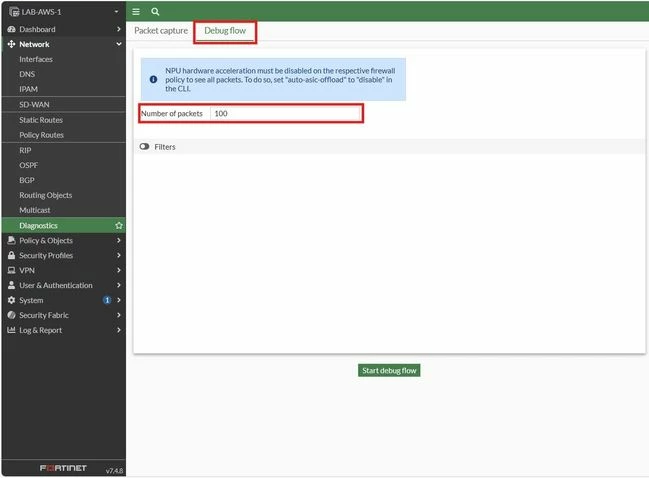
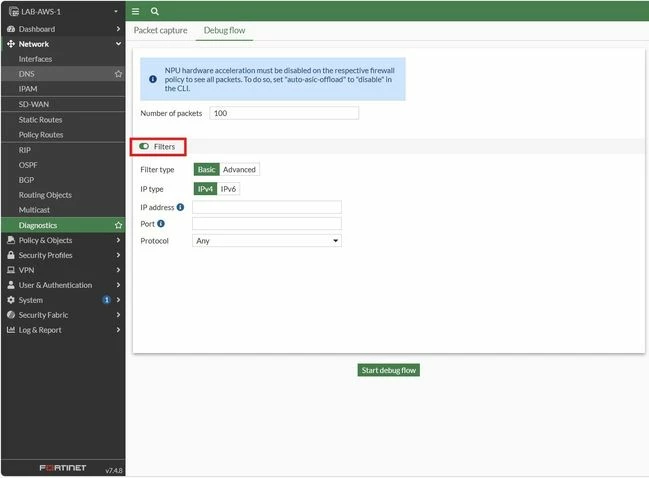
Enable the filter: there will be two filter types.
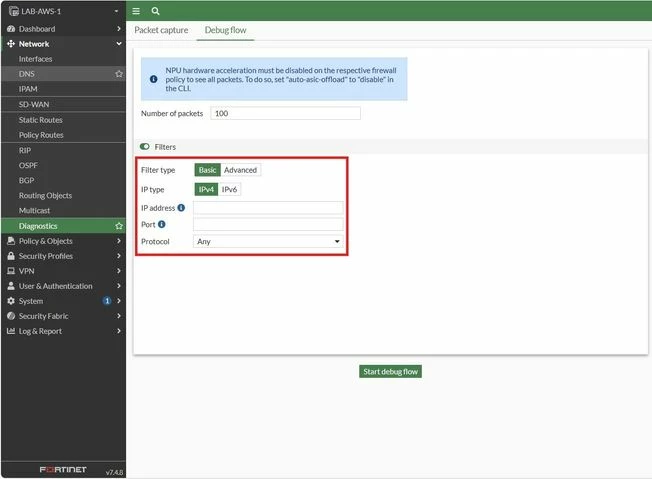
 With 'Basic' filter types, it is possible to filter by IP address, Port, and Protocol.
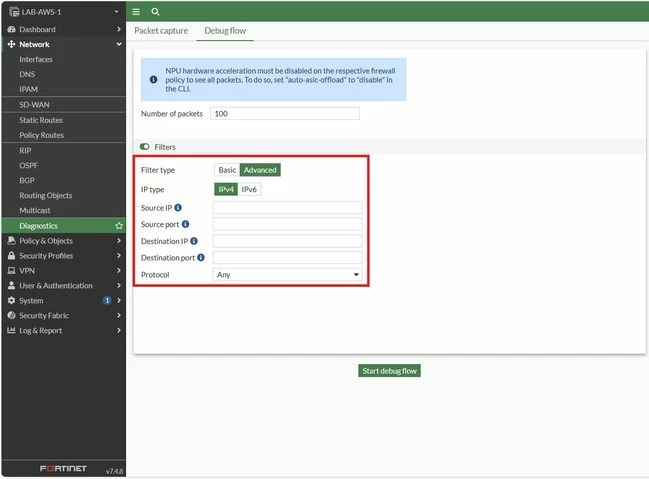
 With 'Advanced' filter types, it is possible to filter by Source IP, Source port, Destination IP, Destination port, and Protocol.
 Once the filter has been configured, select 'Start debug flow' to start the debug. The debug messages are visible in real-time.
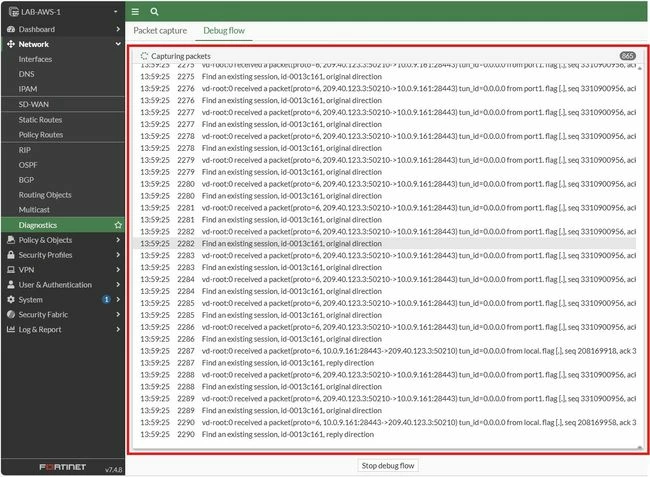
It is possible to stop the debug flow by selecting 'Stop debug flow' or wait for it to run until the number of packets that have been defined.
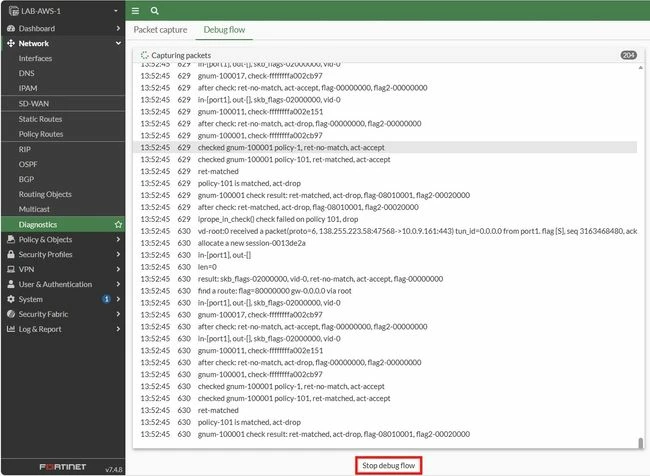
It is possible to save the output in CSV format.
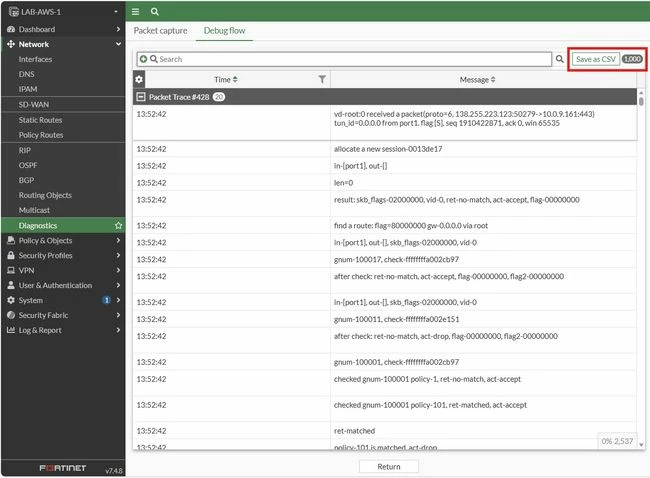
The output can be filtered by 'Time', 'Message', and 'Function field'.
Note: In multi-VDOM environments, ensure the correct VDOM is selected before running the debug flow commands, as results are specific to each VDOM.
diagnose sys vd select <vdom-name>
To run the debug flow in the Firewall CLI, use the following command:
diagnose debug reset
diagnose debug flow trace stop
diagnose debug flow filter clear
diagnose debug flow filter saddr x.x.x.x
diagnose debug flow filter saddr <IP1> <IP5>
diagnose debug flow filter daddr y.y.y.y
diagnose debug flow filter daddr <IP1> <IP5>
diagnose debug flow filter port zzz
diagnose debug flow show function-name enable
diagnose debug console timestamp enable
diagnose debug flow trace start 1000
diagnose debug enable
To stop the debug, run the following command:
diagnose debug disable
diagnose debug reset
Note: These are the different filters that can be configured in the packet flow over the CLI console: vd-name | Name of virtual domain. | proto | Protocol number. | addr | IP address as source or destination. | saddr | Source IP address. | daddr | Destination IP address. | port | Port as source or destination. | sport | Source port. | dport | Destination port. | vd | Index of virtual domain. | negate | Inverse filter. |
For more detailed information, see Technical Tip: Using filters to review traffic traversing the FortiGate. Related document: Embed real-time debug flow tool on Diagnostics page Note: By default, the duration is 30 minutes. If it is necessary to increase or decrease the time, see Technical Tip: Changing debug duration. |