




Technical Note: Display 'Replacement messages' logo/images when accessing filtered HTTPS URL's
Description
Solution
When a policy uses a Web Filter profile and SSL/SSH inspection, there is a trick to display on the client web browsers the "Replacement messages" logo or images when accessing a filtered HTTPS URL.
Solution
In the client browser, Import the CA certificate that is configured in the FortiGate SSL/SSH profile.
Import the FORTIGATE CA certificate used in SSL/SSH profile. By default, this is "Fortinet_CA_SSLProxy". Otherwise, import the CA used in this profile.
Use the FortiGate command line to modify 'config user setting'.
Warning: In the Client browser, prior to installing the SSL/SSH CA certificate, a security warning may appear. Do not click the pop-up 'add/confirm security exception' and do not import the associated certificate referring to the filtered URL signed by FGT CA.
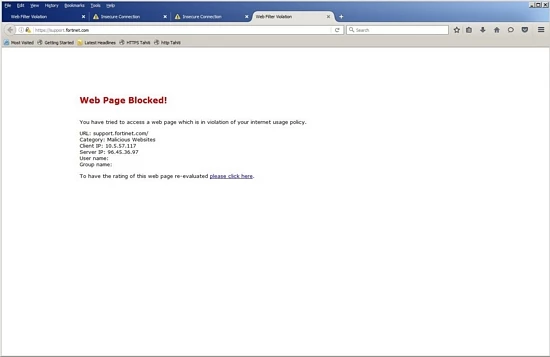
Replacement message without logo
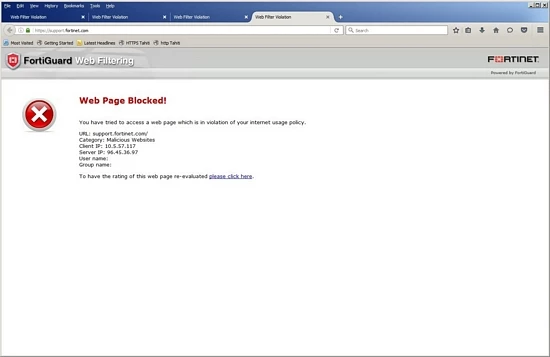
Replacement message with logo after applying the above solution
More information on certificate warnings can be found in the 'Preventing Certificate Warnings' section of the Fortinet Cookbook, and in the related KB article.
Import the FORTIGATE CA certificate used in SSL/SSH profile. By default, this is "Fortinet_CA_SSLProxy". Otherwise, import the CA used in this profile.
Use the FortiGate command line to modify 'config user setting'.
# config user setting
# set auth-ca-cert "Fortinet_CA_SSLProxy" (or the CA used in SSL/SSH profile)
Warning: In the Client browser, prior to installing the SSL/SSH CA certificate, a security warning may appear. Do not click the pop-up 'add/confirm security exception' and do not import the associated certificate referring to the filtered URL signed by FGT CA.
Replacement message without logo
Replacement message with logo after applying the above solution
More information on certificate warnings can be found in the 'Preventing Certificate Warnings' section of the Fortinet Cookbook, and in the related KB article.
Related Articles