
Technical Tip: Implementation Guide to enable micro-segmentation
| Description | This article contains an implementation guide to enable micro-segmentation with FortiSwitch network devices managed by FortiGate. | ||||||||||||||||
| Scope | Operational Technology Solution. FortiSwitch, FortiGate. | ||||||||||||||||
| Solution | A secure OT network is typically designed and modeled after the Purdue Enterprise Reference Architecture (PERA) framework and IEC 62443 Zones and Conduits. In this model, different layers and zones are defined from layer 0 to layer 5 in the following way:
More information can be viewed in the OT Asset Visibility guide (OT asset visibility - FortiGate administration guide).
To secure the OT network, devices in different layers and zones are separated using conduits from each other to provide clear segmentation. This reduces the risk of an attack affecting the entire system and to be in compliant to various regulatory and compliance needs.
Translating this into features of the firewall, a FortiGate along with FortiSwitch and FortiAP can utilize Virtual Local Area Networks (VLANs) and Service Set Identifiers (SSIDs) to create multiple functional zones. This allows only authorized devices, applications and users to interact between zones, where the firewall acts as the gatekeeper and conduit to enforce the zone boundaries.
Micro-segmentation can be deployed to provide granular segmentation by blocking intra-VLAN traffic directly on the FortiSwitch. Micro-segmentation provides segmentation within a single broadcast domain. For example, two devices communicating in the same VLAN or Subnet can be forced to communicate through the FortiGate, thus helping the Operations and Security Teams to monitor, detect and enforce any policies.
To configure FortiGate to block ingress and egress traffic on the same interface from the CLI:
Step 1: Ensure Intra-VLAN Traffic blocking is possible:
'allow-traffic-redirect' is enabled by default, which allows packets with the same ingress and egress interface (such as intra-VLAN traffic) to pass through the FortiGate. This configuration must be disabled before blocking intra-VLAN traffic.
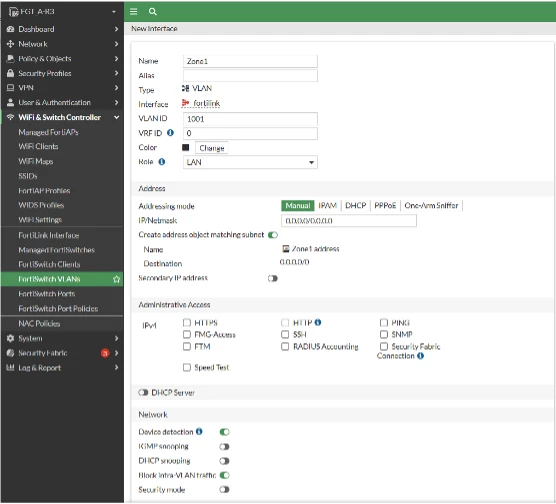
Step 2: To configure a FortiSwitch VLAN and block intra-zone traffic from the GUI:
Note: For existing VLANs, only steps 4 and 5 above need to be completed.
To configure from the CLI:
Step 3: Create Proxy-ARP on the FortiGate:
When intra-VLAN traffic blocking is enabled, to allow traffic between hosts the proxy (Address Resolution Protocol), ARP must be configured with the 'config system proxy-arp' CLI command and by setting up a firewall policy. When traffic is blocked by FortiGate, the destination host cannot reply to the proxy-arp request sent by the source host, so the proxy-arp configuration is requested. FortiGate will reply to the proxy-arp requests to allow communication between hosts when a firewall policy permits that traffic.
Note: The proxy-arp only supports /24 subnets. For subnets larger than /24, multiple /24 proxy ARPs must be created.
Step 4: Create Firewall Policy to allow Intra-VLAN Traffic:
Once multiple VLANs are configured, traffic must be explicitly allowed between the VLAN zones or IP addresses by creating specific firewall policies. The direction of traffic can be also chosen. When defining a policy for inter/intra-zone traffic, it is also recommended applying Intrusion Prevention Solution (IPS) and Application profile to inspect traffic at Layer 7 using OT signatures to prevent lateral movement of malicious traffic in case a device is breached and to apply virtual patch to hide the vulnerabilities from being discovered or exploited.
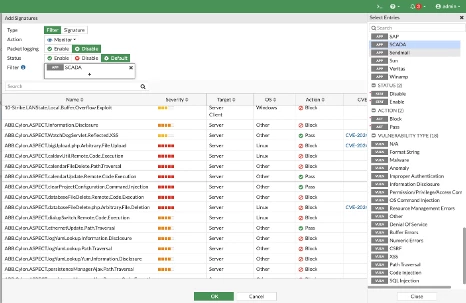
To enable OT IPS and Application Control signatures:
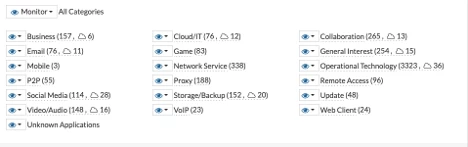
To include OT Application Control signatures: Go to Security Profiles -> Application Control and select Create New.
To set up configuration in the CLI:
To Include OT IPS signatures:
To configure it in the CLI:
To configure a firewall policy to allow inter-VLAN traffic with IPS inspection and Application Control:
To set up configuration in the CLI:
Step 5: Ensure Availability of Connection.
FortiGate manages FortiSwitch, which is also known as using a FortiSwitch in FortiLink mode. FortiLink defines the management interface and the remote management protocol between the FortiGate and FortiSwitch. In a scenario where FortiGate connection is lost, it is important to select a correct configuration, whether it is fail-open or fail-close. If fail-open is selected, the device can communicate without interruption, whereas fail-close will block the traffic. Fail-open is recommended for OT systems to ensure availability.
For more tips and references on securing the OT network, see OT network segmentation and microsegmentation - Fortinet guide. |