



Technical Tip: HTTPS access to managed FortiSwitch
Description
This article describes how to access HTTPS of managed FortiSwitch by FortiGate.
Scope
For FortiSwitch managed by FortiGate.
Solution
Note:
Owing to a known HTTPS privilege escalation vulnerability CVE-2024-48887 affecting managed and standalone FortiSwitches, this method must NOT be configured if the FortiSwitch is running one of the following firmware versions:
- v7.6.0.
- v7.4.0 through v7.4.4.
- v7.2.0 through v7.2.8.
- v7.0.0 through v7.0.10.
- v6.4.0 through v6.4.14.
If running one of these earlier firmware versions, some mitigation for this vulnerability can be achieved by implementing trusted hosts on the FortiSwitch, as recommended in the PSIRT advisory FG-IR-24-435. Mitigation is not a complete protection and it is recommended to immediately upgrade FortiSwitch to a non-vulnerable release such as 6.4.15, 7.0.11, 7.2.9, 7.4.5, 7.6.1 or later, or to disable HTTPS access to the FortiSwitch.
Allowing remote access to networking equipment increases the attack surface of an environment and is not recommended unless it is an operational requirement. It is a Best Practice to restrict the number of channels by which a device can be accessed or managed, and secure the intended access channels following Fortinet and FortiOS Hardening Best Practices
Toplogy.

Consider above setup. Client can access FortiGate via WAN port IP 10.33.154.22 and FortiSwitch is managed by FortiGate and has IP 40.40.40.1.
Verify the IP of the FortiSwitch:
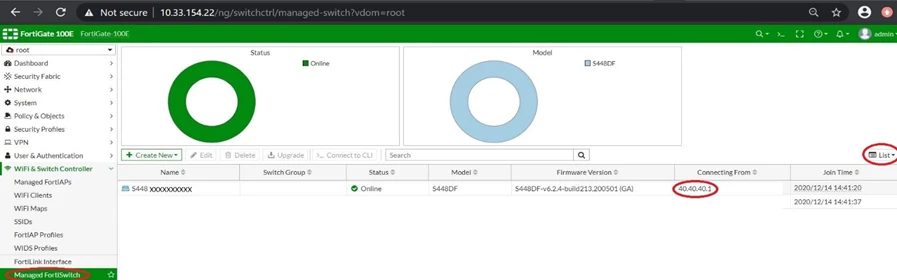
Connect to the FortiSwitch from FortiGate and verify if the internal Interface of FortiSwitch has HTTPS enabled:
FGT # execute ssh admin@40.40.40.1
FSW # show system interface internal
# config system interface
edit "internal"
set mode dhcp
set allowaccess ping https ssh <----- HTTPS enabled.
set type physical
set snmp-index 26
set defaultgw enable
next
end
FSW # show system interface internal
# config system interface
edit "internal"
set mode dhcp
set allowaccess ping https ssh <----- HTTPS enabled.
set type physical
set snmp-index 26
set defaultgw enable
next
end
Create following Virtual IP policy for FortiSwitch:
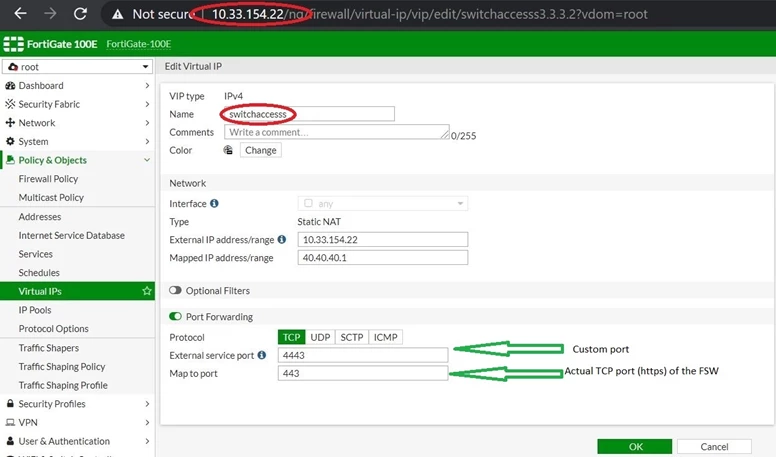
Important note:
Port 4443 should not be used to access the FortiGate HTTPS.
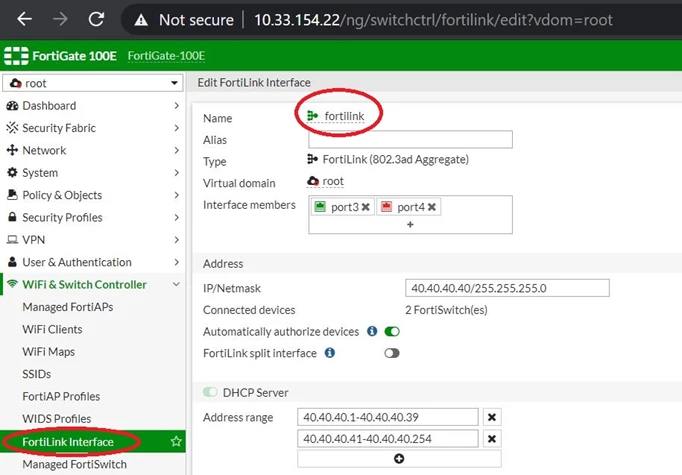
Verify the FortiLink interface name.
Create firewall policy on FortiGate:
config firewall policy
edit 7
set name "switchpolicy"
set srcintf "wan" <----- FortiGate port with IP 10.33.154.22.
. set dstintf "fortilink" <----- FortiLink interface name.
set srcaddr "all"
set dstaddr "switchaccesss” <----- Virtual IP policy name.
set action accept
set schedule "always"
set service "ALL"
set logtraffic disable
set nat enable
next
end
edit 7
set name "switchpolicy"
set srcintf "wan" <----- FortiGate port with IP 10.33.154.22.
. set dstintf "fortilink" <----- FortiLink interface name.
set srcaddr "all"
set dstaddr "switchaccesss” <----- Virtual IP policy name.
set action accept
set schedule "always"
set service "ALL"
set logtraffic disable
set nat enable
next
end
Important note:
It will not be possible to configure this firewall policy from FortiGate GUI as the FortiLink interface will not be listed. So the only option is to create this via Command line.
It will not be possible to configure this firewall policy from FortiGate GUI as the FortiLink interface will not be listed. So the only option is to create this via Command line.
Once the above is configured the policy will be created and will be seen via GUI.
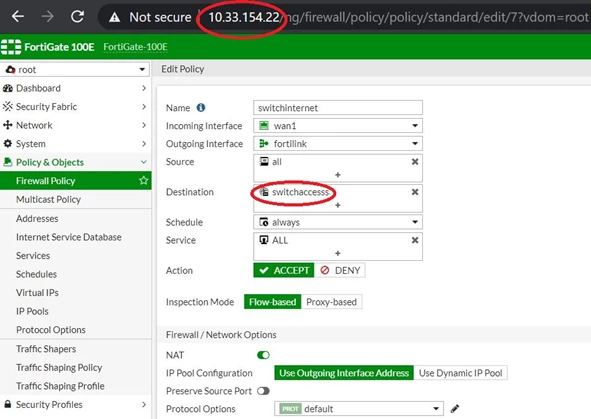 .
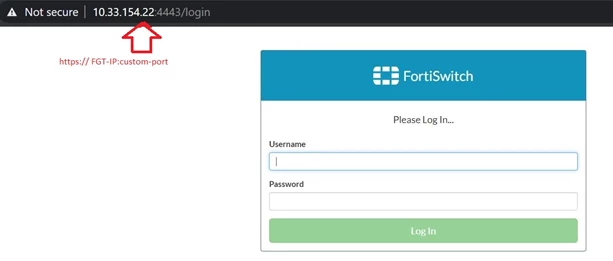
.Access the FortiSwitch using FortiGate IP and custom port.
Note:
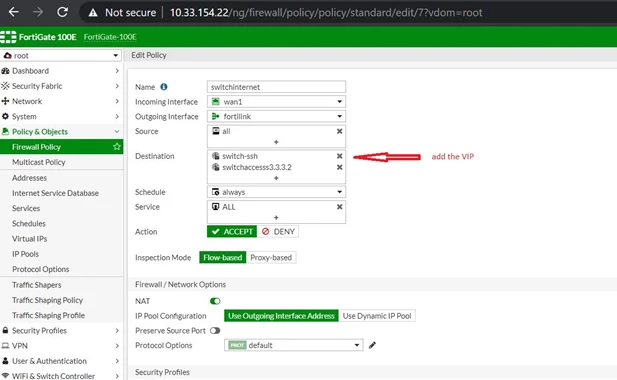
- If multiple FortiSwitch are installed, then each FortiSwitch should have independent virtual IP policy with change in custom-port. Add the new virtual IP policy in firewall policy as destination.
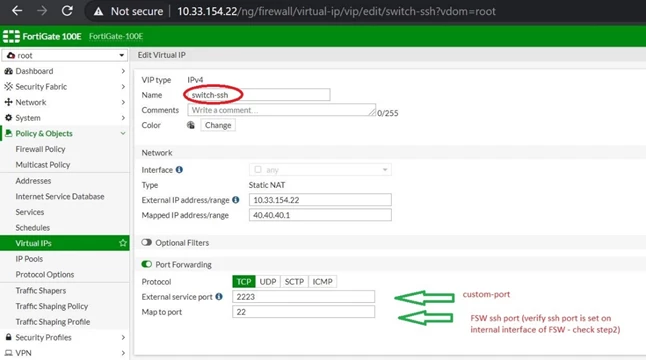
- To access FortiSwitch via SSH then change the ports to 22 (SSH) and add the new virtual IP policy in firewall policy as destination. Mentioned below:
Virtual IP Policy.
Firewall policy.
Now it is possible to access FortiSwitch using FortiGAte IP but use a custom port (2223).
Related srticles:
Technical Tip: Change the port for the admin access to the firewall
Technical Tip: Virtual IP (VIP) port forwarding configuration.