Technical Note: SSO Certificate Script
Description
The "X509 Certificate" used in FortiSOAR™ SSO configuration is expired for versions earlier than 6.4.1. To solve this issue, you need to apply the attached SSO Certificate Script Patch.
Solution
To apply the attached SSO Certificate Script Patch, do the following:
- Download the attached update_sso_cert.zip file and extract the update_sso_cert.py script file to your FortiSOAR™ system.
- Update your FortiSOAR™ Token in the script.
You can retrieve your token by right-clicking in your browser and clicking Inspect > Elements > Network. - SSH to your FortiSOAR™ VM and run the update_sso_cert.py script as # /opt/cyops-auth/.env/bin/python update_sso_cert.py.
- Login to your FortiSOAR™ UI.
- Click the Settings icon and then in the "Security Management" section, click Authentication > SSO Configuration.
- In the "Service Provider" section, in the X509 Certificate field, copy the X509 Certificate.
- Go to the ADFS machine and create a new certificate file with contents of the above certificate.
- Update this certificate in the following two places in ADFS:
- ADFS > Relying Party Trust. Right-click on the specific Relying Party Trust and select Properties and then click on the Encryption tabs as shown in the following image:
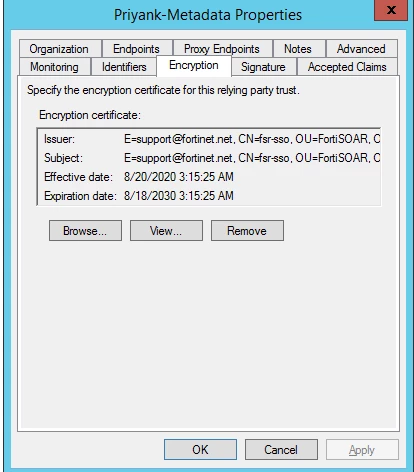
Click Browse and upload the new certificate and then click OK and Apply. - ADFS > Relying Party Trust. Right-click on the specific Relying Party Trust and select Properties and then click on the Signature tab as shown in the following image:
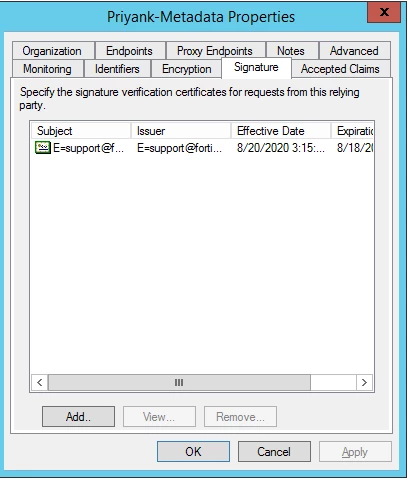
Select the existing certificate (which is expired) and click Remove. Then, upload the new certificate and click OK and Apply. - Login with SSO from FortiSOAR™.