Technical Tip: Adding bulk per-device mapping to a metadata variable using CSV or JSON
| Description | This article explains how to add bulk per-device mappings to a Metadata Variable in FortiManager using either a CSV or JSON file. |
| Scope | FortiManager. |
| Solution | Metadata Variables are commonly used to assign unique values, such as IP addresses to different devices within a FortiManager environment.
Each firewall can be configured with a distinct IP address for communication with external services. The example below demonstrates how to configure per-device mapping for a specific use case.
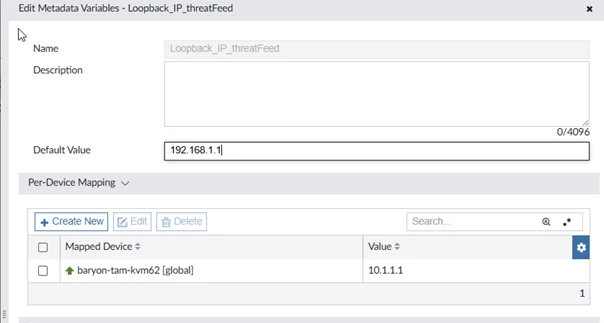
In this example, the variable Loopback_IP_threatfeed is used. Initially, it has:
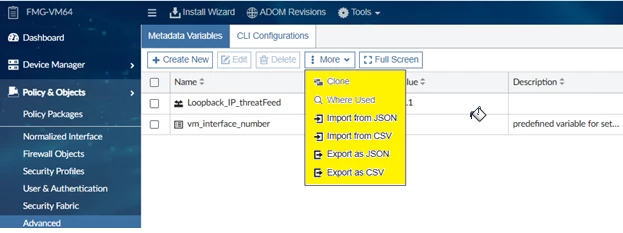
Step 1: Export the Metadata Variable file.
Export the Metadata Variable in either CSV or JSON format.
Step 2: Edit the file to add per-device mappings.
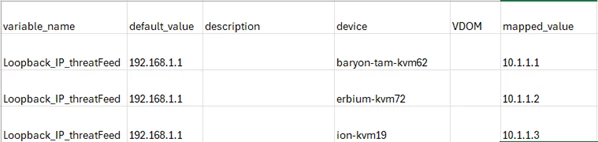
Open the exported file and add new entries for each device along with the corresponding values.
Example – CSV format:
Example - JSON format:
This method is useful when managing a large number of FortiGate devices, each requiring a unique value, and saves time compared to manually creating mappings in the GUI.
Added per-device mapping for an additional 2 Firewalls in CSV format:
Added per-device mapping for 2 Firewalls in JSON Format:
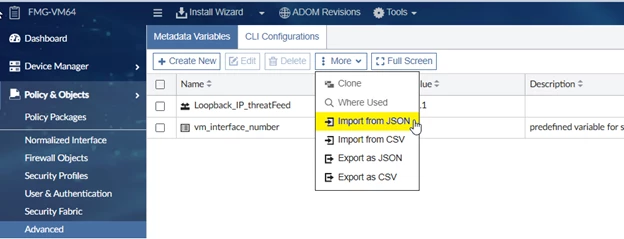
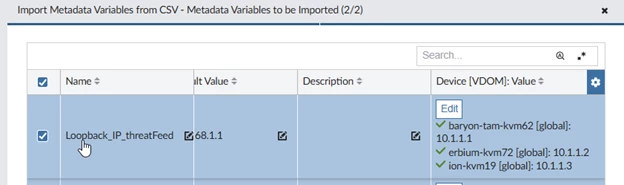
Step 3: Import the File Back into FortiManager.
After adding all required mappings, import the updated file back into FortiManager.
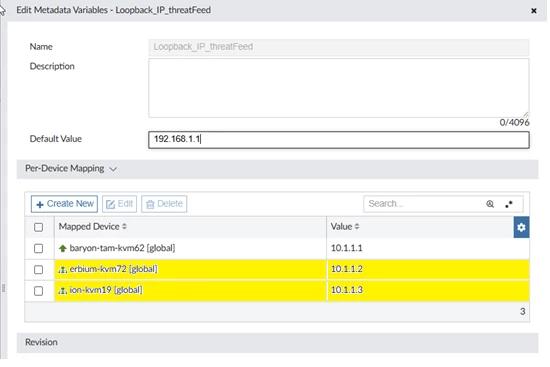
Step 4: Verify and use the updated variable.
Confirm that all devices display the correct per-device values.
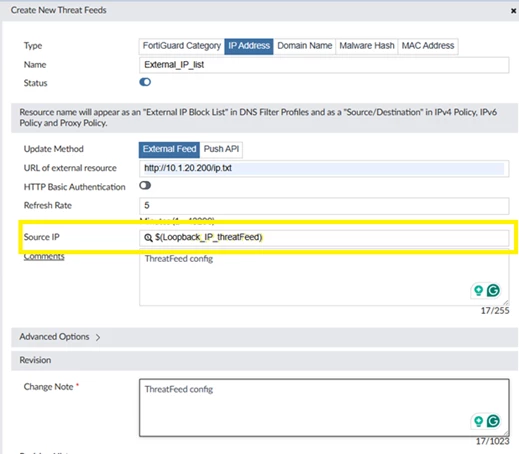
The updated Metadata Variable can then be referenced anywhere in the FortiManager configuration. For example, within Threat Feed settings, as illustrated below.
Summary: Using CSV or JSON import to add per-device mappings provides an efficient method for managing large FortiManager deployments. This approach ensures consistency, saves time, and simplifies the process of assigning unique configuration values across multiple devices. |