


Per-device mapping behaviour
Description
How per-device mappings work and why a different configuration might be seen on a device when a mapping exists on the object.
Scope
FortiManager.
Solution
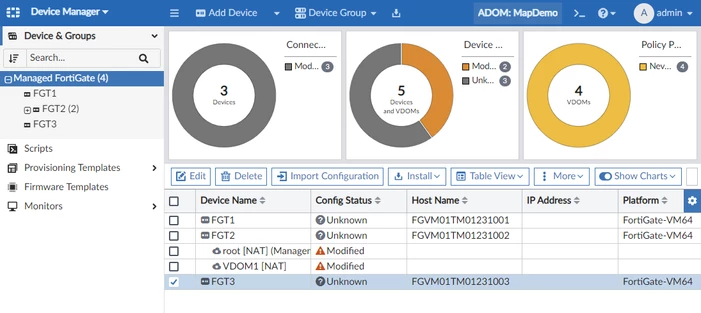
In this example, the FortiManager is managing 3 devices. One has VDOMs enabled:
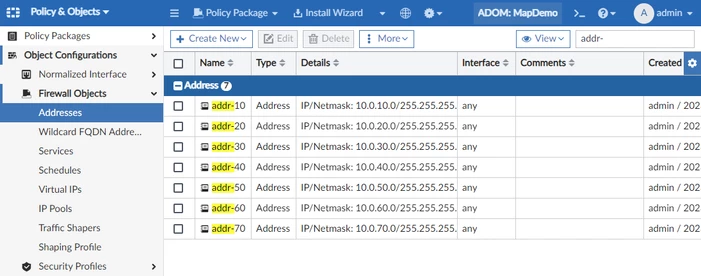
The administrator creates a set of addresses using a naming format that is easy to search for:
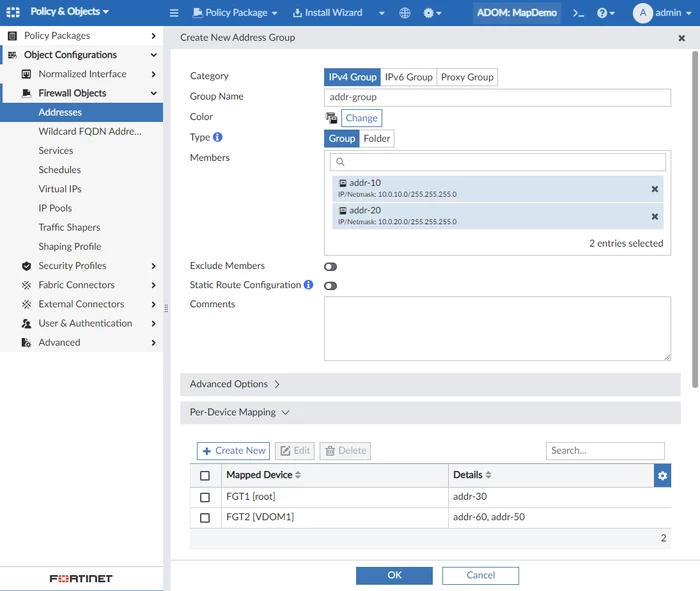
The administrator creates an address group with per-device mapping definitions:
Per-device mapping will also be created during the Import Process.
Referring to the picture above, the Address Group "addr-group" has the following members:
On FGT1 - addr-30.
On FGT2 - addr-60, addr-50.
On FGT3 - addr-10, addr-20.
This can be validated with the Import Report at the Final step of the Import Process. "(name=xxx, oid=yyy, dynamic mapping)".
Note:
During the Import process, when importing the same address object name with the same configured IP subnet but with different associated interfaces for multiple VDOMs, the address object import might fail due to the Object Interface Binding Conflict.
This can result in skipping the import of related policy IDs.
As a workaround, ensure the address object is configured without associated interfaces.
To get more information about the Import Process, see this related article: Technical Tip: Configuration import from the device to the ADOM DB/Policy & Objects.
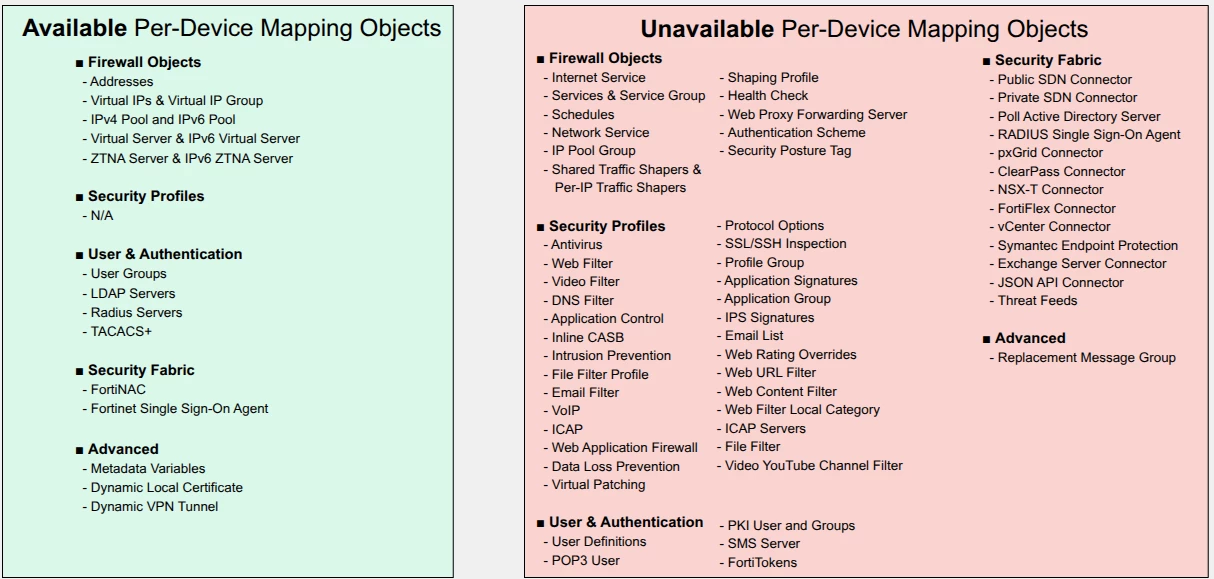
If the per-device mapping is not available for the specific object, it will require creating different profiles/objects per device.
It is possible to print out the CLI configuration of objects in the ADOM Database using the CLI command "execute fmpolicy" on the FortiManager. Below is the configuration of this dynamic object.
MapDemo is the name of the ADOM:
execute fmpolicy print-adom-object MapDemo "firewall addrgrp" addr-group
Dump object "addr-group" of category "firewall addrgrp" in adom "MapDemo":
config firewall addrgrp
    edit "addr-group"
        set uuid e4c7d394-2643-51ee-addf-bbd796cba1b7
        set member "addr-20" "addr-10"
            config dynamic_mapping
                edit "FGT1"-"root"
                    set member "addr-30"
                    set uuid e4dd52d2-2643-51ee-1e2c-fdf490fc3b7f
                next
                edit "FGT2"-"VDOM1"
                    set member "addr-60" "addr-50"
                    set uuid e4ddc384-2643-51ee-23da-dcb178365d9c
                next
            end
    next
end
The "config dynamic_mapping" command is not a valid FortiGate CLI code - it is specific to the ADOM database. This is the Per-Device Mapping configuration seen in the GUI screenshots above.
The mapping is expected to behave for each device as follows.
Remember that Dynamic mapping shall overwrite the Default value for the mentioned object "addr-group":
FGT1 has a per-device mapping for "addr-30", this code will be installed:
config firewall addrgrp
edit "addr-group"
set member "addr-30"
next
end
FGT2 has VDOMs enabled and VDOM1 has a mapping, this code will be installed to VDOM1:
config firewall addrgrp
edit "addr-group"
set member "addr-60" "addr-50"
next
end
FGT3 and root VDOM on FGT2 do not have mappings, so the code at the top of the configuration will be installed.
This only gets pushed to devices that do not have a per-device mapping:
config firewall addrgrp
edit "addr-group"
set member "addr-20" "addr-10"
next
end
If a new address is to be added to the "addr-group" address group on all devices, the administrator would need to add it to all sections of the configuration, not only at the member's section at the top but also in every per-device mapping definition in the address group object.
If the administrator only updates the member's section at the top, only devices that do not have mappings will be updated. In this case, that would be FGT3 and the root VDOM on FGT2.
Troubleshooting when changes are missing from Install Preview:
When an object has a per-device mapping, the mapped value takes precedence over the default value for the corresponding FortiGate and VDOM.
Therefore, modifying only the default value might be saved successfully in FortiManager but produce no change in Install Preview for devices that have a per-device mapping. FortiManager continues to use the mapped value for those installation targets.
To verify the effective configuration:
Check the object under Policy & Objects for per-device mappings.
Confirm that the mapping targets the expected FortiGate and VDOM.
Print the complete ADOM object using:
execute fmpolicy print-adom-object <ADOM_name> "firewall addrgrp" <address_group_name>Generate an Install Preview for the intended device, VDOM, and policy package.
Verify which member list FortiManager generates for that installation target.
To add an address to the group on all devices, update both:
The default member list.
Every applicable per-device mapping.
If a per-device mapping is no longer required, remove it only after confirming that the affected device and VDOM should use the default value. Always verify the Install Preview before proceeding with the installation.
Related article:
Technical Tip: Configuration import from the device to the ADOM DB/Policy & Objects