


How to enable FortiGate Cloud logging from the CLI
Description
Steps to enable FortiCloud logging on the FortiGate.
Scope
FortiCloud and FortiGate.
Solution
Enabling FortiCloud settings from the CLI:
To enable FortiCloud logging, use any SSH/Telnet client (e.g., PuTTY) to access the FortiGate through the CLI, or use the "Web Interface" by selecting the "CLI Console" from the top-right corner.
Once you have logged in, execute the following commands:
config log fortiguard setting
    set status enable
end
Note: In case of an error while enabling FortiGuard logging, log in to FortiCloud via "CLI Method" first, then re-issue the commands above.
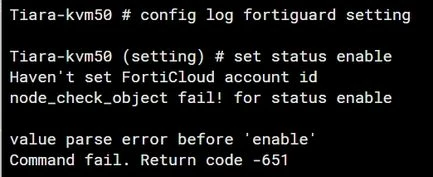
Activating the FortiCloud Account.
CLI Method:
execute fortiguard-log login <email> <password> <domain>
Note: The domain can be one of the following: US, Europe, or GLOBAL.
Example:
execute fortiguard-log login johndoe@fortinet.com password GLOBAL
Note: In the FortiOS CLI, the backslash (\) is used either to escape special characters or as a line continuation character. Therefore, when a password contains a backslash (\), the following step is required:
Enclose the entire password in matching single quotes (') or double quotes (").
Alternatively, escape each backslash by using a double backslash (\\).
For example:
Password: abc\123
Valid input:
'abc\123'
"abc\123"
abc\\123
Note: In 7.4 and 7.6 version branches, the command works without selecting a domain:
Example:
execute fortiguard-log login <account_id> <password>
GUI method: Locate the FortiGate cloud section under System -> Dashboard and select Activate to create a FortiGate Cloud account or log into the existing account.
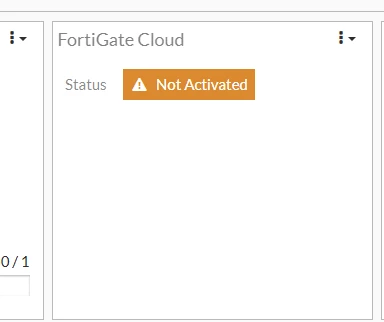
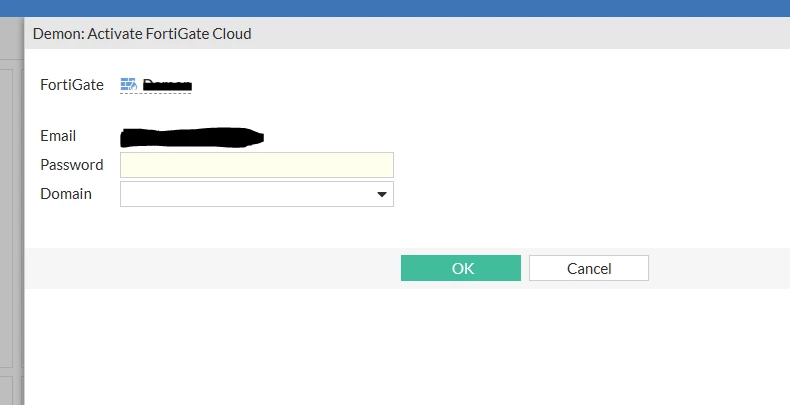
Once the account is active, the account information will appear in the "Dashboard".
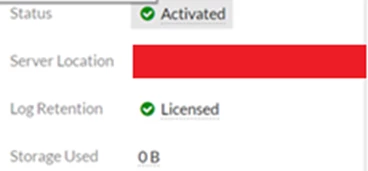
Next, configure the FortiGate to send logs to FortiCloud.
Go to Log & Report -> Log Settings -> Cloud Logging Settings.
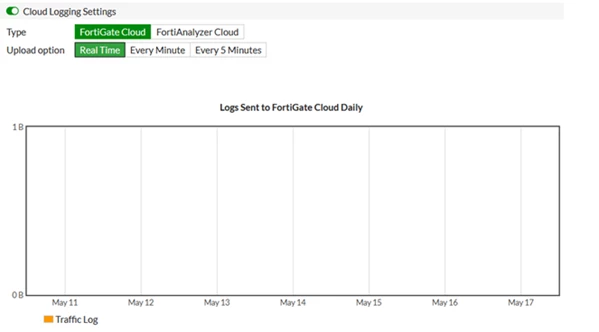
Select the Upload option to Realtime if more accurate logging is needed. Note that enabling this option may increase the CPU usage on the FortiGate, as it sends logs to FortiCloud in real time.
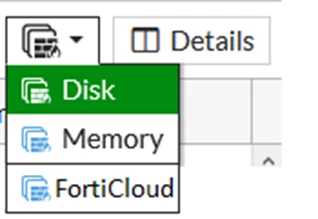
To display logs from FortiCloud on the FortiGate, navigate to: Dashboard -> Log & Report -> Events -> System Events -> FortiCloud. This displays logs directly from FortiCloud, especially when logs are not being saved to Disk or Memory.
Enable "Logging" under Firewall Policy.
Go to Policy & Objects -> IPv4, enable Log allowed traffic, and select the logging option (Security Events/All Sessions).

Note:
If all of the settings above are checked and the logs are still not received on the Cloud, make sure that FortiGate is running the latest firmware if using a Free Subscription with FortiGate Cloud.
Starting from February 28, 2025, a FortiGate without an active FortiGate Cloud subscription is required to upgrade to the latest firmware patch within 7 days of a new GA patch release, or FortiGate Cloud services will be paused for that device.
This will affect the cloud retention service, where logs will not be forwarded to FortiCloud until the device is updated to the latest firmware patch if using a Free FortiGate Cloud account. See the article Security enforcement change for FortiGates provisioned to FortiGate Cloud without active subscriptions.
The log usage under "Fabric Connectors" is shown as daily logs, as in the screenshot below:
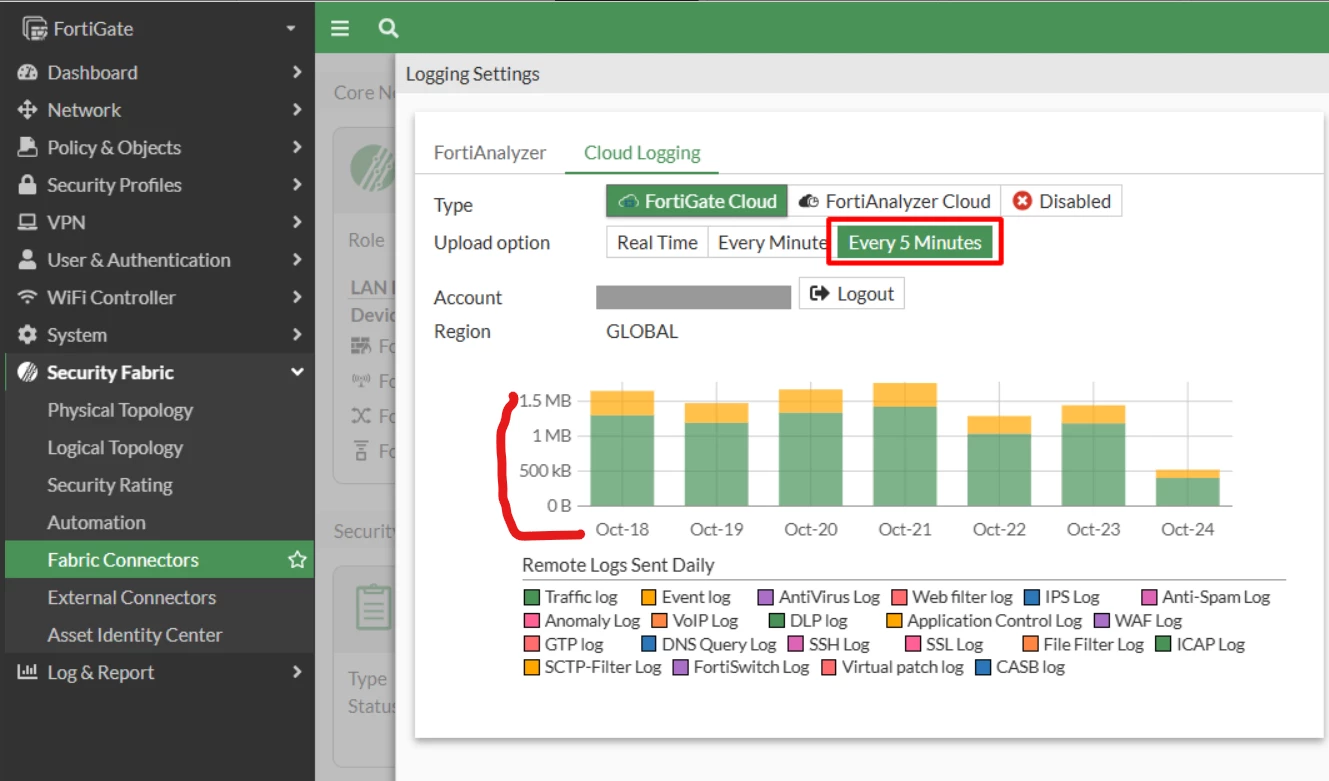
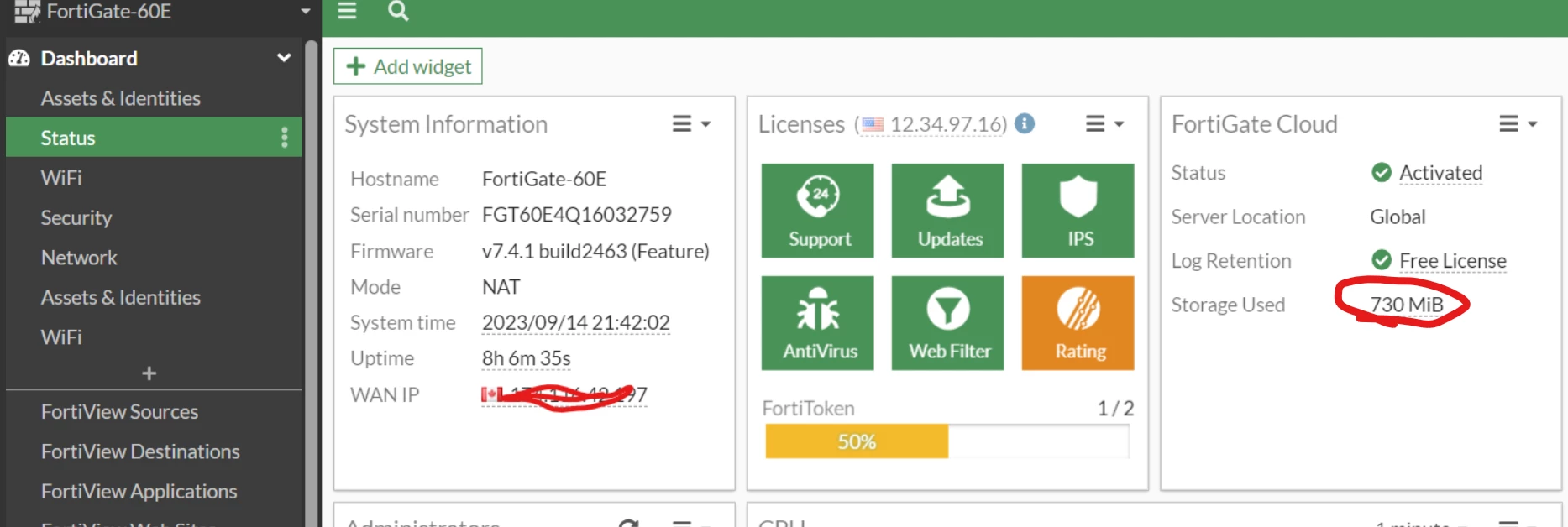
However, the log usage under "dashboard" shows the total amount of usage since the FortiGate Cloud has been used (see the screenshot below); these two parts are not equivalent, as expected.
Related documents:
