FortiGate Cloud supports the FortiCloud Organizations feature by assigning FortiGate assets to Member Accounts and using IAM administrators to transfer the devices between sub-accounts.
The FortiCloud Organization is a centralized account management service that consolidates multiple FortiCloud accounts into Organization/Organizational Units (OUs). The service provides a single pane of visibility management across FortiCloud accounts to manage assets and cloud services, inviting accounts, hierarchical account grouping (OUs), and access roles for user permissions.
FortiGate Cloud supports the FortiCloud Organization feature by assigning FortiGate assets to Member Accounts and using IAM administrators to transfer the devices between sub-accounts.
Before describing an example of this deployment, it is important to become familiar with the Organization structure:
High-level Organization structure:
Organization: An Organization is a hierarchy comprised of Organization Units (OU) and Member Accounts Root Account (Parent OU): The RA is the account that created the Organization. It is responsible for managing the Organization: Creates IAM users and add and delete sub-OU. It also invites members to join an Organization. Sub-OU: This helps to organize member accounts with a maximum of three levels of OUs. Member Accounts: A Member Account is a FortiCloud account that joins the Organization. Organization administrative IAM user: Once Member Accounts are added to the OUs, it is possible to create an Organization administrative IAM user that can create and manage IAM users for the Organization OUs
The following example shows FortiCloud deployment. This example does not migrate licenses or asset registration to another FortiCare account. Refer to the link at the end of this article.
Creating an Organization in FortiCloud:
Advanced management features are available when using organizations. An Organization and Organizational Units can be created in the Organization portal and are used to enhance your company's security.
At this point, you need to decide which type of account would be the Root Account for the Organization. The root account is the account that creates the Organization. It is responsible for managing the Organization: creates IAM users and add and delete sub-OU. It also invites members to join an Organization.
Using the account where the assets are currently deployed in FortiGate Cloud to create the Organization, will make this account the Root Account of your Organization.
For detailed instructions, see FortiCloud - Creating an organization.
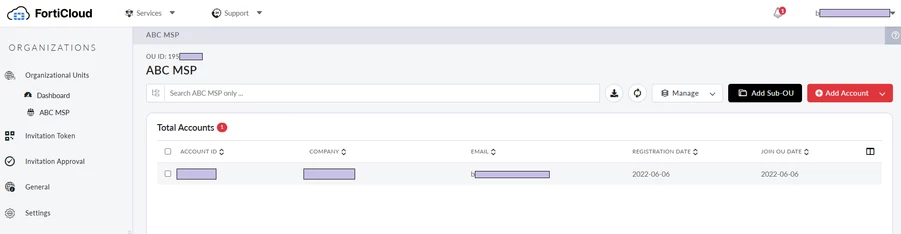
Creating Sub-OU and Adding Member Accounts:
You can now create one or more Sub-OU for more granular account management by following the instructions in FortiCloud - Adding and deleting OUs.
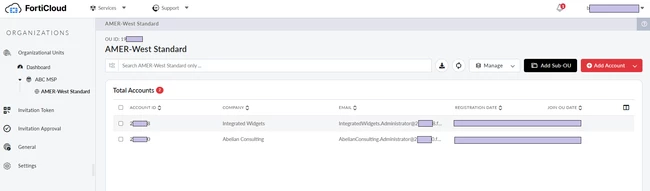
For each Su-OUs you could create Member Accounts to organize your managed customers by following the instructions in FortiCloud - Adding Member Accounts.
The Organization Portal is available for limited, standard access for all FortiCloud users or for unlimited access for FNDN users. Refer to this link for full details: FortiCloud - Standard versus unlimited access.
Organizations created by a FortiCloud account with a FortiCloud Premium license may have an unlimited number of member accounts. Otherwise, an Organization may have up to ten member accounts. See the article FortiGate Cloud MSSP Deployment Guide - Multitenancy with FortiCloud Organizations.
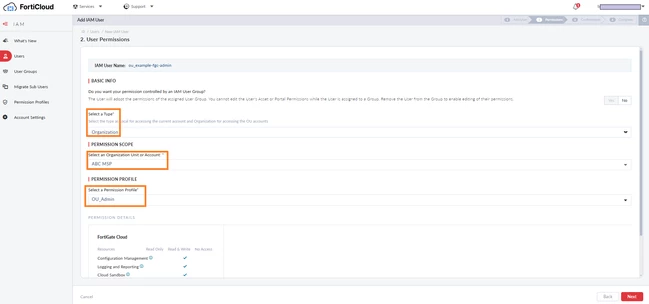
 Create an Organization type IAM user with FortiGate Cloud permissions (FortiCloud):
Create an IAM user following the instructions in FortiCloud Services - Creating an IAM user with Organization permissions.
Permission Profile should have FortiGate Cloud read/write permissions, see FortiCloud Services - Creating a permission profile.
Permission Scope should be set such that the IAM user can interact with the organization accounts containing the assets. In this example, this is the Parent OU since all FortiGates were assigned to the primary account.
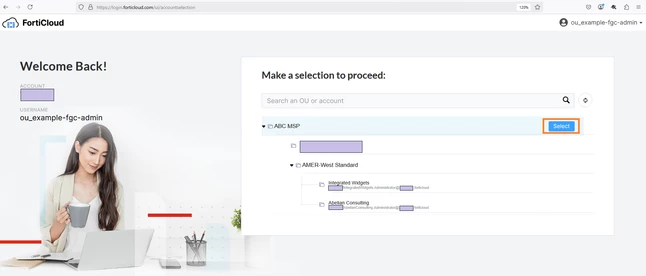
Login to FortiGate Cloud Organizations:
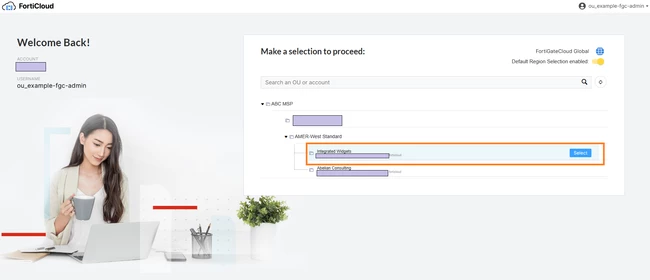
Login to FortiGate Cloud with an Organizations IAM user and select the Parent OU. Selecting an OU is required to login to FortiGate Cloud Organizations.
If a Member Account is selected instead, the IAM user will be logged in to FortiGate Cloud and will have to perform an "OU context switch" to switch to the FortiGate Cloud Organizations portal. See the article FortiCloud IAM - OU context switch.
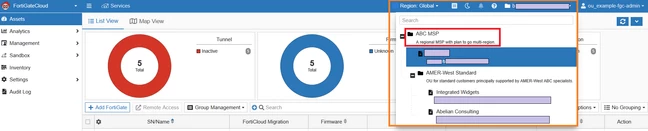
Transfer FortiGate to new Member Account (FortiGate Cloud Organizations).
Transfer FortiGates to the desired subaccount following the instructions in the previously shared document FortiGate Cloud MSSP Deployment Guide - Multitenancy with FortiCloud Organizations.
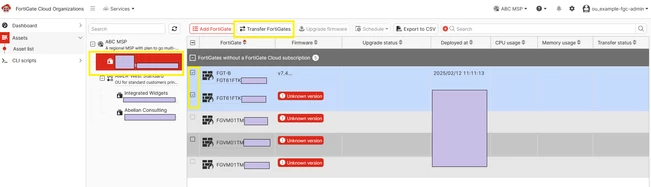
Note that at the time of Organization creation, all FortiGates deployed to FortiGate Cloud were associated with the primary account.
If the assets are not visible, logout and verify the IAM user is logged in to the intended region:
Global: portal.ca.fortigate.forticloud.com US: portal.us.fortigate.forticloud.com Europe: portal.eu.fortigate.forticloud.com
If no assets are visible in any region, verify the assets are deployed to FortiGate Cloud. For one deployment method, see How to register and activate a FortiGate Cloud account. View the assets in FortiGate Cloud (FortiGate Cloud).
Perform an OU Context Switch from an OU to the Member Account from the top-right OU dropdown. Alternatively, log in to FortiGate Cloud using an IAM user with Organization type and select the new Member Account.
The transferred FortiGates are visible and can be managed by the IAM user according to their Permission Profile.
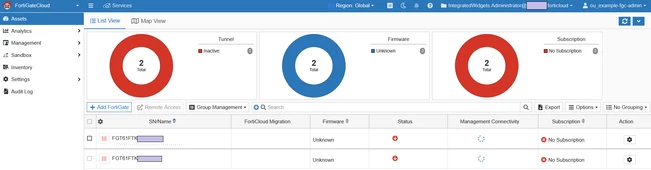
The example above does not migrate licenses or asset registration to another FortiCare account. See Transfer a device to another FortiCloud account - FortiGate Administration Guide if you need to move FortiGate registrations.
Related documents:
|