


Troubleshooting Tip: Preparing windows machine to run Tera Term scripts
Description | This article describes how, sometimes, to troubleshoot an issue, it is necessary to collect a few commands at regular time intervals. For example, to identify which process is causing a memory leak, it is necessary to collect memory output commands every few minutes and compare the results.
|
Scope | All FortiGate versions. |
Solution | As described in the article Technical Tip: TAC debug script with TeraTerm a script was crafted to collect the required useful debug commands that Fortinet TAC Support will use to investigate the issue.
Pre-requirements:
Step 2: Install Tera Term as any other software for Windows, and keep all the default settings.
Step 3: Connect to the FortiGate using SSH. 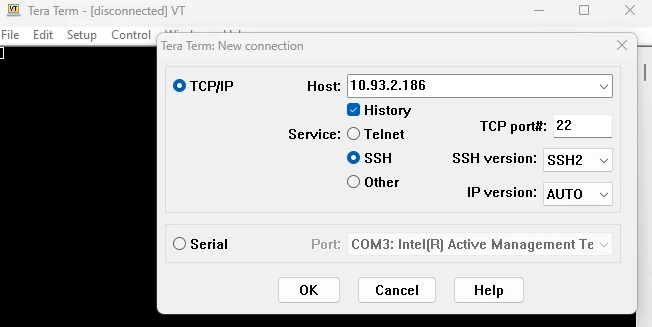
During the first time connecting to the FortiGate, the following message will be shown. When it appears, press Continue.
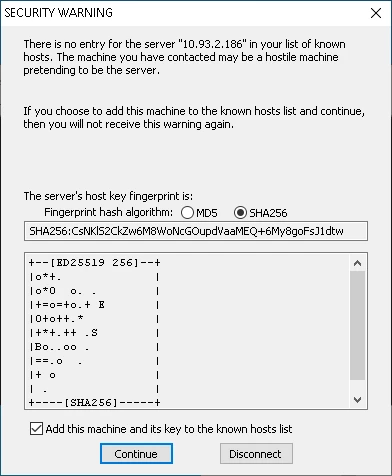
Step 4: When running a default TAC_debug_script, do not change any log settings. The log will be generated in the directory 'C:\FTNTTACDebug' when the script begins. 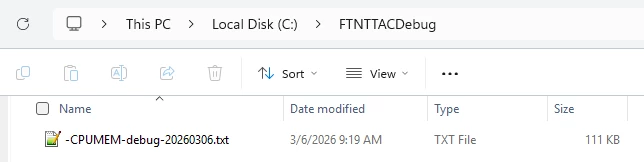
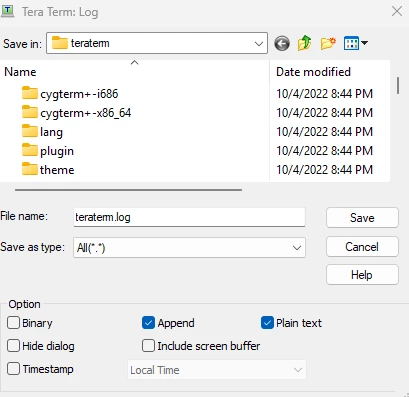
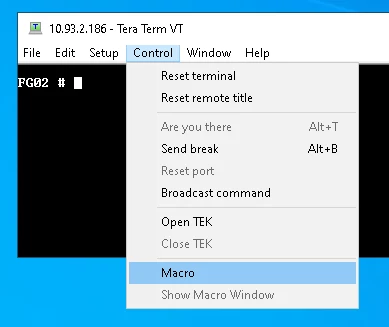
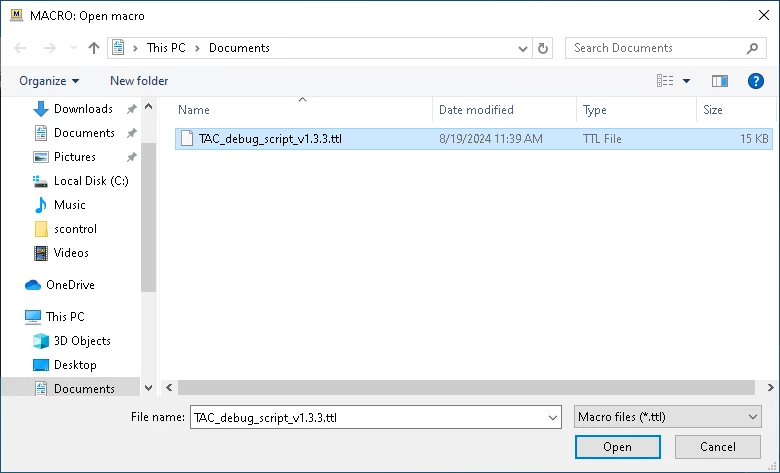
Step 6: Select the script provided by TAC or download from the Technical Tip: TAC debug script with TeraTerm article.
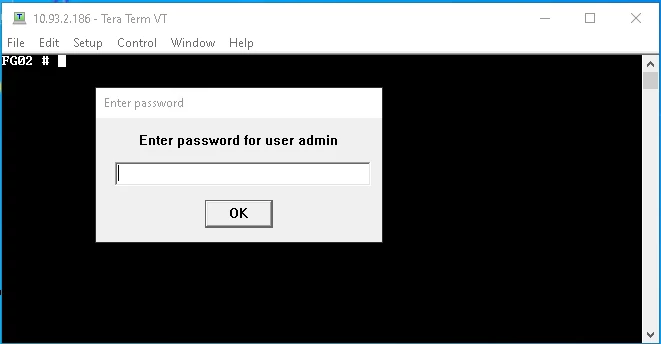
Step 7: The password will be requested one more time, type it and press OK.
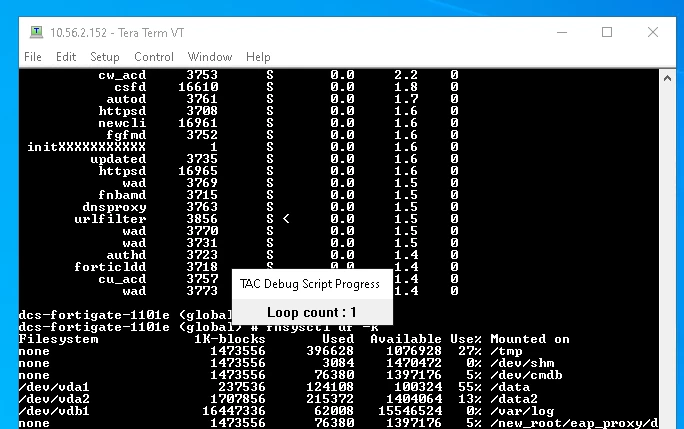
After that, the script should be running, and it will display a small window showing the loop count.
Follow the TAC instructions and upload the logs collected to the ticket as instructed by the TAC engineer. |

