Troubleshooting Tip: Not possible to save admin-server-cert settings with HTTPS server certificate
| Description | This article describes a problem when attempting to save the system settings with an HTTPS server certificate. |
| Scope | FortiGate v7.6.0. |
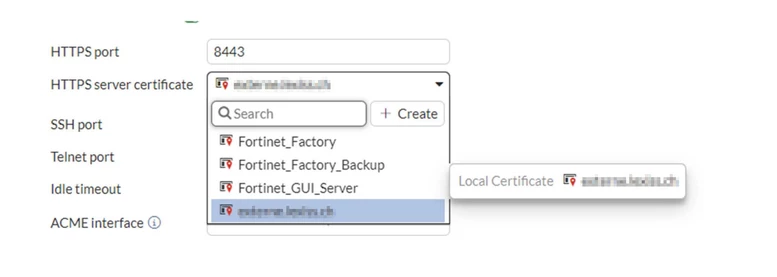
| Solution | A new SSL certificate was imported under FortiGate GUI -> System > Certificates, and it is shown as valid. However, it is not possible to save the system settings under FortiGate GUI -> System -> Settings with the new HTTPS server certificate.
An error message is displayed in FortiGate GUI: 'Administration settings failed to save: Input value is invalid'.
The new certificate is present under System -> Settings -> HTTPS Server Certificate. However, by checking the certificate via CLI, the certificate is not available to be used (the last entry should show the <certificate-name>).
config system global set admin-server-cert ?
To be possible to save the HTTPS server certificate settings, open the CLI and display the full configuration for the affected certificate:
config vpn certificate local edit <certificate-name> show full
Copy all the content of the CLI certificate configuration, as shown in the example below: config vpn certificate local Delete the new certificate under System -> Certificate, select the certificate, and select Delete. To re-import the certificate, paste the previously copied certificate commands into a new CLI window.
The SSL certificate should now be accessible as the HTTPS server certificate. config system global set admin-server-cert ? <certificate-name> local |