


Troubleshooting Tip: Issue with changing the Admin Password through CLI
Description
This article describes the steps to follow when encountering issues during the process of updating the Local Admin Account password via the CLI.
Scope
FortiGate, CLI.
Solution
The Admin account password can be updated using either the GUI or the CLI.
GUI:
For password updates via the GUI, navigate to System -> Administrators -> Select Admin Account -> Change Password.
CLI:
When using the CLI, run the following command:
config system admin
edit "<admin_username>"
        set password <new_password> <old_password>
end
Important:
An issue may occur when a backslash (\) is included in the password while changing it via the CLI.
The command completes successfully and updates the password; however, logging in with the new password may trigger an 'Authentication Failure' error.
Example:
config system admin
  edit "Demo_Admin"
        set password New\Password Password
end
Reminder:
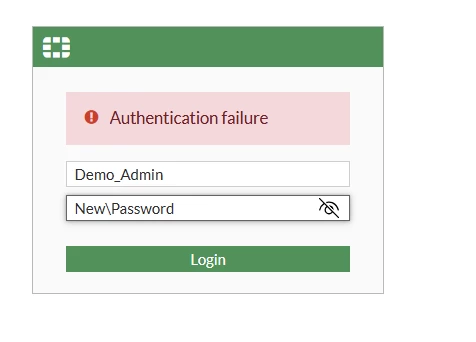
Logging in with New\Password results in the following error message:
Tip:
To resolve the issue caused by using a backslash in the password, enclose the password in double quotes (" ") when running the command:
config system admin
edit "<admin_username>"
        set password "<new_password>" "<old_password>"
end
Example:
config system admin
edit "Demo_Admin"
        set password "New\Password" "Password"
end
Result:
Authentication will now be successful with the same password containing a backslash.
Note:
On version 7.6.6, there is an issue where local Admin users with super_admin privileges cannot change the admin account passwords from either the GUI or the CLI.
Both resulted in the following error:
"Please enter current administrator password: *************** Incorrect admin's password. Command fail. Return code -30"
Debugging the httpsd process results in the following errors:
2026-05-18 16:28:12 [httpsd 29703 - 1777362625 warning] JavaScript -- Possibly unhandled rejection: {"user_notified":"error","http_method":"PUT","revision":"dc0727dbaf8364e10effc2b40ef0f356","revision_changed":false,"cli_error":"<strong>Invalid password.</strong>
<ul class=\"error-msg-list\">
Incorrect admin's password.
","error":-30,"status":"error","http_status":500,"vdom":"root","path":"system","name":"admin","action"
:"","mkey":"helmich","serial":"FGT70FTXXXXXX","version":"v7.6.6","build":3652}
at window.FOS_LIB (https://172.16.10.25/static/ng/app.js:2:3957741)
at processChecks (https://172.16.10.25/static/ng/app.js:2:2039234)
at Scope.$digest (https://172.16.10.25/static/ng/app.js:2:2050196)
2026-05-18 16:28:12 [httpsd 29703 - 1777361355 warning] JavaScript -- Possibly unhandled rejection: {"data":{"http_method":"PUT","revision":"8c0718dbaf1364f30effc2b60e80d318","revision_changed":false,"cli_error":"<stron
g>Invalid password.</strong>
<ul class=\"error-msg-list\">
Incorrect admin's password.
","error":-30,"status":"error","http_status":500,"vdom":"root","path":"system","name":"admin","action":"","mkey":"helm
The workaround for this issue is to enable password policy and then force a password change for the admin account:
Technical Tip: How to force a password change for a FortiGate admin account on next login
Related articles:

