




Troubleshooting Tip: Basic Troubleshooting for high memory or high CPU usage
Description
This article describes how to troubleshoot high CPU or high memory usage.
Scope
FortiGate.
Solution
Access FortiGate via the CLI and run these commands (make sure that the issue is occurring when these commands are running):
Command 1:
diagnose sys top 1 10
This command shows the top 10 high usage daemons of the FortiGate. Sample Result: The 4th column from the left is for CPU usage percentage, and the 5th column from the left is the memory usage percentage.
The daemon causing the high CPU or high memory usage will be shown:
Run Time: 22 days, 2 hours and 13 minutes
0U, 0N, 0S, 100I, 0WA, 0HI, 0SI, 0ST; 16064T, 11481F
miglogd 269 S 0.4 0.1 1
ipsengine 286 S < 0.0 0.7 3
ipsengine 287 S < 0.0 0.6 4
ipsengine 292 S < 0.0 0.6 2
ipsengine 289 S < 0.0 0.6 4
ipsengine 288 S < 0.0 0.6 0
ipsengine 290 S < 0.0 0.6 2
ipsengine 291 S < 0.0 0.6 4
updated 209 S 0.0 0.3 5
miglogd 184 S 0.0 0.2 1
The 0U, 0N, 0S, 100I, 0WA, 0HI, 0SI, 0ST line above summarizes overall CPU usage across all CPU cores. The letters stand for:
U: User space/user processes (%) -> 0%.
N: Nice / low-priority processes (%) -> 0%.
S: System/kernel processes (%) -> 0%.
I: Idle (%) -> 100% (the CPU is completely idle, no meaningful load at the moment of sampling).
WA: I/O wait (waiting for disk/network I/O) -> 0%.
HI: Hardware interrupts -> 0%.
SI: Software interrupts (softirqs) -> 0%.
ST: Steal time (relevant in virtualized environments; time stolen by hypervisor) -> 0%.
Columns explanation:
For example, row 1 shows 'miglogd 269 S 0.4 0.1 1'.
Process name: miglogd.
Process ID: 269.
Process state: S - Sleeping.
CPU usage (%): 0.4%.
Memory usage (%): 0.1.
Core number: 1 (Process consumption running on core 1).
Command 2:
get sys perf stat
This command shows the CPU and memory total usage percentage, and also the concurrent connections of the FortiGate. It is advised to run this command 5x.
Sample Result:
CPU states: 0% user 0% system 0% nice 100% idle 0% iowait 0% irq 0% softirq
CPU0 states: 0% user 0% system 0% nice 100% idle 0% iowait 0% irq 0% softirq
CPU1 states: 0% user 0% system 0% nice 100% idle 0% iowait 0% irq 0% softirq
CPU2 states: 1% user 0% system 0% nice 99% idle 0% iowait 0% irq 0% softirq
CPU3 states: 0% user 0% system 0% nice 100% idle 0% iowait 0% irq 0% softirq
CPU4 states: 0% user 0% system 0% nice 100% idle 0% iowait 0% irq 0% softirq
CPU5 states: 0% user 0% system 0% nice 100% idle 0% iowait 0% irq 0% softirq
CPU6 states: 0% user 0% system 0% nice 100% idle 0% iowait 0% irq 0% softirq
CPU7 states: 0% user 0% system 0% nice 100% idle 0% iowait 0% irq 0% softirq
Memory: 16450308k total, 4570304k used (27%), 11880004k free (73%)
Average network usage: 87 / 77 kbps in 1 minute, 173 / 163 kbps in 10 minutes, 1213 / 1203 kbps in 30 minutes
Average sessions: 200 sessions in 1 minute, 215 sessions in 10 minutes, 253 sessions in 30 minutes
Average session setup rate: 4 sessions per second in last 1 minute, 3 sessions per second in last 10 minutes, 3 sessions per second in last 30 minutes
Average NPU sessions: 0 sessions in last 1 minute, 0 sessions in last 10 minutes, 0 sessions in last 30 minutes
Average nTurbo sessions: 0 sessions in last 1 minute, 0 sessions in last 10 minutes, 0 sessions in last 30 minutes
Virus caught: 0 total in 1 minute
IPS attacks blocked: 0 total in 1 minute
Uptime: 22 days, 2 hours, 17 minutes
Command 3:
For a live check of the CPU status:
diagnose sys mpstat
Gathering data, wait 5 sec, press any key to quit.
..0..1..2..3..4
TIME CPU %usr %nice %sys %iowait %irq %soft %steal %idle
01:36:15 PM all 0.80 0.00 0.80 0.00 0.40 0.20 0.00 97.81
0 0.80 0.00 0.80 0.00 0.40 0.20 0.00 97.81
TIME CPU %usr %nice %sys %iowait %irq %soft %steal %idle
01:36:20 PM all 1.00 0.00 0.20 0.00 0.40 0.40 0.20 97.81
0 1.00 0.00 0.20 0.00 0.40 0.40 0.20 97.81
TIME CPU %usr %nice %sys %iowait %irq %soft %steal %idle
01:36:25 PM all 2.00 0.00 0.80 0.00 0.20 0.20 0.00 96.80
0 2.00 0.00 0.80 0.00 0.20 0.20 0.00 96.80
Command 4:
diagnose debug crashlog read
This shows if there are any crash logs for the daemon that are causing the FortiGate high CPU or high MEM usage.
Example result:
290: 2019-11-18 18:20:42 scanunit=manager pid=207 str="AV database changed (1); restarting workers"
291: 2019-11-18 18:20:42 <00207> scanunit=manager str="Success loading anti-virus database."
292: 2019-11-18 19:21:52 scanunit=manager pid=207 str="AV database changed (1); restarting workers"
293: 2019-11-18 19:21:52 <00207> scanunit=manager str="Success loading anti-virus database."
294: 2019-11-18 19:26:17 the killed daemon is /bin/pyfcgid: status=0x0
295: 2019-11-18 20:20:23 scanunit=manager pid=207 str="AV database changed (1); restarting workers"
296: 2019-11-18 20:20:23 <00207> scanunit=manager str="Success loading anti-virus database."
297: 2019-11-18 22:20:20 scanunit=manager pid=207 str="AV database changed (1); restarting workers"
298: 2019-11-18 22:20:20 <00207> scanunit=manager str="Success loading anti-virus database."
299: 2019-11-18 23:47:06 scanunit=manager pid=207 str="AV database changed (1); restarting workers"
300: 2019-11-18 23:47:07 <00207> scanunit=manager str="Success loading anti-virus database."
301: 2019-11-18 23:57:28 the killed daemon is /bin/pyfcgid: status=0x100
302: 2019-11-19 00:42:31 scanunit=manager pid=207 str="AV database changed (1); restarting workers"
303: 2019-11-19 00:42:31 <00207> scanunit=manager str="Success loading anti-virus database."
304: 2019-11-19 00:52:18 the killed daemon is /bin/pyfcgid: status=0x100
305: 2019-11-19 02:20:40 scanunit=manager pid=207 str="AV database changed (1); restarting workers"
306: 2019-11-19 02:20:40 <00207> scanunit=manager str="Success loading anti-virus database."
307: 2019-11-19 04:20:22 scanunit=manager pid=207 str="AV database changed (1); restarting workers"
308: 2019-11-19 04:20:22 <00207> scanunit=manager str="Success loading anti-virus database."
309: 2019-11-19 06:21:25 scanunit=manager pid=207 str="AV database changed (1); restarting workers"
310: 2019-11-19 06:21:25 <00207> scanunit=manager str="Success loading anti-virus database."
311: 2019-11-19 08:20:22 scanunit=manager pid=207 str="AV database changed (1); restarting workers"
312: 2019-11-19 08:20:22 <00207> scanunit=manager str="Success loading anti-virus database."
313: 2019-11-19 10:20:41 scanunit=manager pid=207 str="AV database changed (1); restarting workers"
314: 2019-11-19 10:20:42 <00207> scanunit=manager str="Success loading anti-virus database."
315: 2019-11-19 12:20:32 scanunit=manager pid=207 str="AV database changed (1); restarting workers"
316: 2019-11-19 12:20:32 <00207> scanunit=manager str="Success loading anti-virus database."
317: 2019-11-19 14:20:24 scanunit=manager pid=207 str="AV database changed (1); restarting workers"
318: 2019-11-19 14:20:24 <00207> scanunit=manager str="Success loading anti-virus database."
319: 2019-11-19 16:20:46 scanunit=manager pid=207 str="AV database changed (1); restarting workers"
320: 2019-11-19 16:20:46 <00207> scanunit=manager str="Success loading anti-virus database."
321: 2019-11-19 18:20:19 scanunit=manager pid=207 str="AV database changed (1); restarting workers"
322: 2019-11-19 18:20:19 <00207> scanunit=manager str="Success loading anti-virus database."
323: 2019-11-19 18:47:02 scanunit=manager pid=207 str="AV database changed (1); restarting workers"
324: 2019-11-19 18:47:02 <00207> scanunit=manager str="Success loading anti-virus database."
325: 2019-11-19 18:51:36 the killed daemon is /bin/pyfcgid: status=0x0
Crash log interval is 3600 seconds
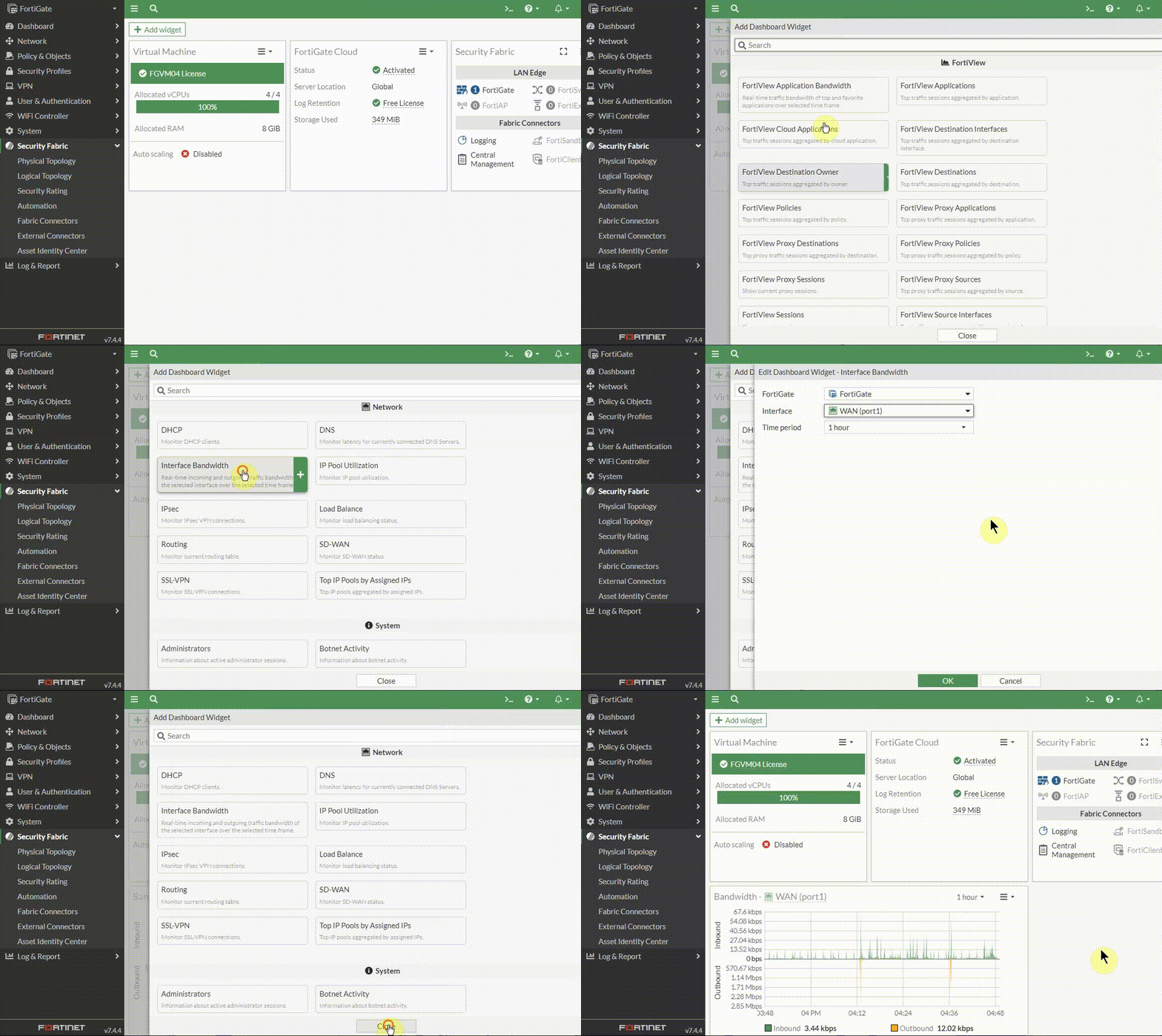
Enable the Interface Bandwidth monitoring on the FortiGate Dashboard:
Select in the left column Dashboard -> Status. Then select 'Add widget'.
Select Interface Bandwidth.
Select the interface that is used on the FortiGate.
Go to the Dashboard to see the interfaces with the bandwidth usage widget (in this scenario: the WAN interface).
The purpose of Interface Bandwidth usage is to see whether there is high bandwidth on the FortiGate that is exceeding the supported traffic.
This information may be useful in figuring out the cause of High CPU or High Memory consumption.
Example:
Command 5:
diagnose hardware sysinfo memory
By using 'diagnose hardware system memory', all of the memory counters involved in the conserve mode and kernel conserve mode calculation can be seen.
Consider the following example:
diagnose hardware sysinfo memory
total: used: free: shared: buffers: cached: shm:
Mem: 260435968 146337792 114098176 0 221184 65974272 59985920
Swap: 0 0 0
MemTotal: 254332 kB
MemFree: 111424 kB
MemShared: 0 kB
Buffers: 216 kB
Cached: 64428 kB
SwapCached: 0 kB
Active: 26844 kB
Inactive: 37856 kB
HighTotal: 0 kB
HighFree: 0 kB
LowTotal: 254332 kB (2)
LowFree: 111424 kB (1)
SwapTotal: 0 kB
SwapFree: 0 kB
Explaining the value 'Cached, Active, Inactive' that may take significant memory.
Cached = Active + Inactive.
This is information cached by the FortiGate for its system (basically, I/O buffering). The inactive part is claimed back from the system when it requires more memory.
Command 6:
diagnose sys session stat
By using 'diagnose sys session stat', it is possible to view all detailed statistics about the session table on a FortiGate.
An increase in the number of sessions will automatically lead to higher slab memory usage, as the slab allocator is responsible for storing session-related information in the kernel.
Sample result:
FG101F-2 # diagnose sys session stat
misc info: session_count=24 setup_rate=0 exp_count=0 reflect_count=0 clash=0
memory_tension_drop=0 ephemeral=0/239104 removeable=0 extreme_low_mem=0
npu_session_count=0
nturbo_session_count=0
delete=0, flush=1, dev_down=52/767 ses_walkers=0
TCP sessions:
10 in ESTABLISHED state
firewall error stat:
error1=00000000
error2=00000000
error3=00000000
error4=00000000
tt=00000000
cont=00000000
ips_recv=00000000
policy_deny=000116b8
av_recv=00000000
fqdn_count=00000009
fqdn6_count=00000000
global: ses_limit=0 ses6_limit=0 rt_limit=0 rt6_limit=0
Command 7:
diagnose sys top-mem 10
By using 'diagnose sys top-mem <integer>', it is possible to view high-consuming processes with their corresponding pids. The < integer> can be set from 1 to 99. If set to 99, this command will show the sum of all 99 processes at the bottom of the list. This value should be close to what is visible under get hardware memory under Active.
If it is not, there may be an issue where FortiOS spawns lots of duplicate processes, which slowly consume all available memory.
Sample result:
FG101F-2 # diagnose sys top-mem 99
node (2111): 81197kB
cid (2168): 48226kB
wad (2277): 37462kB
ipshelper (2159): 33024kB
httpsd (6298): 28507kB
wad (2275): 19904kB
wad (2269): 19840kB
cmdbsvr (1992): 17288kB
forticldd (2101): 16374kB
lnkmtd (2139): 15431kB
If the issue persists and assistance from the support team is required, open a ticket through the Support portal.
Execute the commands listed below, collect the outputs, and attach them to the ticket along with the configuration file.
get system status
get hardware status
diagnose hardware sysinfo memory
diagnose debug crashlog read
diagnose sys top-mem 99
diagnose system top 5 40 <----- To sort by high CPU, use the 'p' key. To sort by high memory, use the 'm' key.
get system performance status <----- Run it 3 times.
Run the capture for 2 minutes and then stop it with Ctrl + C.
Related article:

