It is necessary to troubleshoot the connectivity for the server first: 
Type option under:
config firewall ldb-monitor
Settings allows to select the monitor type used by the health check monitor to check the health of the server.
Options are: PING, TCP, HTTP, HTTPS, or DNS.
For TCP type, it does not use TCP-echo neither Telnet connection to test the real server availability.
Instead, it performs a TCP-connect probe: the FortiGate initiates a TCP three-way handshake (SYN → SYN-ACK → ACK) to the real server's IP and port.
If the handshake completes, the health check is considered successful.
On the other hand, HTTP/HTTPS types use the HTTP-GET method, where FortiGate will request a specific resource from the real server.
FortiGate-100F-NAT # config firewall ldb-monitor
FortiGate-100F-NAT # edit Health_TEST
FortiGate-100F-NAT (Health_TEST) # set type
ping                     PING health monitor.
tcp                      TCP-connect health monitor.
http                     HTTP-GET health monitor.
https                    HTTP-GET health monitor with SSL.
dns                      DNS health monitor.
Case example:
A machine in the same network as the server can open the webpage, but keep in mind the full URL. The server could be configured to only provide a page with the correct path. E.g.: put the IP address of the server 'https://192.168.1.6' in the web browser but it does not open or gets a 'not found' page or any other HTTP error. However, if trying 'https://192.168.1.6/test' it will open correctly. In this particular case, an adjustment needs to be made in the monitor.
Case example configuration fix: It is possible to use the GUI to help configure, but for HTTPS, it is necessary to apply additional settings in the CLI. 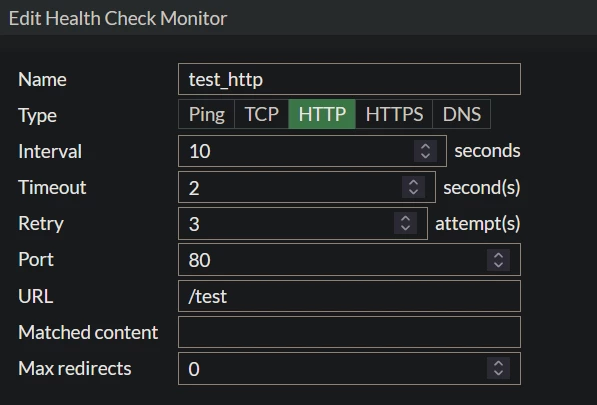 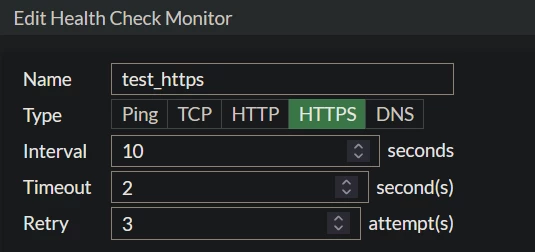 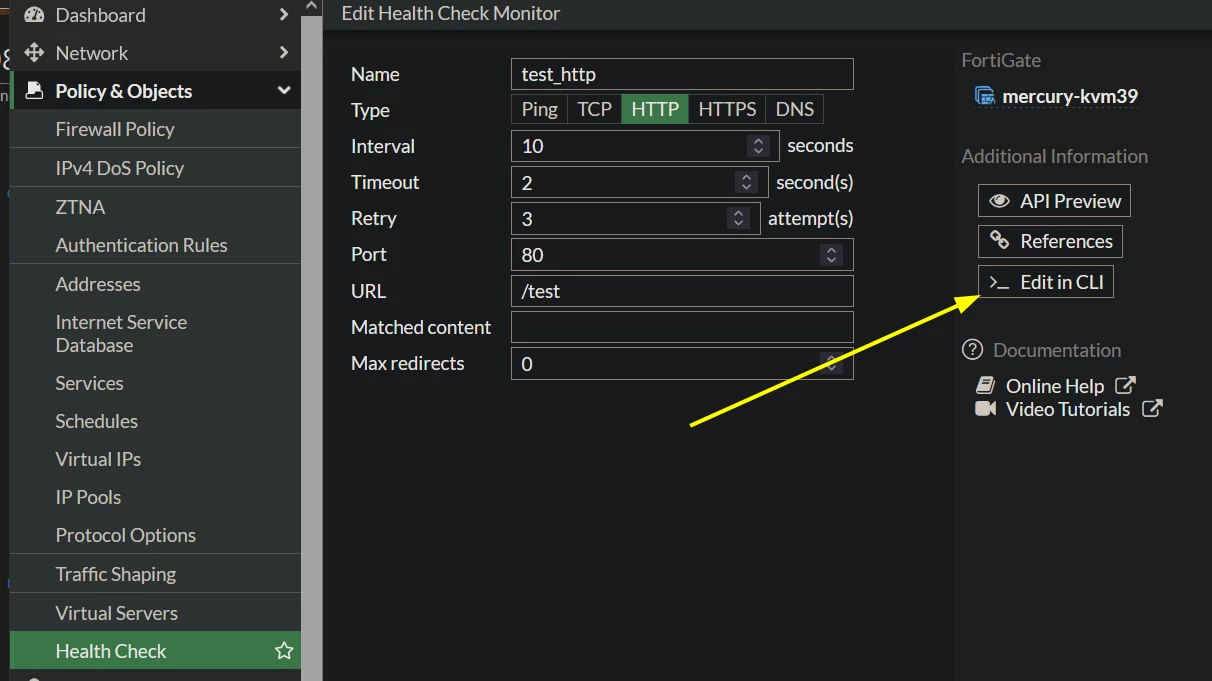 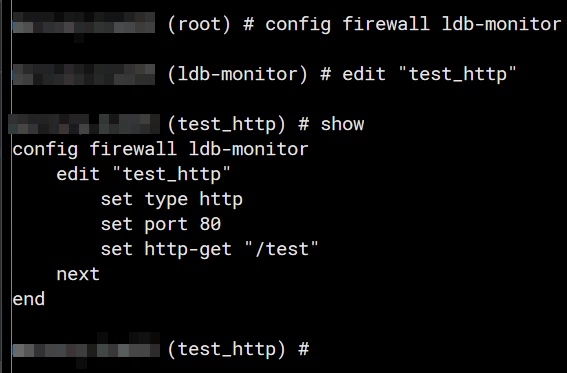 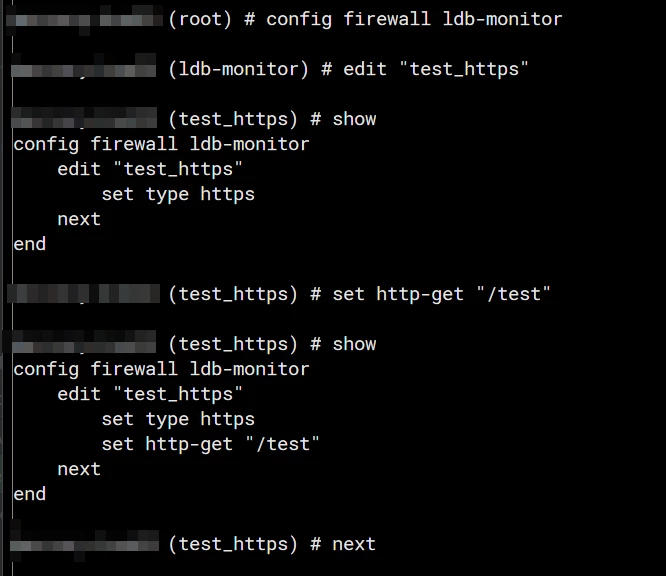
GUI is designed to be simple and may not have all options available there; check the CLI reference for all options: config firewall ldb-monitor.
Additionally, a specific expected response content can be defined under health check configuration (Matched content). It is explained in the following link:
Technical Tip: How to setup HTTP health check for virtual servers
Additional troubleshooting commands for real server health checks: diagnose debug enable
diagnose firewall vip virtual-server stats list
diagnose firewall vip virtual-server real-server list
diagnose firewall vip realserver list
diagnose firewall vip realserver healthcheck stats show
Related articles:
Troubleshooting Tip: Initial troubleshooting commands for Virtual Servers
Technical Tip: Configure a virtual server
Technical Tip: HTTP health check in virtual servers |