Technical Tip: Using automatic stitches to bounce IPsec interfaces
| Description | This article describes how to automate bouncing IPsec interfaces using an automation stitch. |
| Scope | FortiGate. |
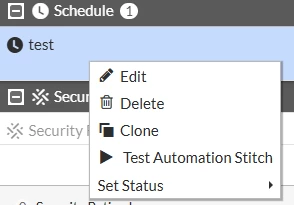
| Solution | In cases where it is needed to bounce an IPsec tunnel at a specific time during the day or week, automation stitches can be used on the FortiGate to automate this process to avoid performing it manually. A scheduled trigger needs to be created. This can be daily or weekly. For this example purpose a weekly trigger on Sunday at 3:00 AM is being used. config system automation-trigger edit "bounce_tunnel" set trigger-type scheduled set trigger-frequency weekly set trigger-weekday sunday set trigger-hour 3 next end After that, the actions need to be created. In this case, two CLI scripts are being used to set the interface DOWN and then UP again: config system automation-action edit "interface_DOWN" set action-type cli-script set script "config system interface edit test_IPSEC set status down end set accprofile "super_admin" next end config system automation-action edit "interface_UP" set action-type cli-script set script "config system interface edit test_IPSEC set status up end set accprofile "super_admin" next end After that, the automation stitch needs to be created. config system automation-stitch edit "test" set trigger "bounce_tunnel" config actions edit 1 set action "interface_DOWN" set required enable next edit 2 set action "interface_UP" set delay 60 set required enable next end next end A delay was added in this case, which is 60s, but can be configured even lower. When using CLI scripts, a certain delay is recommended so the commands can be run smoothly and they do not overlap with one another. This whole process can be done through the GUI as well. For this article, only the CLI configuration is covered. The automation stitch can be triggered through the GUI as a test to check if it is working as expected.
Initially, the interface will show as up: FortiGate (interface) # get test_IPSEC | grep 'status' cli-conn-status : 0 status : up cli-conn6-status : 0 After the automation stitch is triggered, the interface will go down: FortiGate (interface) # get test_IPSEC | grep 'status' cli-conn-status : 0 status : down cli-conn6-status : 0 In this case, a 60s delay was added to the second action. After 60s the interface status will show up. FortiGate (interface) # get test_IPSEC | grep 'status' cli-conn-status : 0 status : up cli-conn6-status : 0 Automation stitch will trigger also General System Event logs. The logs below were triggered after selecting the 'Test Automation Stitch' button shown previously.  Note: This procedure can also be followed to bounce a physical interface through an automation stitch and is not limited to only IPsec interfaces. |