matanaskovic
Staff
Staff
Sep 12, 2019 7:31 AM UTC

Technical Tip: Use active directory objects directly in policy

  • Apr 16, 2026 12:57 PM UTC
  • 0 replies
  • 9080 views
  • Translate All

Description


This article describes how to retrieve the latest information when groups are added or deleted on AD LDAP servers for FSSO.


Scope


FortiGate.

Solution


After Active Directory (AD) groups are retrieved from Active Directory, use them in identity-based firewall policies.
It is no longer needed to add remote AD groups to local FSSO groups before using them in firewall policies.


The FortiGate administrator can define how often group information is automatically updated, which allows FortiGate to retrieve the latest information when groups are added or deleted on AD LDAP servers.

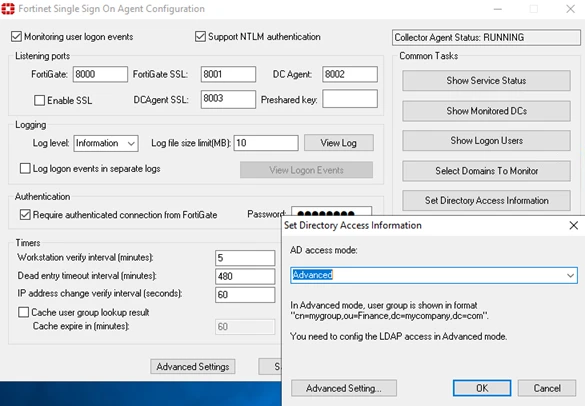
For this feature to work, set FSSO Collector Agent to Advanced AD access mode, which is not the default setting for FSSO Collector Agent.
If FSSO Collector Agent is running in default standard mode, FortiGate cannot correctly match group membership of users.

The following is an example of the setting:


To configure via the GUI:
 
  1. Create an FSSO connector that automatically retrieves and updates AD user groups.
    • Go to User & Device -> LDAP Servers.
    • Select 'Create New'.
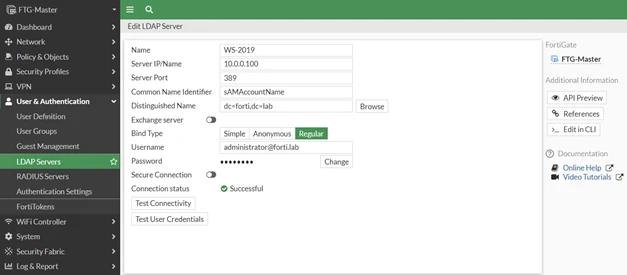
    • Set the options and select 'OK'.
 
 
In this example, a basic LDAP connection over port 389 is configured. If it is require to secure the communication over TLS, ensure that it is supported by the remote AD LDAP server.
Then activate Secure connection and select the certificate of the Certificate Authority (CA) that issued the AD LDAP server certificate. The value for the port will automatically change to 636, which is the default LDAPS port.

  1. Create a Fortinet Single Sign-On Agent.
    • Go to Security Fabric -> Fabric Connectors.
    • Select 'Create New'.
    • Under SSO/Identity, select 'Fortinet Single Sign-On Agent'.
    • Select 'Local' to display the necessary options.
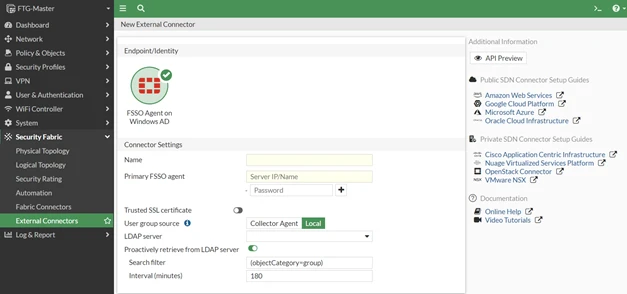
 
When the Collector Agent is selected, the necessary options are hidden.
  
 
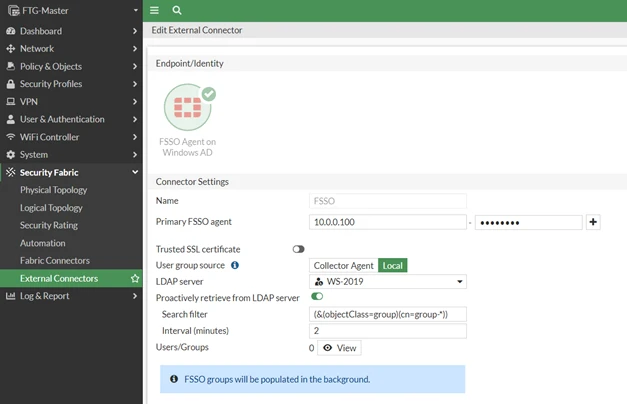
  • In the Primary FSSO Agent box, enter the IP address for the FSSO Collector Agent and the correct password for communicating with FSSO Collector Agent.
  • In the LDAP Server list, select LDAP1 server.
  • Complete the Search Filter option.
Note: The default setting in the Search Filter box retrieves all groups, which also includes default Microsoft system groups. Customizing the search filter is recommended.
 
In this example, the customized Search Filter option is (&(objectClass=group)(cn=group-*)), which is configured to retrieve groups group-1, group-2, group-123...., but not grp199.
 
Ensure syntax for customized Search Filter options is correct because syntax is not checked for LDAP search filters. If the syntax is incorrect, FortiGate will not retrieve any groups.
 
Set the Interval (minutes) option.
 
Note: The Interval (minutes) option defines how often FortiGate contacts the remote AD LDAP server to update group information. Change this option to a more frequent update interval.

 
After, select 'OK'.

To configure the appropriate settings via the CLI:
 
config user ldap
    edit "WS-2019"
        set server "10.0.0.100"
        set cnid "sAMAccountName"
        set dn "dc=forti,dc=lab"
        set type regular
        set username "administrator@forti.lab"
        set password xxxxxxx
    next
end
 
config user fsso
    edit “FSSO”
        set server "10.0.0.100"
        set password xxxxxxx
        set ldap-server "WS-2019"
        set ldap-poll enable
        set ldap-poll-interval 2
        set ldap-poll-filter "(&(objectClass=group)(cn=group-*))"
    next
end
 
Output validation:
 
The FSSO agent pulls usergroup information starting with group-*:
 
show user adgrp
config user adgrp
    edit “CN=support,OU=TAC,DC=forti,DC=lab”
        set server-name "FSSO"
    next
    edit “CN=recruiter,OU=HR,DC=forti,DC=lab”
        set server-name "FSSO"
    next
    edit “CN=vpn,OU=SSL_VPN,DC=forti,DC=lab”
        set server-name "FSSO"
    next
end
 
Note:
  1. Standard Mode uses a simple Domain\Username format and is easier.
  2. Advanced Mode uses LDAP's CN=User,OU=Name,DC=Domain format, supports nested groups, and requires filtering on the FortiGate.
  3. The key difference is the naming convention for users/groups and where group filtering occurs, with Advanced mode being more robust for complex setups but Standard mode being simpler for basic needs.


Related articles:

Technical Tip: FSSO - Enabling Secure communication between Collector Agent and DC Agent
Technical Tip: How FSSO works and how to troubleshoot FSSO
Troubleshooting Tip: General troubleshooting for FSSO
Troubleshooting Tip: FSSO Complete troubleshooting for TAC tickets

Risk and Resilience in the Age of AI. An OT Thought Leadership Summit for Houston's Critical Infrastructure Leaders. Date: Thursday, December 3, 2026. Time: 8:30 am - 1:30 pm (CT). Location: The Westin Houston, Memorial City | 945 Gessner Road, Houston, TX 77024