simonz_FTNT
Staff & Editor
Staff & Editor
February 3, 2026

Technical Tip: TAC debug script with PowerShell

  • February 3, 2026
  • 0 replies
  • 634 views
Description

This article describes how to use a PowerShell script to help collect diagnostic information from a FortiGate firewall for Fortinet TAC analysis without installing any third-party application.


It is commonly used when:

  • Troubleshooting performance or stability issues.
  • Collecting data over a period of time.
  • Fortinet TAC has requested specific CLI outputs.
Scope FortiGate.
Solution

The script will connect to the FortiGate using SSH to run a predefined set of diagnostic commands and repeat the collection multiple times if requested, then save all output to log files on the Windows PC. Once the script stops at the end of the loop, it will automatically package the logs into a ZIP file, which can be uploaded to a TAC ticket.


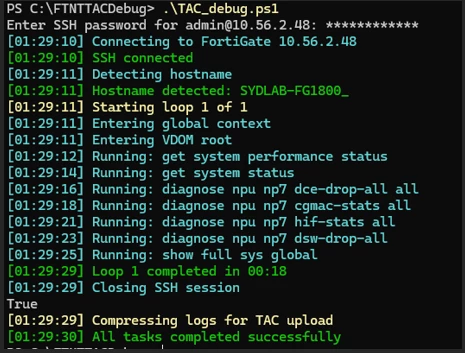
While running, the script displays live status messages to show progress in real time, as below:

powerscript.png


System requirements:

  • Windows PowerShell 5.1 or later.
  • SSH access to the FortiGate.
  • Posh-SSH PowerShell module.


Configuration file (config.txt):

This file controls what the script collects.


Example:


host = 10.56.1.126
login = admin
path = C:\TACDebug

pause = 2
loop = 3
maxlogmb = 100
loop_interval_seconds = 300

vdom = root
global = yes

# Timed debug options (0 = disabled)
diag_top_seconds = 15
diag_mpstat_seconds = 20

get system performance status
get system status


Config settings explained:


Setting Meaning

host

IP/hostname of FortiGate.

login

SSH username.

path

Local directory to store logs.

pause

Seconds to wait between commands.

loop

How many times to repeat the full collection.

loop_interval_seconds

Seconds to wait after each loop.

maxlogmb

Maximum log file size before rotation.

vdom

Specify the VDOM to collect debug output from.

global

Set to 'yes' if VDOM is enabled.


Any line without an '=' sign is treated as a FortiGate CLI command and will be executed.


How to run:

  1. Place TAC_debug.ps1 and config.txt in the same directory.
  2. Open PowerShell.
  3. Change to the directory where files placed in step 1
  4. Run: .\TAC_debug.ps1.
  5. Enter the SSH password when prompted.