


Technical Tip: Safe Search does not work with Google
Description
This article describes how unsafe content is still being displayed even though Safe Search is enabled in the Web Filter profile applied to a firewall policy.
Scope
FortiGate.
Solution
Reason:
Since Google Search uses secure traffic (HTTPS), encrypted connections must also be scanned for this feature to be effective.
Note: When enabling SSL inspection in a firewall policy, clients will be prompted with a certificate error when accessing secured (HTTPS) sites unless the CA certificate has been loaded into the client browser. See links below for more information.
Steps to Follow:
Follow these steps to effectively enforce Safe Search results when searching using the Google search engine.
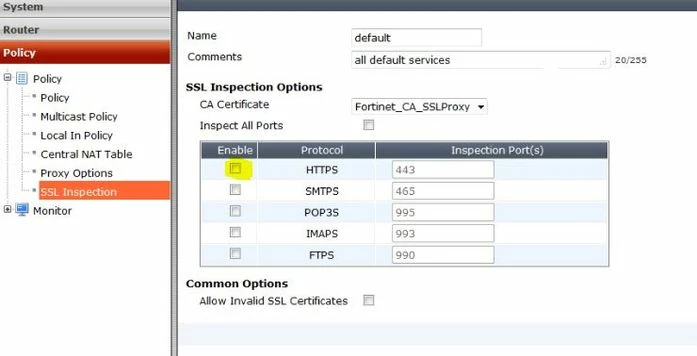
- Enable inspection of the HTTPS protocol in the SSL Inspection profile to be used in the security Policy:
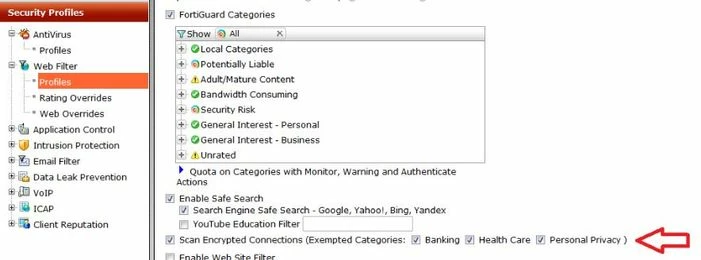
- Enable the option 'Scan Encrypted Connections' in the Web Filter profile to be used in the firewall policy:
Note:
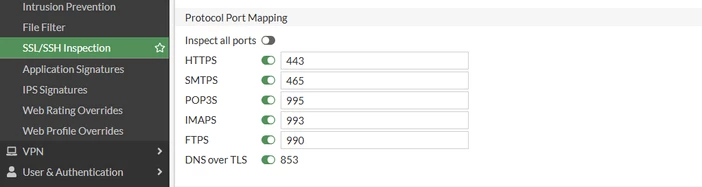
On newer versions of the FortiOS, the view of the SSL/SSH profile and the Web Filter profile has changed.
The suggested SSL profile to be used on newer versions would be the custom-deep-inspection one, as it can be edited and customized.
By disabling the option 'Inspect all ports' on Protocol Port Mapping, it is possible to enable or disable each of the options mentioned below:
On the next step, the Safe Search option is enabled on the Web Filter profile.
As the default profile cannot be edited, this profile can be cloned or a new custom profile can be created.
This feature is only supported if the Web Filter is set to Proxy mode, so it will look like it follows, after Proxy mode is enabled:

On version v7.4.7 and v7.6.3, the 'Restrict YouTube Access' option is also removed:

The option 'Scan Encrypted Connections' is also removed on the mentioned versions.
Related articles:
Technical Tip: Safe Search feature in FortiOS and how to enable it

