| Configuration from GUI: By using the bulk command option, the address objects can be imported to a group, the same can be done under Security Fabric -> Automation -> Create New -> CLI script.
Imported file should have a correct syntax when uploading.
When a script file is imported, the configuration should match the correct syntax, for example by importing a firewall address objects as below:
# config firewall address
edit 1.1.1.1
set subnet 1.1.1.1/32
next
edit 1.1.1.2
set subnet 1.1.1.2/32
next
end
# config firewall addrgrp
edit test-grp
set member 1.1.1.1 1.1.1.2
next
end Save the file with the extension .txt and import it under Security Fabric -> Automation -> Create New -> CLI script -> Upload -> Execute Script from and browse then select the file. 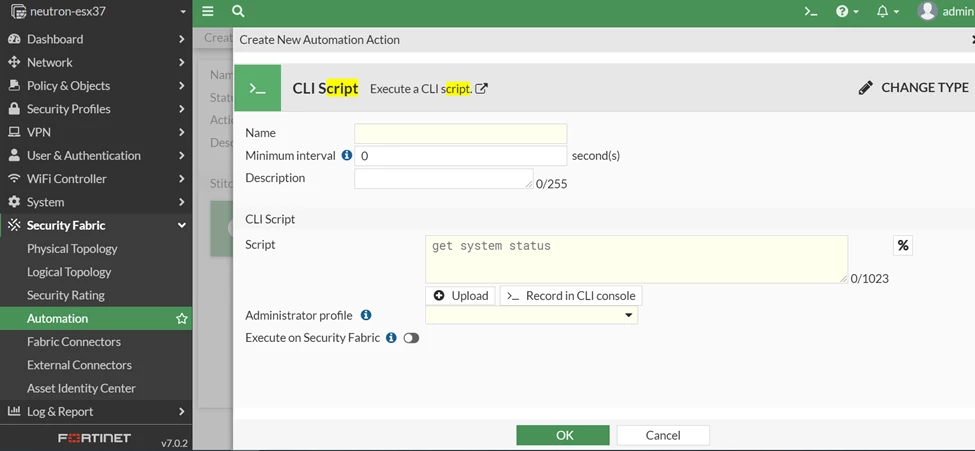 Configuration from CLI: # config system automation-trigger
edit "test"
set description "ip"
set trigger-type event-based
set event-type config-change
next
end # config system automation-action
edit "test"
set description ''
set action-type cli-script
set minimum-interval 0
set script "config firewall address
edit 46.99.175.217
set subnet 46.99.175.217/32
next
edit 78.191.45.163
set subnet 78.191.45.163/32
next
edit 217.79.184.243
set subnet 217.79.184.243/32
next
edit 162.214.127.16
set subnet 162.214.127.16/32
next
end # config firewall addrgrp
edit Phishing Campaign- SAMA
set member 46.99.175.217 78.191.45.163 162.214.127.16 217.79.184.243
next
end"
set execute-security-fabric disable
set accprofile "super_admin"
next
end # config system automation-stitch
edit "test"
set description ''
set status enable
set trigger "test"
# config actions
edit 1
set action "test"
set delay 0
set required disable
next
end
next
end Related Document: https://docs.fortinet.com/document/fortigate/7.0.2/administration-guide/639044/cli-script-action | 



