

Technical Tip: How to enable Multiple Security Profiles
Description
This article explains how to enable Multiple Security Profiles.
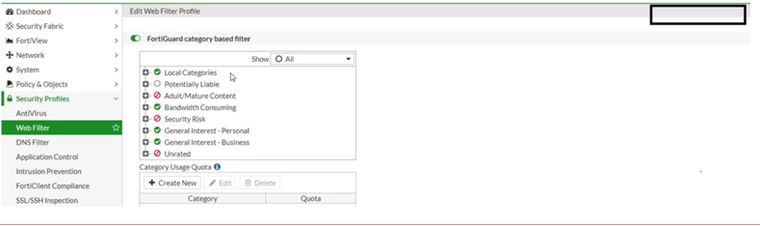
The factory default settings may not allow viewing or editing of security profiles other than default ones.
In this case, no drop-down list is available in the top-right corner of each profile window:
Solution
To enable the multiple security profiles in v5.4 & v5.6:
Go to: System -> Feature Select -> Additional Features -> Multiple Security Profiles -> Enable -> Apply
Or use the following CLI commands:
FGT # config system settings
FGT (global) # set gui-multiple-utm-profiles enable
FGT (global) # end
To enable the multiple security profiles in v6.0 & v6.2:
Go to System -> Feature Visibility -> Additional Features -> Multiple Security Profiles -> Enable -> Apply
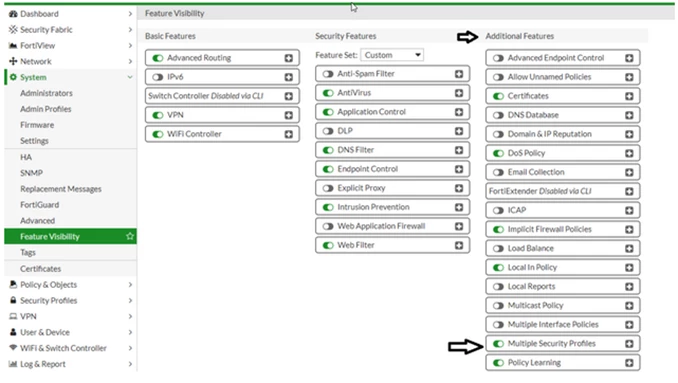
Or use the following CLI commands:
FGT # config system settings
FGT (global) # set gui-multiple-utm-profiles enable
FGT (global) # end
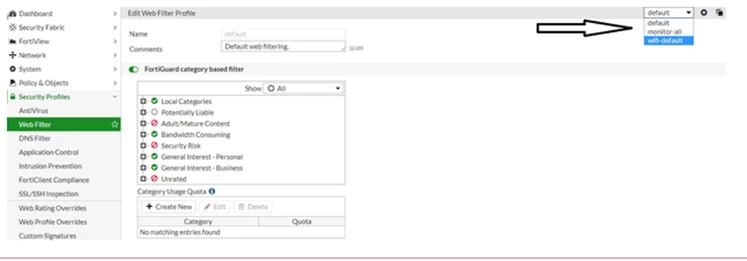
After enabling multiple security profiles, a drop-down list is now available when editing profiles:
V6.4.2.
From v6.4.2, Multiple Security Profiles option is removed from Feature visibility and All security profiles will allow multiple profiles by default and All Security profile pages will be a list of profiles.
From v6.4.2, Multiple Security Profiles option is removed from Feature visibility and All security profiles will allow multiple profiles by default and All Security profile pages will be a list of profiles.
Related Articles
Technical Note: How to enable Multiple Security Profiles (v5.0, v5.2)