Technical Tip: How to add a third disk in Google cloud
Description
This article describes how to add a third disk in Google cloud.
Solution
In the Google cloud FortiGate, two disks arealready added (boot and the log).
Add a third disk through the GUI is not possible.
Follow this procedure to be able to add a third disk.
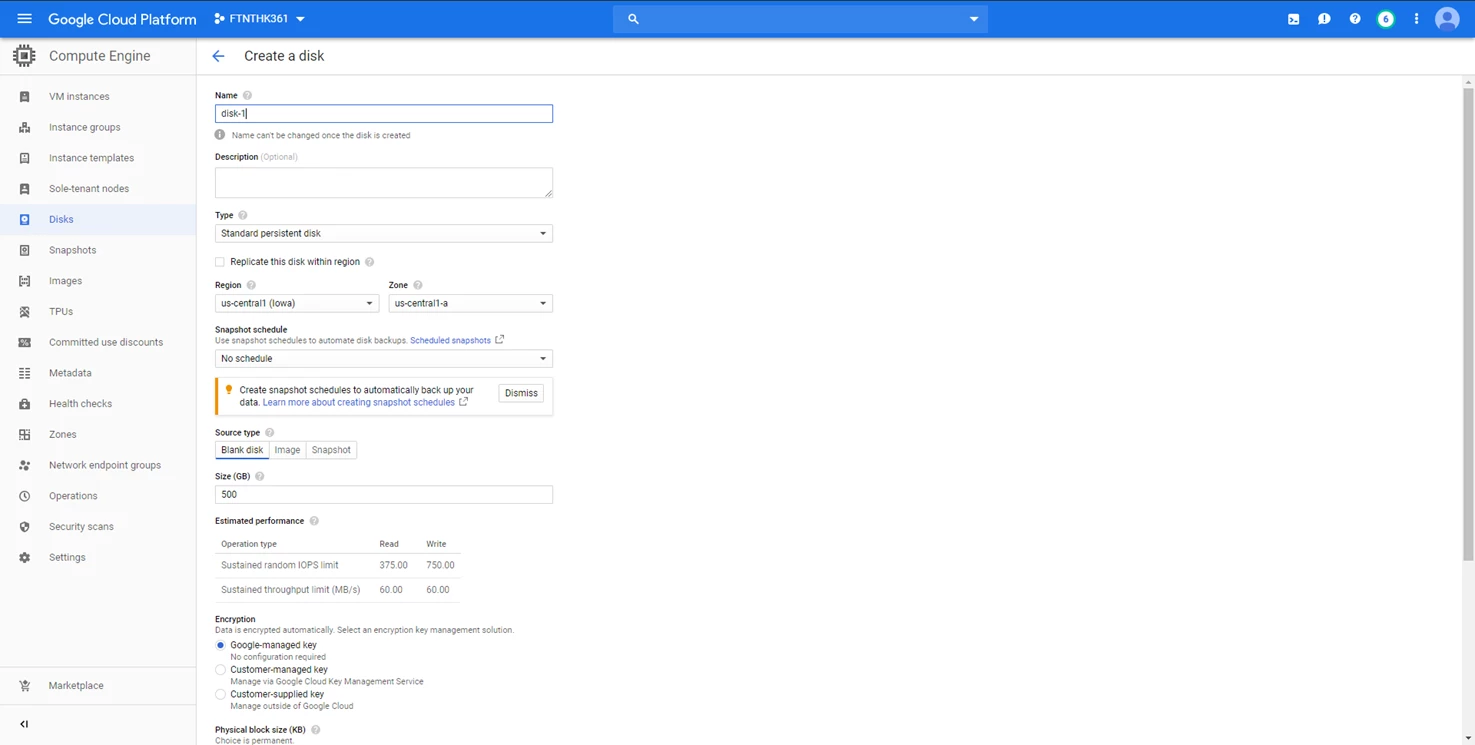
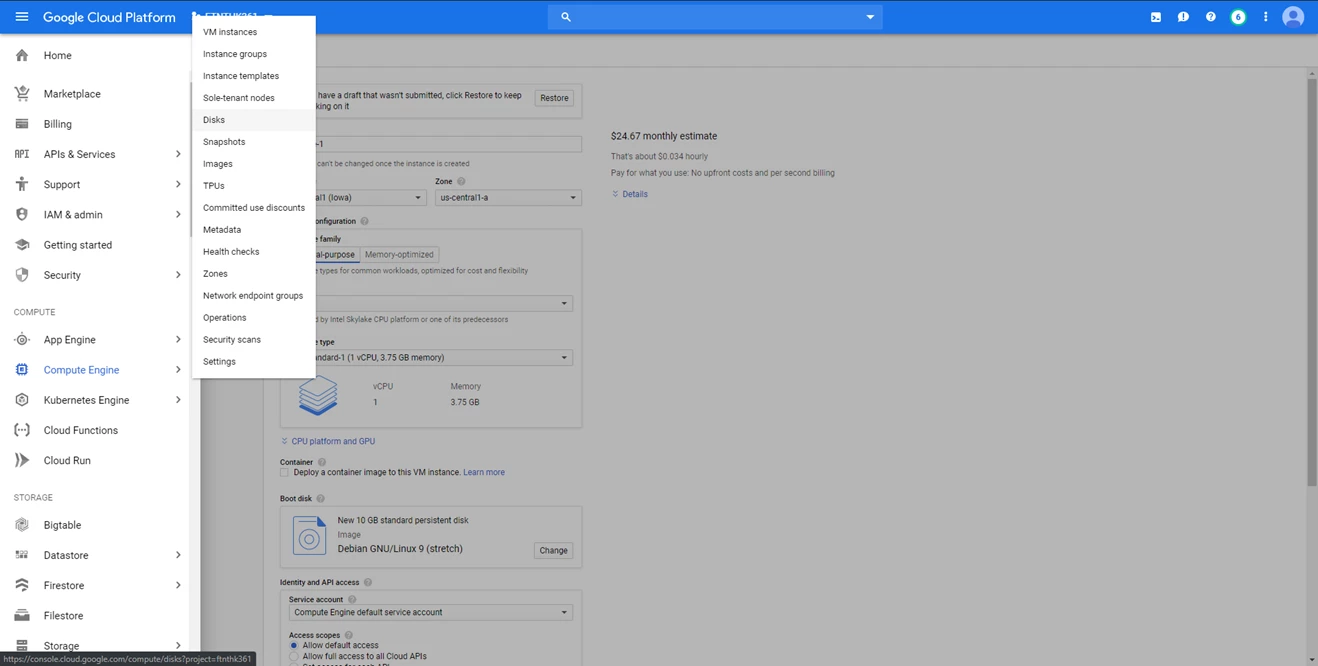
1) Go to Compute Engine -> Disks and select 'create disk'.
This article describes how to add a third disk in Google cloud.
Solution
In the Google cloud FortiGate, two disks arealready added (boot and the log).
Add a third disk through the GUI is not possible.
Follow this procedure to be able to add a third disk.
1) Go to Compute Engine -> Disks and select 'create disk'.
Specify the disk name details, region and zone.After finishing to fill in the details, select 'create'.2) Add the disk using Google cloud SDK(for knowing more on Google cloud SDK refer to https://cloud.google.com/sdk/install)
Use the following command in the SDK to add the disk to the FortiGate:# gcloud compute instances attach-disk <instance name> --disk <disk name> --zone <zone>3)Go back to the FortiGate.# diag hardware deviceinfo diskDisk SYSTEM(boot) 10.0GiB type: SSD [Google PersistentDisk] dev: /dev/sda
partition 123.0MiB, 59.0MiB free mounted: Y label: dev: /dev/sda1(boot) start: 2048
partition 1.8GiB, 1.8GiB free mounted: Y label: dev: /dev/sda2(boot) start: 264192
Disk Virtual-Disk ref: 16 100.0GiB type: SSD [Google PersistentDisk] dev: /dev/sdb
partition ref: 17 98.4GiB, 97.9GiB free mounted: Y label: LOGUSEDXA1E3CD78 dev: /dev/sdb1 start: 2048
Total available disks: 3
Max SSD disks: 8 Available storage disks: 2A third disk is attached :Disk Virtual-Disk2 ref: 32 100.0GiB type: SSD [Google PersistentDisk] dev: /dev/sdcFormat the disk on the FortiGate to partition the disk:# exe disk format <disk reference no.>In this case:# exe disk format 32It will require a reboot.