| In v7.2.1, a new default certificate 'Fortinet_GUI_Server' is introduced for HTTPS administrative access. If a self-signed certificate is used, the error 'Untrusted HTTPS server certificate' will be shown on the dashboard. 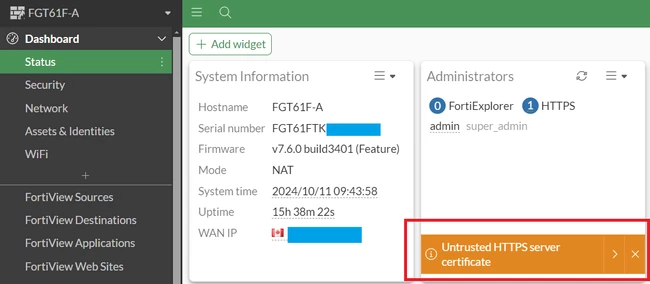
It is best practice to use a signed and trusted HTTPS server certificate (refer to this article: Technical Tip: FortiGate HTTPS/SSL Certificate Installation (PFX, PKCS12, PEM and CER), but it is also possible to remove this warning by using the 'Fortinet_GUI_Server' certificate.
To do so, see below: - Go to System -> Settings -> HTTPS Server Certificate, select 'Fortinet_GUI_Server', and select 'Apply'.
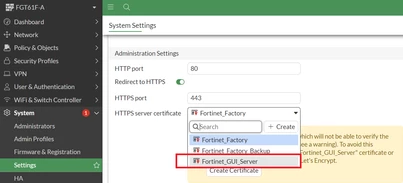
If it is not required for this PC to trust the new Fortinet_GUI_Server certificate, skip to Step 6. To resolve browser-based certificate warnings, continue to the remaining steps. -
Ensure that the certificate option is enabled under System -> Feature Visibility -> Certificates. 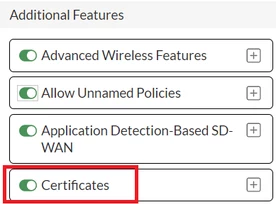 -
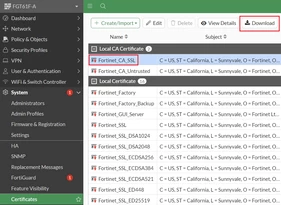
Download the certificate from System -> Settings -> HTTPS Server Certificate. In this step, select 'Download HTTPS CA certificate'. 'Fortinet_CA_SSL' will be downloaded:
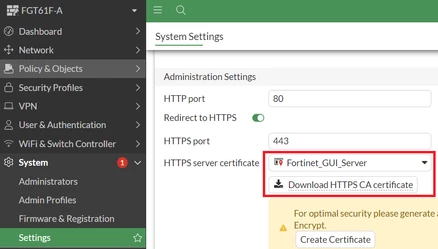
An alternative path to download the same CA certificate is System -> Certificates -> Fortinet_CA_SSL -> Download.
-
Install the certificate in the PC's trusted root CA certificate store:
Since installing certificates can affect which certificates the browser will show as trusted, opening the file will show a warning.
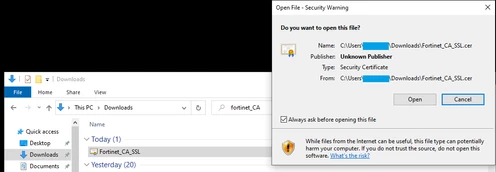
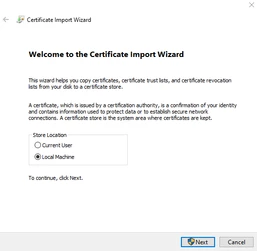
Select Store Location -> 'Local Machine'.
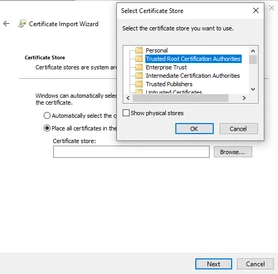
Place the certificate in 'Trusted Root Certification Authorities'.
-
Clear the browser cache and log in to the GUI in a new browser window to verify that the HTTPS server certificate is now trusted by the PC.
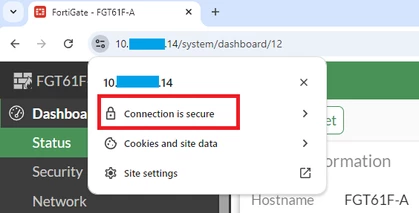
-
'Untrusted HTTPS server certificate' has been replaced with a link to download the current HTTPS CA certificate.
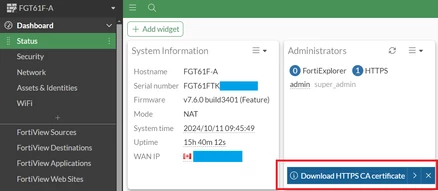
Repeat steps 2 to 5 as needed for any other PC's that are required to trust the FortiGate's CA certificate.
Note: To assign an HTTPS server certificate for older versions, use the following commands:
config system global set admin-server-cert <new_cert>
end
By default, 'Fortinet_CA_SSL' is used to sign 'Fortinet_GUI_Server' and firewall block pages. It is also the default CA used if the deep inspection is configured. Installing the certificate on a PC will also remove certificate warnings for those functions. See the documents 'Technical Tip: Certificate error when accessing blocked page' and 'Deep Inspection' for more details.
Additional Note :
In some instances, despite the Fortinet_GUI_Server certificate being imported to the administrator's Windows Trusted Root CA store, the FortiGate login page may still show up as 'Not secure'. From Fortinet_GUI_Server certificate being the default HTTPS GUI certificate, try to change it to a different certificate (for example, Fortinet_Factory), then revert it to the original (Fortinet_GUI_Server). More information in this article: Technical Tip: Getting 'Not Secure' warning despite importing Fortinet_GUI_Server certificate for GUI Admin Access. config system global
set admin-server-cert Fortinet_Factory
end
config system global
set admin-server-cert Fortinet_GUI_Server
end Related documents: A guide to FortiGate and certificate issues New default certificate for HTTPS administrative access 7.2.1 Acme certificate support Certificate-Error-in-Admin-Access |