




Technical Tip: FortiGate extension on Visual Studio Code
| Description | This article describes the advantages of using Visual Studio Code as a tool for reading and editing FortiOS configuration files. When reviewing the FortiOS configuration file, syntax recognition assists administrators in identifying structure, indentation, and parameter relationships more efficiently than plain-text views. |
| Scope | FortiGate. |
| Solution | Two community-maintained extensions provide syntax interpretation for FortiOS configuration files:
These extensions apply logic to FortiOS file types, including:
This structured representation allows for:
Both extensions can be installed directly from the Extensions Marketplace within Visual Studio Code, accessible through the left-hand pane of the editor. It is important to note, however, that these extensions are community-developed third-party tools and are not officially maintained or supported by Fortinet. 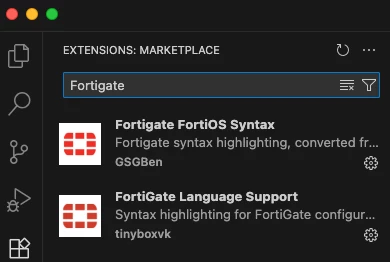 When opening a FortiOS configuration file, ensure that the Language Mode (visible at the bottom-right corner of the VS Code interface) is set to FortiGate. This ensures that the syntax highlighting is applied correctly and that the editor interprets the file structure as a FortiOS configuration.  Once the extensions are active and the correct language mode is selected, the FortiOS configuration file will display with syntax highlighting, making the structure easier to navigate. 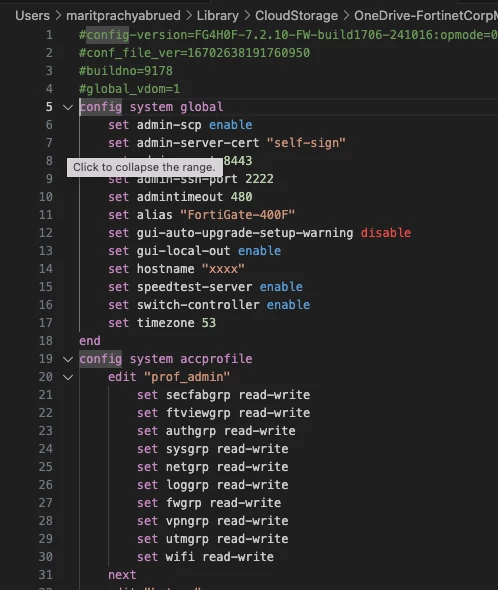 Note: For Linux users using VSCodium, note that these extensions are not currently available. |

