Solution | Step 1: Configure SMTP server.
By default, the FortiGate uses Fortinet's SMTP server settings:
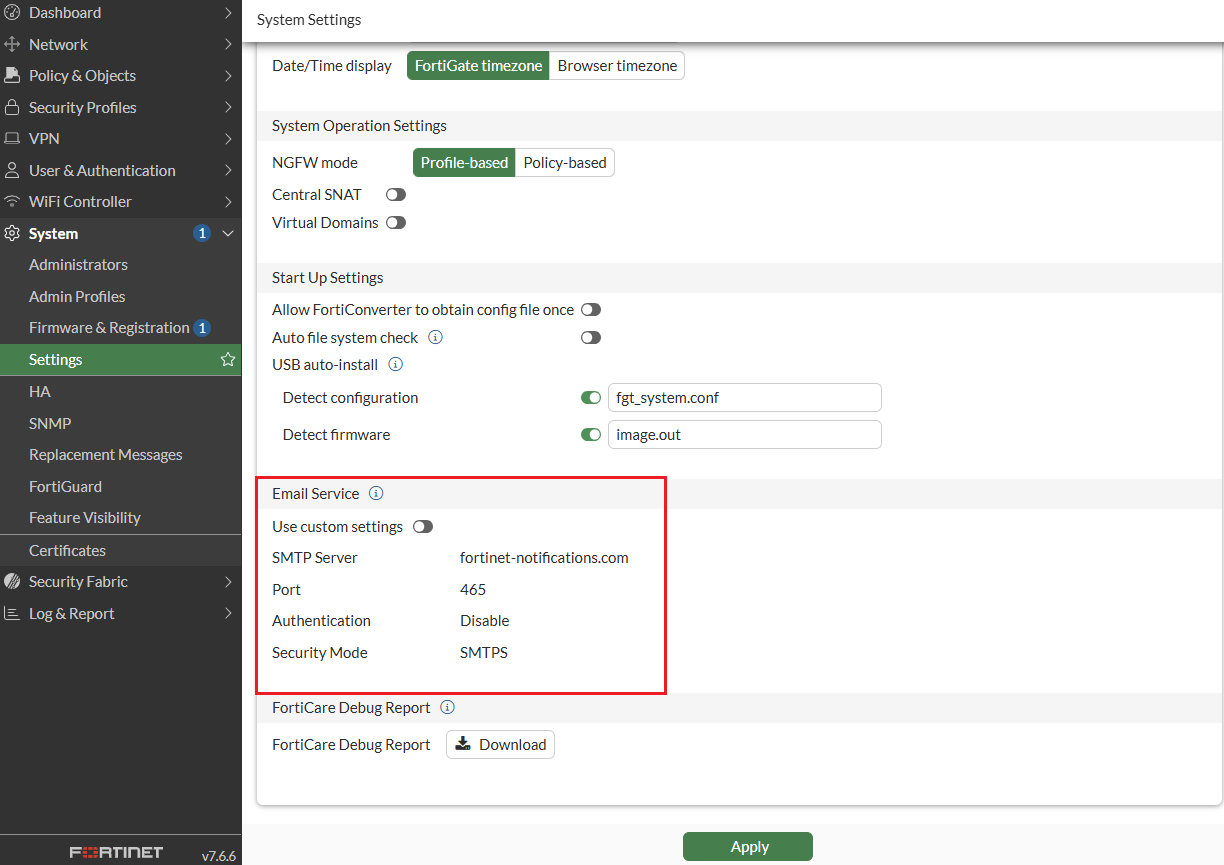
However, it is possible to change these settings to use a custom SMTP server. Go to System -> Setting -> Email Service and fill in the fields as shown below:
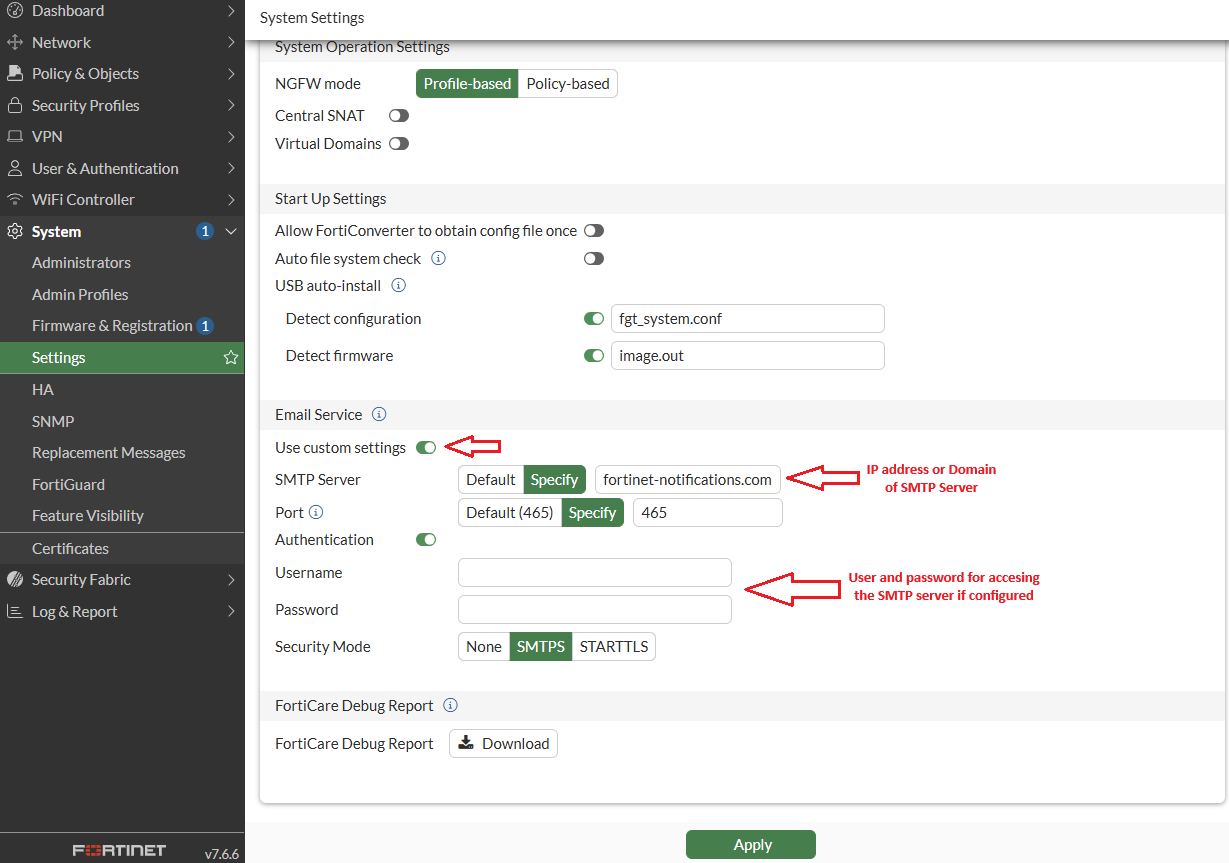
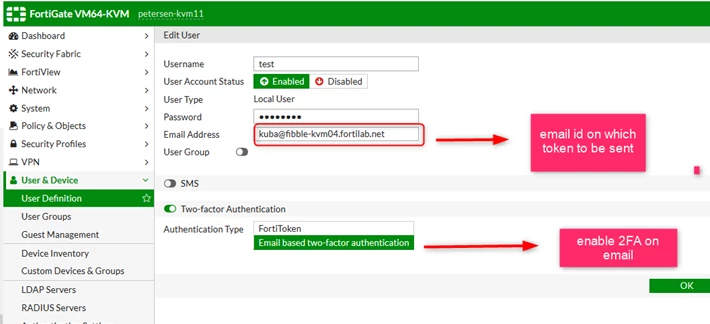
Step 2: Configure email base 2FA for user.
Go to User & Device -> User Definition -> Create or Edit user (if available) and fill in the fields as shown below:
How to set 2FA email via CLI:
Note: If this option is not available in GUI, it can be enabled via the GUI.
config user local
    edit "test"
        set type password
        set two-factor email
        set email-to "kuba@fibble-kvm04.fortilab.net"
        set passwd-time 2019-08-27 10:03:35
        set passwd ENC EavlDNhUGxHOih5r00YAVRg2bcEb3pHM5GSmSJPfQ==
    next
Step 3: Troubleshoot debug command.
diagnose debug reset
diagnose debug console timestamp enable
diagnose debug application alertmail -1
diagnose debug enable

# Arrived msg(type 6, 93 bytes):kuba@fibble-kvm04.fortilab.net
AuthCode: 367809
Your authentication token code is 367809.

mail_info:

        from:10.188.3.218        user:kuba@fibble-kvm04.fortilab.net

mail_info:                                                                  ------> email info
        reverse path:kuba@fibble-kvm04.fortilab.net
        user name:kuba
to[0]:kuba@fibble-kvm.fortilab.net
<==_init_mail_info
create session
resolve 10.188.3.218 to 1 IP        -----> SMTP server
==> send mail
connecting to 10.188.3.218 port 25
send mail 0xaf35c90 session 0xb04ed70
session: 0xb04ed70, rsp_state: greeting, code: 220
session: 0xb04ed70, rsp_state: ehlo, code 250
session: 0xb04ed70, rsp_state: mail, code: 250
session: 0xb04ed70, rsp_state: rcpt, code:250
session: 0xb04ed70, rsp_state: data, code: 354
=== send: Your authentication token code is 367809.    -----> Token sent

session: 0xb04ed70, rsp_state: data2, code: 250
session: 0xb04ed70, rsp_state: quit, code: 221
session finished
_session_on_destroy
<== send mail success, m = 0xaf35c90  s = 0xb04ed70
Step 4: Verification.
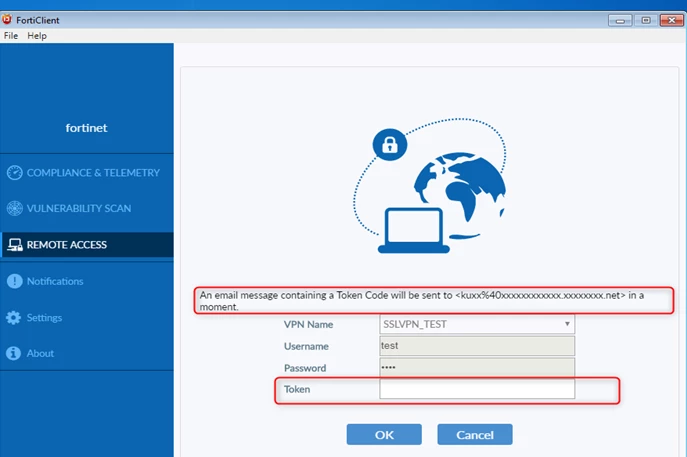
After adding the user name and password, enter the token received via email in the 'Token' field, as shown below:
Important: Starting with v7.4.4, the default email server changed from 'notification.fortinet.net' to 'fortinet-notifications.com', and the reply-to field in the source email is now automatically set to 'DoNotReply@fortinet-notifications.com' for all servers, including custom ones. Since some custom SMTP servers check this field and v7.4.4 does not allow it to be modified, if the debug shows the email was sent successfully but it is never received, the recommendation is to check the reply-to field against the SMTP server's requirements and, if needed, upgrade to a version higher than v7.4.4.
|