| FortiGate and FortiClient can use ZTNA device verification to allow access to internal web server resources through a ZTNA HTTPS access proxy.
This article assumes that the ZTNA HTTPS access proxy feature has already been configured alongside an extra layer of authentication such as RADIUS, Local, or LDAP authentication.
- When authenticating to the HTTPS access proxy via an authentication scheme/rule, the login will get sent to the FortiGate and will create a WAD user session.
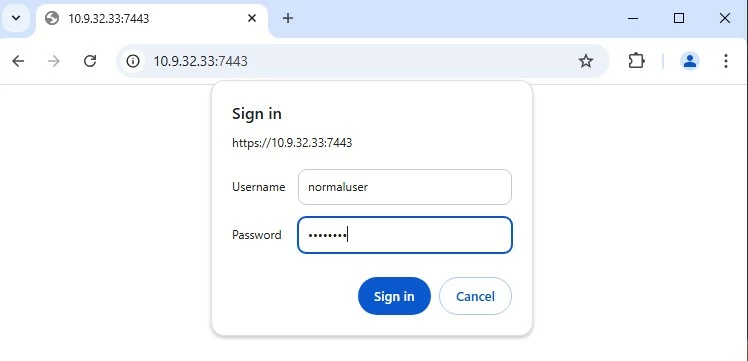
Go under FortiGate GUI -> Dashboard -> Firewall User Monitor.
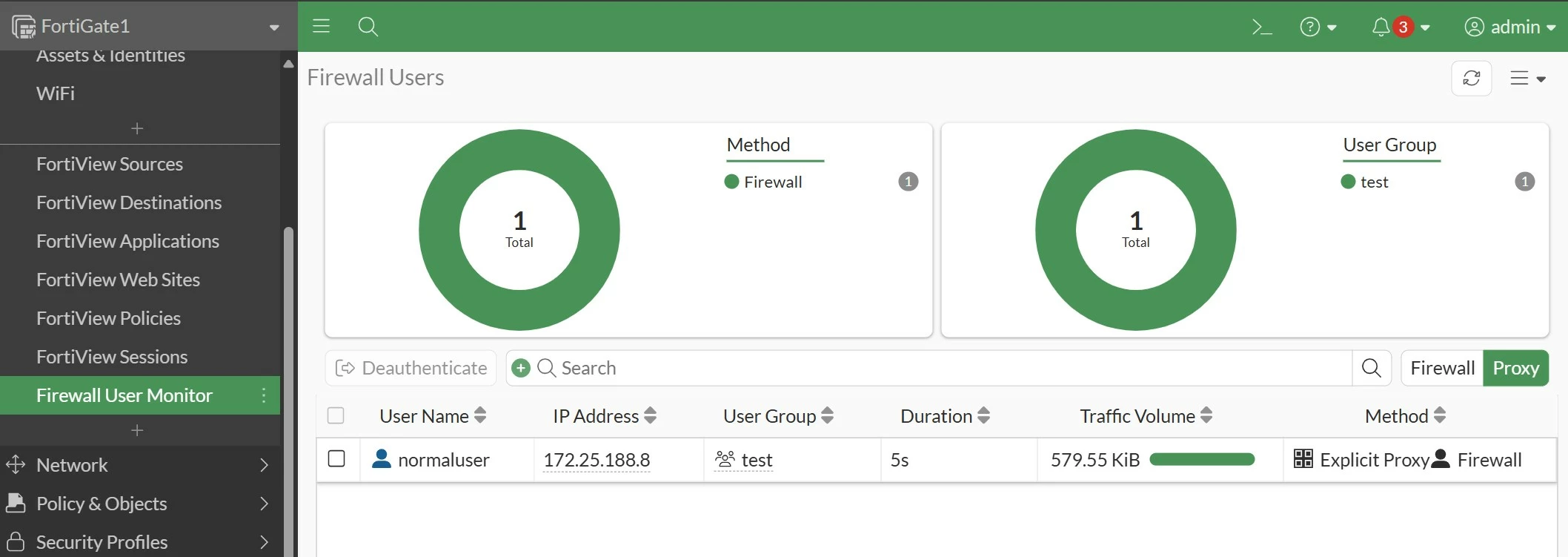
- If the user closes the endpoint browser HTTPS session and attempts to access HTTPS access-proxy resource again on a different browser, the FortiGate will not ask for credential authentication again because the WAD user session has already been created in the session table by default.
In some cases, it is required to force the HTTP authentication every single time a user tries to access the HTTPS resource.
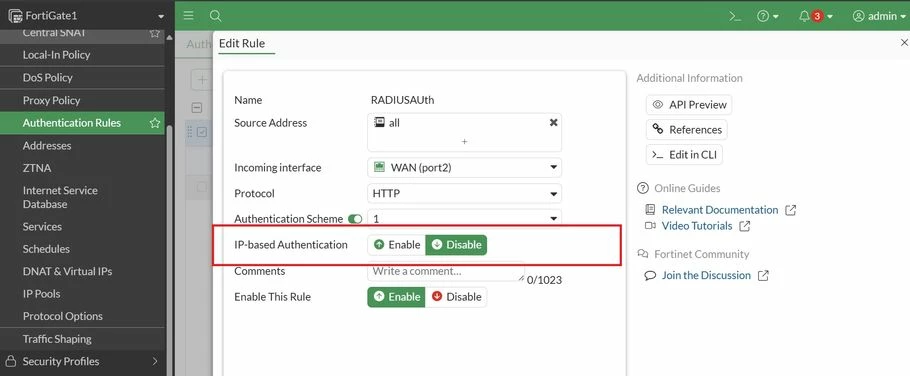
To do this, change the authentication rule so that the client will be forced to authenticate again using the rule.
- Go under FortiGate GUI -> Policy & Objects -> Authentication Rules -> *Select the desired rule* -> Disable the 'IP-based Authentication' option and save the changes.
- Enter the CLI configuration for the Authentication rule and disable the following:
config authentication rule
edit <desired rule>
set cert-auth-cookie disable
end 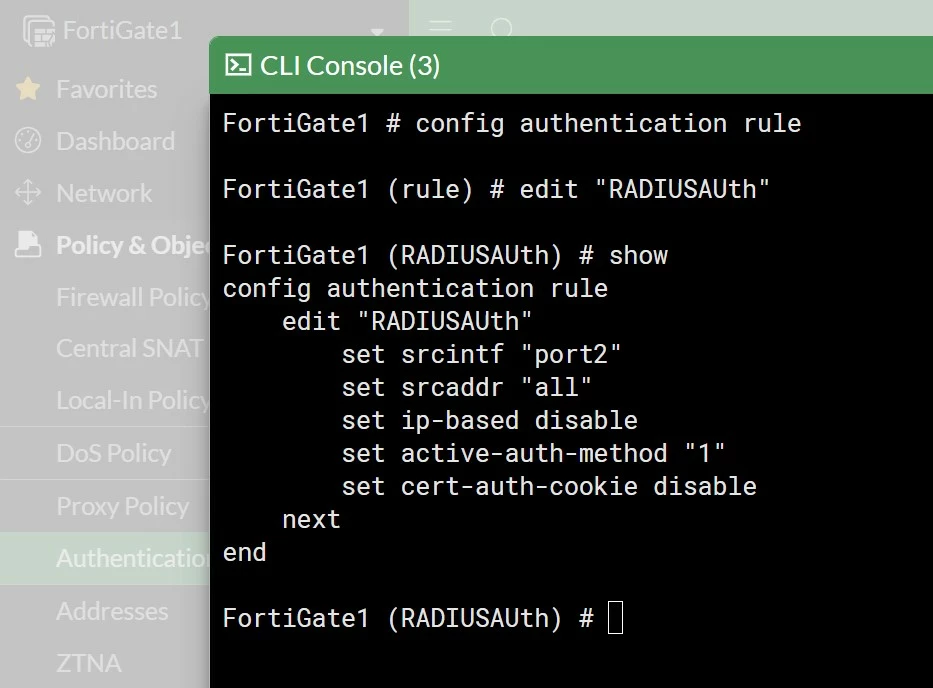
- Once the changes have been saved, attempt to access the ZTNA HTTPS Resource and confirm that authentication is prompted every single time access is requested on a new TCP session or new browser application.
|