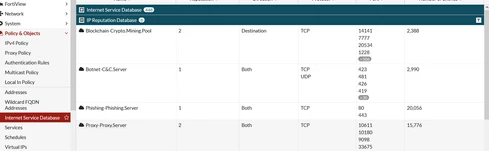
Go to Policy and Objects -> Internet Service Database and collapse the entry for Internet Service Database to see the IP Reputation Database. The entries visible here will depend on the firmware version.
Take a screenshot of these entries. This is what some of the entries look like.
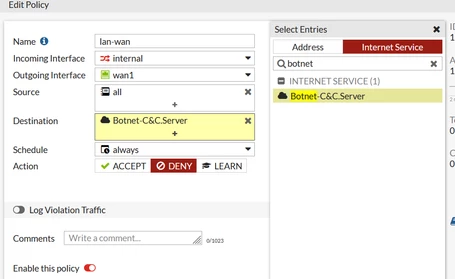
To create an outgoing deny policy, go to Policy and Objects -> IPv4 Policy, select 'Create New' and on the incoming interface, select the internal Interface (ie: LAN) and for the outgoing interface select the external interface (ie: WAN). Set the source to ALL.
Select Destination and when the popup appears, select Internet Service. Here, it is possible to type in the names of the services from the screenshot to add them one at a time. It only needs a partial entry to find the object.
Example: Botnet for Botnet-C&C.Server.
Set the policy to Deny. This is an example with only one object set as the destination.
Once the policy is completed, move it above any other policies that might have the same destination so this traffic will hit first.
Note that some objects can only be used as destinations so it would work in this kind of outgoing policy.
Some objects can only be used as sources, so use it in an incoming policy as the source, from WAN to LAN.
Some show the direction as both and can be used in either source or destination fields.
These objects are updated dynamically by FortiGuard.
Verification:
After creating the policy, confirm that traffic is being matched and denied as expected by reviewing Forward Traffic logs under Log & Report.
Note: For deny policies based on Internet Service Database objects, matching traffic may not always be immediately visible. These objects often represent external or dynamic services, such as malicious or botnet-related infrastructure, which may not generate traffic during normal testing.
If no matches are observed, this does not necessarily indicate a configuration issue. Verify that the policy is correctly positioned and that the Internet Service object is appropriate.
For validation purposes, a temporary test can be performed by adding a known, controlled Internet Service to the deny policy and verifying that traffic is blocked as expected. Perform this test during a maintenance window to avoid user impact, and remove the temporary entry after validation.
The following CLI command can also be used to verify whether a specific IP address matches an Internet Service Database entry.
diagnose internet-service match <vd-name> <ip-address> <netmask>
Example using CNN:
diagnose internet-service match root 75.2.94.246 255.255.255.255
Example output:
Internet Service: 2686977(CNN-Web), matched entry num: 4, matched num: 4
The output displays the Internet Service Database entries that contain the specified IP address.
|