

Technical Tip: Configuring startup settings via GUI/CLI
| Description | This article describes how to configure startup settings via GUI/CLI. |
| Scope | FortiGate. |
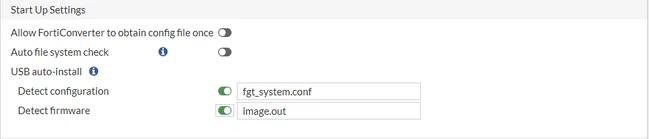
| Solution | To configure auto-install settings, navigate to System -> Settings -> Start Up Settings, and below are the options via GUI as shown in the screenshot:
The target FortiGate must also have a valid FortiConverter license. More information can be found here in this document: FortiConverter in the GUI.
FGT-A # config sys auto-install FGT-A (auto-install) # set auto-install-config enable <----- Enable/disable auto install the config in USB disk. If the image used in the above configuration is not signed, the error message 'Installed Firmware is not signed by Fortinet' might be encountered after bootup. More information is covered in this article: Troubleshooting Tip: 'Installed firmware is not signed by Fortinet' error.
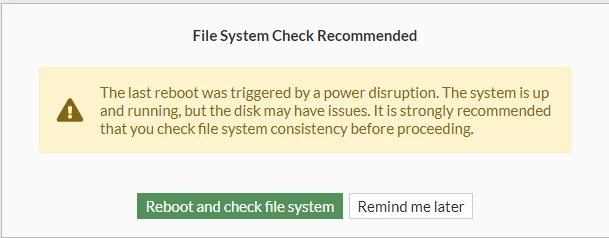
When the 'auto file system check' is enabled, and in the event of a power disruption, it will automatically check the file system for any errors during bootup. By default, it is disabled.
Regarding the auto-file system checkup, refer to this document: Run a File System Check Automatically. For USB auto-install configuration via CLI, refer to this KB article: Technical Tip: Automatic installation of Firmware and system configuration. |