


Technical Tip: Configuring file filter (standalone profile)
Description
This article describes how to configure a file filter.
The previously embedded file filter within web filter, email filter, SSH inspection, and CIFS has moved to a standalone profile. The file filter can be applied directly to firewall policies and supports various traffic protocols in proxy or flow mode.
Scope
FortiOS v6.4.1, v7.0, v7.2, v7.4, v7.6, and v8.0.
Solution
To configure a file filter from the GUI:
Configure the filter profile:
Go to Security Profiles -> File Filter and select 'Create New'.
Select a feature set.
In the rules section, select 'Create New'.
Configure the settings as needed.
Select 'OK' to save the rule.
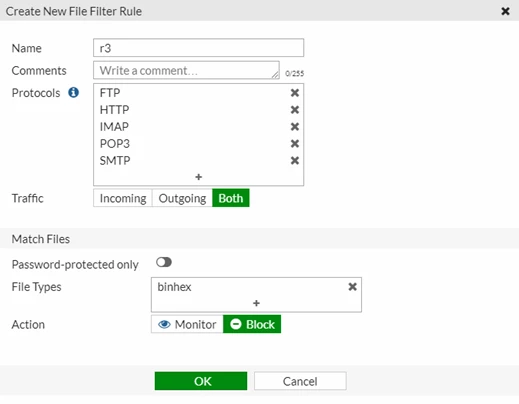
Optionally, create more rules if needed.
Select 'OK' to save the filter profile.
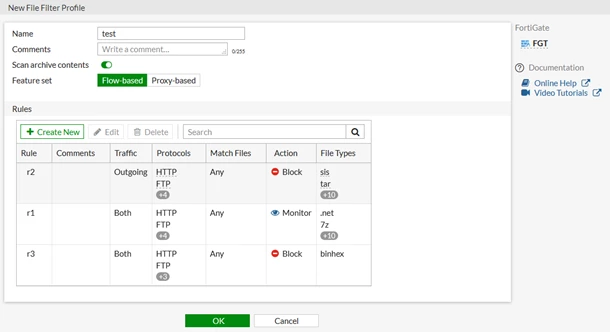
File filter warning action:
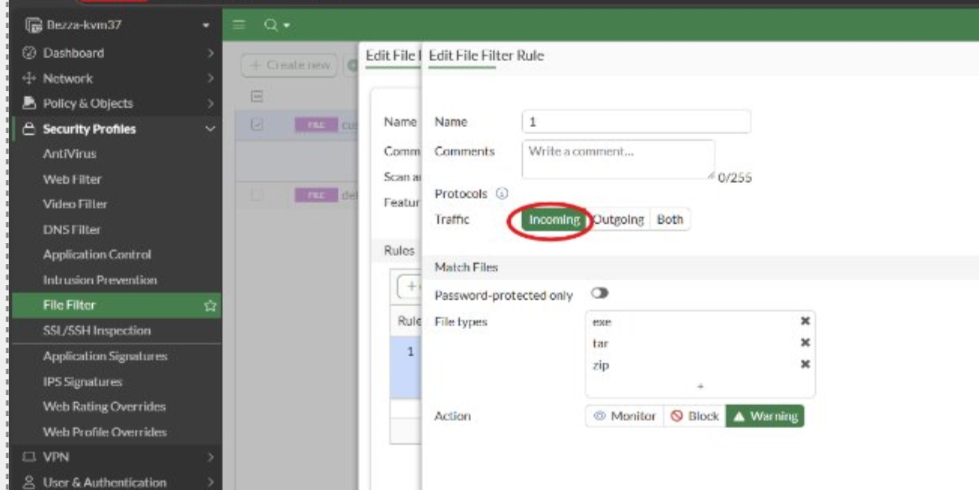
Starting from FortiOS v8.0.0, the File Filter profile supports the warning action in addition to the existing log-only and block actions. The warning action allows FortiGate to display a user authorization page before allowing a matched file to be downloaded.
To configure the warning action from the GUI.
Go to Security Profiles -> File Filter and edit an existing File Filter profile or select Create New.
Set Feature set to Proxy-based.
In the Rules section, select Create New or edit an existing rule.
Set Action to Warning.
Configure the remaining rule settings as required, including the protocol, traffic direction, and file types.
Select OK to save the rule.
When a file matches a rule configured with the warning action, FortiGate displays a replacement message allowing the user to continue with or cancel the download. After the user authorizes the download, the file is allowed and the access is logged.
Limitations:
• The warning action is available only when the File Filter profile uses the Proxy-based feature set.
• The warning action applies only to incoming HTTP traffic, such as HTTP GET requests.
• Deep inspection must be enabled in the firewall policy.
Apply the filter to a policy:
Go to Policy & Objects -> Firewall Policy and edit an existing policy or create a new one.
In the 'Security Profiles' section, enable 'File Filter'.
Select the filter from the dropdown box.
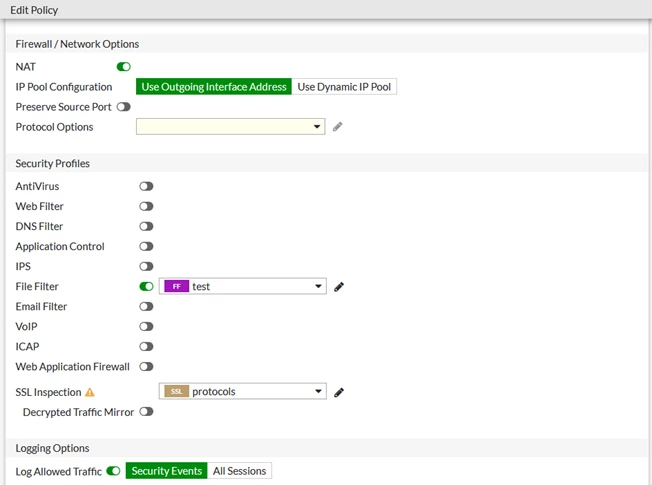
Configure the other settings as needed.
Select 'OK'.
To configure a file filter in the CLI:
Configure the file filter profile:
config file-filter profile
    edit "test"
        set comment ''
        set feature-set flow
        set replacemsg-group ''
        set log enable
        set scan-archive-contents enable
            config rules
                edit "r2"
                    set comment ''
                    set protocol http ftp smtp imap pop3 cifs
                    set action block
                    set direction outgoing
                    set password-protected any
                    set file-type "sis" "tar" "tiff" "torrent" "upx" "uue" "wav" "wma" "xar" "xz" "zip"
                next
                edit "r1"
                    set comment ''
                    set protocol http ftp smtp imap pop3 cifs
                    set action log-only
                    set direction any
                    set password-protected any
                    set file-type ".net" "7z" "activemime" "arj" "aspack" "avi" "base64" "bat" "binhex" "bmp" "bzip" "bzip2"
                next
                edit "r3"
                    set comment ''
                    set protocol http ftp smtp imap pop3
                    set action block
                    set direction any
                    set password-protected any
                    set file-type "binhex"
                next
            end
    next
end
Apply the filter to a policy:
config firewall policy
    edit 1
        set name "filefilter-policy"
        set srcintf "port10"
        set dstintf "port9"
        set srcaddr "all"
        set dstaddr "all"
        set srcaddr6 "all"
        set dstaddr6 "all"
        set action accept
        set schedule "always"
        set service "ALL"
        set utm-status enable
        set profile-protocol-options "protocol"
        set ssl-ssh-profile "protocols"
        set file-filter-profile "test"
        set auto-asic-offload disable
        set np-acceleration disable
        set nat enable
    next
end
Note:
File Filter does not support custom file extension definitions. If the required file extension is not available in File Filter, the DLP (Data Loss Prevention) feature must be used instead. For additional information, refer to the following article: Technical Tip: Adding file-type extensions to the DLP built-in file pattern.

