



Technical Tip: Configuring explicit web proxy with FSSO
Description
This article describes how to configure FortiGate to act as an explicit web proxy.
FSSO, as passive authentication, is used to collect user logon events from Active Directory.
Related link:
Explicit proxy authentication
Scope
FortiGate.
Solution
Fortinet Single Sign-On settings:
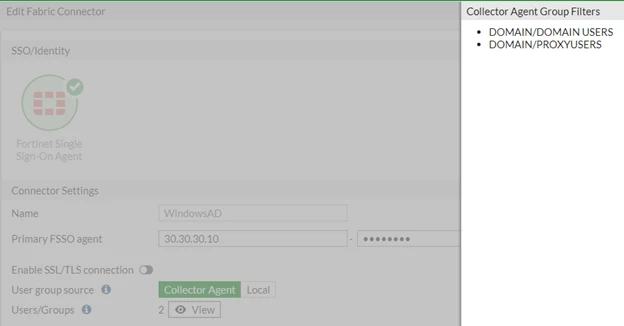

- Enable Explicit Proxy.
From GUI:
Go to System -> Feature Visibility.
From CLI:
config system settings
set gui-explicit-proxy enable
end
- Enable Explicit Web Proxy.
From GUI:
Go to Network -> Explicit Proxy -> Enable Web Proxy. Select the Interface on which to listen.
From CLI:
config web-proxy explicit
set status enable
set http-incoming-port 8080
end
- Create an Authentication Scheme.
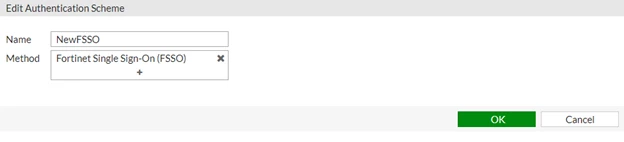
- Create an Authentication RULE.
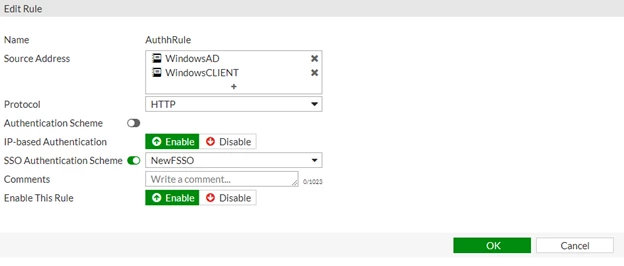
edit "AuthRule"
set srcaddr "WindowsAD" "WindowsCLIENT" <----- Which source addresses this rule match to.
set sso-auth-method "NewFSSO"
next
end
- Create a proxy policy.

edit 1
set proxy explicit-web
set dstintf "port1"
set srcaddr "WindowsAD" "WindowsCLIENT"
set dstaddr "all"
set service "webproxy"
set action accept
set schedule "always"
set groups "FSSO_Group1" (created in step 1)
next
end
- Configure the Browser/System for Explicit Web Proxy.
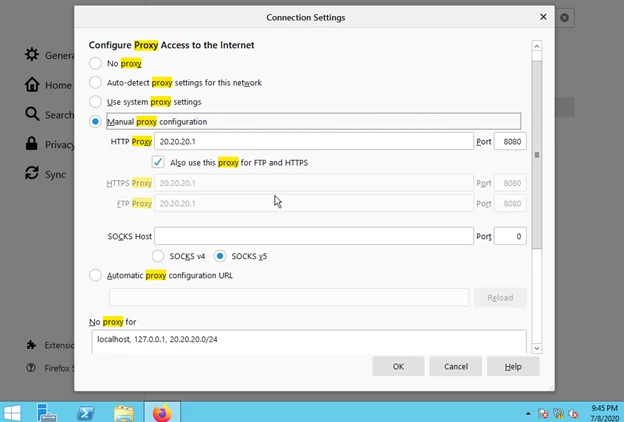
- Add the certificate and root CA to the host to avoid getting certificate errors.
- Monitoring.
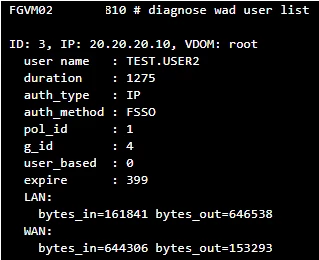
diagnose wad user list

Troubleshooting Tip: If the proxy users from the remote site cannot access the internet, examine the authentication rule. Use the SDWAN interface in the incoming interface if required to verify the access.
Related article:

