


Technical Tip: Captive portal authentication on a network interface
Description
This article describes the basic configuration of captive portal authentication on a network interface.
Scope
FortiGate v6.0 and above.
Solution
Configuration of captive portal authentication on a network interface-based.
- Configure users and add users to the User group.
- Edit interface configuration where the user will connect, Network -> Interface, then select the interface and edit (for example, port2 ) enable Security Mode, and add User groups: Specify the user group that needs to get authenticated.
The captive portal option will not be enabled if the Interface role is WAN or DMZ. Change the interface role to either LAN or Undefined to configure the captive portal.
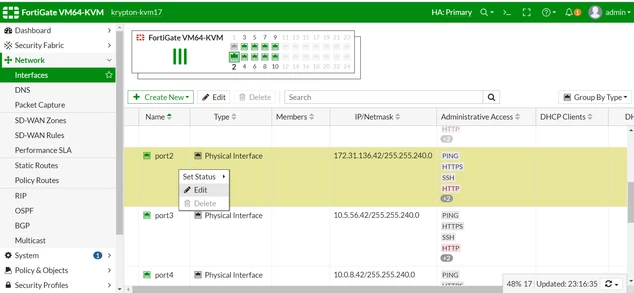
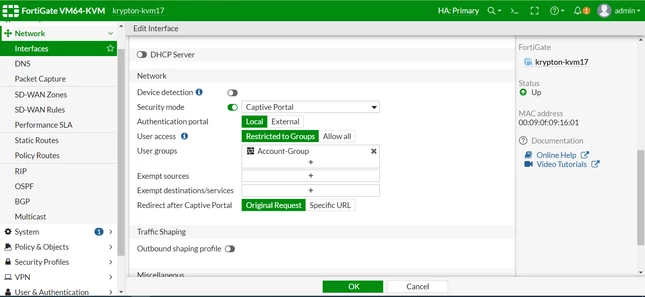
-
Verification:
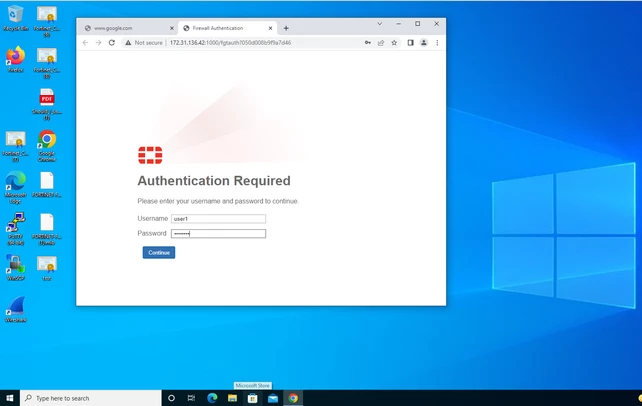
- Go to the Client system and try to access any website (for example: www.google.com).
- The Web-based captive portal authentication page will appear.
- Enter a valid Username and Password as configured in the firewall local user group.
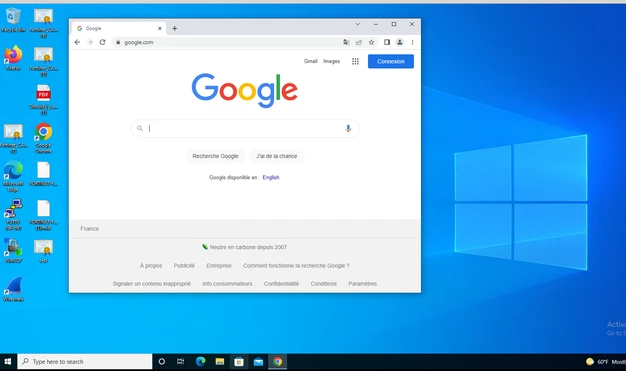
Once the user is authenticated successfully, the user will be redirected to the page below.
Note that the Local Captive portal is not available in the bridge SSIDs.
To use a local captive portal on the bridged mode SSID, it must be enabled on the interface from which the SSID is bridged.
Alternatively, it is also possible to enable the captive portal via policy:
Technical Tip: How to create FortiGate captive portal using policy
Related documentS:

