kdharan
Staff
Staff
December 31, 2024

Technical Tip: Block the source code file like java, python, C, Powershell using FortiGuard DLP sensors

  • December 31, 2024
  • 0 replies
  • 1123 views
Description This article describes the steps to follow to configure the DLP on FortiGate to block the source code using FortiGuard DLP sensors and dictionaries.
Scope FortiGate.
Solution
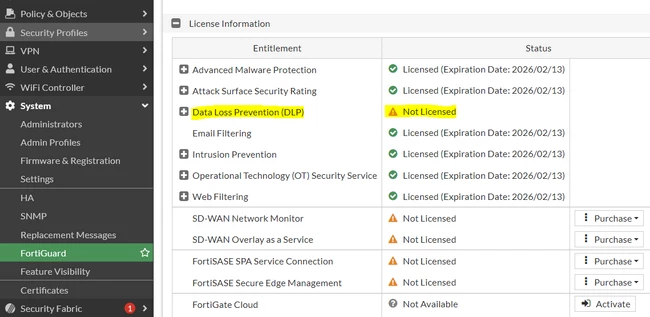
  1. FortiGuard DLP sensor is a licensed feature that is available from v 7.4.x. Confirm if FortiGate has the DLP license:
                                               

dlpicesne.PNG


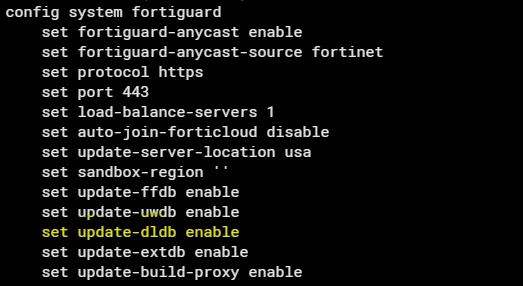
  1. Enable the 'dldb' in FortiGate's FortiGuard settings if it is disabled. It is enabled by default. 


    dlp_11.png


  2. After enabling, verify the status of the DLP signature database from FortiGuard Updates by running the following command:


    diagnose autoupdate versions | grep -A6 DLP

    DLP Signatures
    ---------
    Version: 1.00010
    Contract Expiry Date: Thu Nov 20 2025
    Last Updated using manual update on Wed Jan 1 10:50:19 2025
    Last Update Attempt: Sat Jan 4 12:15:05 2025
    Result: No Updates


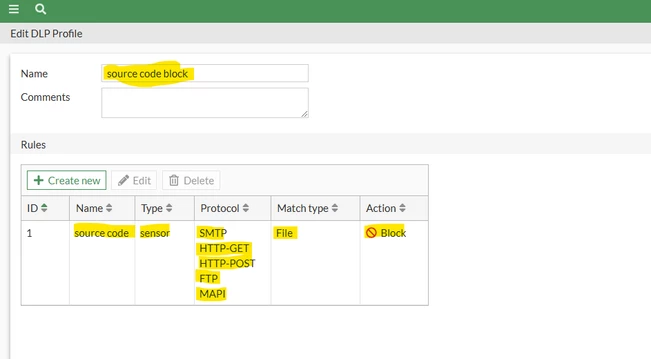
  3. Create a DLP security profile using the FortiGuard DLP sensors 'fg-source_code' as shown below 
    the example.


    Example:

    DLP profile for blocking source codes like Java, Python, C, and Powershell files.

    DLP-12.png


    DLP-13.png


  4. Use this profile for the firewall policy.


Note:

'fg-source_code' sensors are pushed by the FortiGuard to the FortiGate.


If the FortiGuard sensor and dictionaries are not visible on FortiGate refer to the below article for troubleshooting: Technical Tip: FortiGuard DLP sensors and dictionaries are not populating on FortiGate.