Technical Tip: Automated scripts (auto-script). Execution, testing and verification explained with examples
Description
This article describes how to use the automated scripting on FortiGate.
Scope
FortiGate.
Solution
In FortiOS, it is possible to configure auto-scripts. This feature can be used for various purposes.
Important notes:
The auto-script output is stored in the RAM, so if running multiple scripts with a maximum of 10MB (set output-size), calculate and monitor the RAM usage. Improper use of the auto-script may trigger a conserve mode.
The output is also permanently stored on the flash memory
Some commands will not work with the auto-script on older firmware versions.
Support for further commands like 'diagnose test app xxx', 'diagnose wad xxx', 'diagnose ips xxx' was added in FortiOS v7.6.1 and above.
If the output size is exceeded, the script will stop. Consider the auto-script as a temporary installation only; it is good for time-based troubleshooting.
Example 1: Auto-script for sending firewall configuration backup to a TFTP server:
config system auto-script
    edit "backup"
        set interval 120
        set repeat 0
        set start auto
        set script "execute backup config ftp backup.conf 10.10.10.2 test test"
    next
end
In this example:
10.10.10.2 is the IP of the FTP server.
backup.conf is the name of the file.
test/test is the username and password of the FTP.
120 is the interval of time in seconds to execute the task.
0 is the time of repeats - an entry of 0 means "always". The default is 1.
'set start auto' means the process will be started by the system automatically.
Example 2: Auto-script for sending firewall configuration backup to an FTP server:
config system auto-script
    edit "backup"
        set interval 120
        set repeat 0
        set start auto
        set script "
            config global
            execute backup config ftp backup.conf 10.10.10.2 test test"
    next
end
Where:
10.10.10.2 is the IP of the FTP server.
backup.conf is the name of the file.
test/test is the username and password of the FTP.
Note:
It is possible to add multiple CLI commands in the auto-script.
Example 3: Checking the generic status of the device using multiple commands with the help of Auto-script:
'get system status' and 'get system performance status' are the commands used for this.
config system auto-script
    edit "status"
        set interval 300
        set repeat 0
        set start auto
        set script "
        get system status
        get system performance status"

    next
end'set script "' <-- Press enter key here, add the first command.
'get system status' <-- Press the enter key here and add the second command in the next line.
'get system performance status"' <-- Make sure that the last command ends with a double quotation mark.
To check the script output stored in the file:
From the GUI:
Go to System -> Advanced -> Scheduled Script.
Select the 'Download' button from the 'Status' field for the selected script and open the file to read the output.
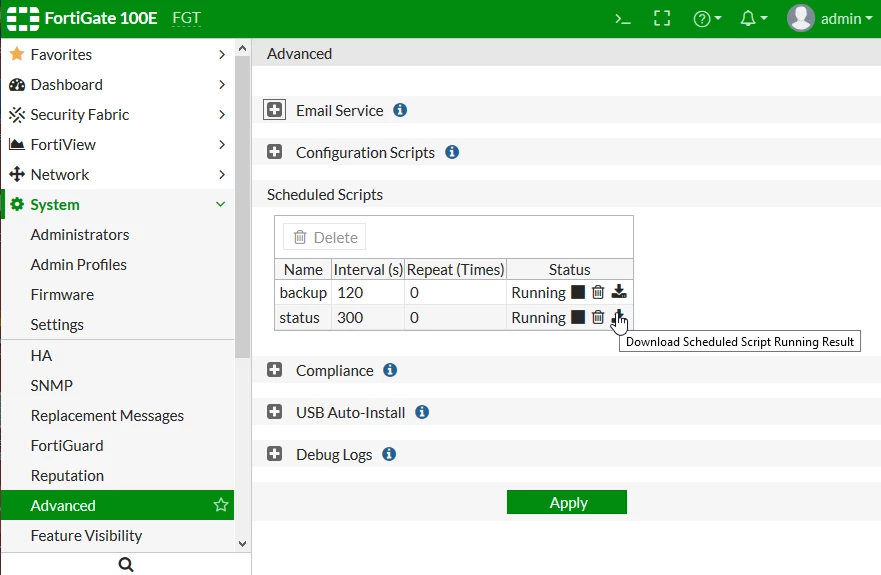
For a newer version:
This option is moved under Admin -> Configuration -> Scripts.
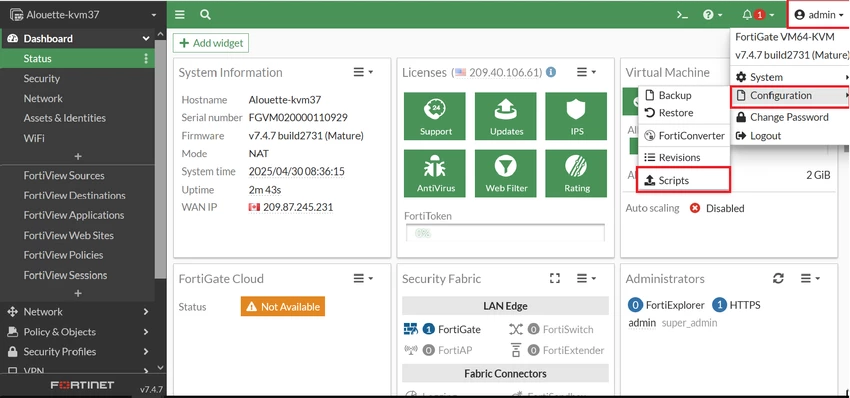
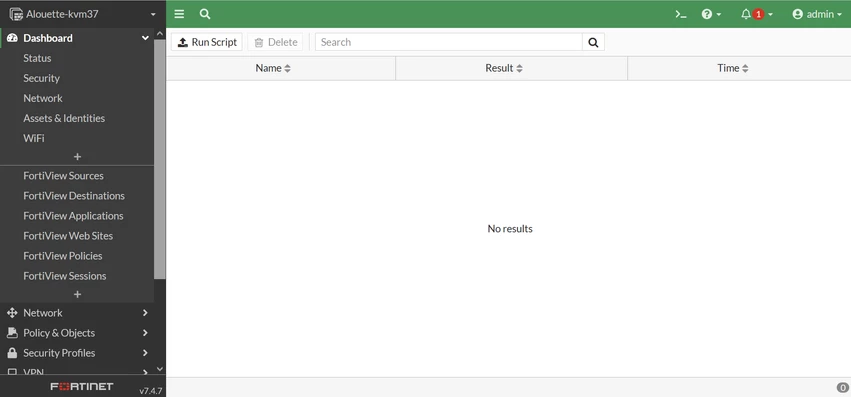
Note:
From v6.2.2, the System -> Advanced is removed; it is only possible to see the script scheduled via CLI. From v6.2.0, automation action is introduced as an alternative to auto-script.
From CLI.
To view the results of the script named 'status' (with no VDOMs).
execute auto-script result status

Script status output:
########## script name: status ##########

========== #1, 2019-10-01 14:24:04 ==========
FGT $ get system status
Version: FortiGate-100D v6.2.1,build0932,190716 (GA)
Virus-DB: 72.00005(2019-10-01 03:19)
Extended DB: 1.00000(2018-04-09 18:07)
... output continues ...
To view the results of the script named 'status' (with VDOMs, enter it in global):
config global
execute auto-script result status
To stop or restart an auto-script, use the following CLI commands:
execute auto-script start <script name>
execute auto-script stop <script name>
To stop all scripts, use the following CLI command:
execute auto-script stopall
To delete the results of an auto-script, use the following CLI command:
execute auto-script delete <script name>
Modifying a running script will show an output (error) as shown below. So, the script must be stopped from running before making any modifications.
Script can not be changed when it is running.
object set operator error, -14 discard the setting.
Command fail. Return code -14.
Example 4: To get an FSSO user list every 5 seconds for a maximum size of 100MB, filtered for the IP 172.16.17.132.
config system auto-script

    edit "firewall-user-list"

        set interval 5

        set repeat 0

        set script "diag firewall auth list | grep 172.16.17.132 -A 7"
        set output-size 100
    next
    edit "auth-user-list"
        set interval 5
        set repeat 0
        set script "diag debug auth fsso list | grep 172.16.17.132"
        set output-size 100
    next
end
To start the above-created scripts, the following commands can be used:
execute auto-script start firewall-user-list
execute auto-script start auth-user-list
Example 5: To get a session list every 10 seconds for the IP 10.10.10.48.
config system auto-script

    edit "session-list"

        set interval 5
        set repeat 0
        set script "diag sys session filter src 10.10.10.48
            diagnose sys session list"
                set output-size 100
    next
end
Example 6: Using an auto-script to restart the WAD process at a specific interval.
config system auto-script
    edit "restart-wad"
        set interval 3600
        set repeat 65535
        set start auto
        set script "diag test app wad 99"
    next
end
Example 7: Using auto-script to capture OSPF routing information.
config system auto-script
    edit "OSPF_routing_script"
        set interval 5
        set repeat 50000
        set start auto
        set script "
        get sys stat
        get router info routing-table ospf
        get system arp
        get router info ospf neighbor
        "
end
Example 8: Cleating DHCP lease using auto-script:
config system auto-script
    edit "clear_dhcp_lease"
        set interval 600
        set repeat 65535
        set start auto
        set script "
        execute dhcp lease-list
        execute dhcp lease-clear all
        "
    next
end
Example 9: Clearing the device inventory list from FortiGate in a particular interval:
config system auto-script
    edit "clear_dhcp_lease"
        set interval 600
        set repeat 0
        set start auto
        set script "diagnose user device clear"
    next
end
'set interval 600' <-- Interval of choice.
Example 10: Restarting and killing the IPS monitor process at a specific interval:
config system auto-script

    edit "ipsrestart"
        set interval 43200
        set repeat 0
        set start auto
        set script "
        diagnose test application ipsmonitor 99
        fnsysctl killall ipsmonitor
"
    next
end
'set interval 43200' <-- 12 hours.
'set repeat 0' <-- Infinite times, no limit.
'set start auto' <-- Automatic process by the system.
'set script "' <-- Script to restart the ipsmonitor.
Note: The 'diagnose test app xxx' commands might not work on older firmware versions when executed in the auto-script.
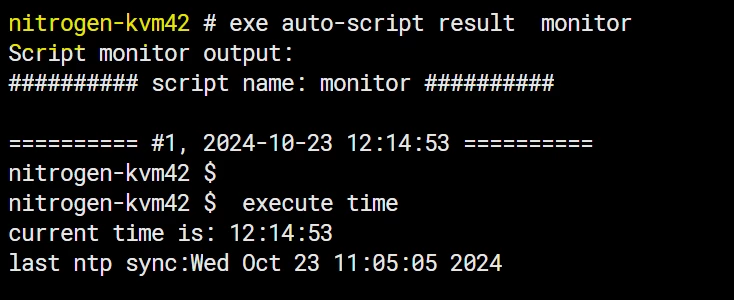
In an HA setup, the auto-script configuration is automatically synchronised, so it only needs to be configured on the primary device. However, the script's command output is executed and captured individually on each firewall.
Refer to the screenshots below:
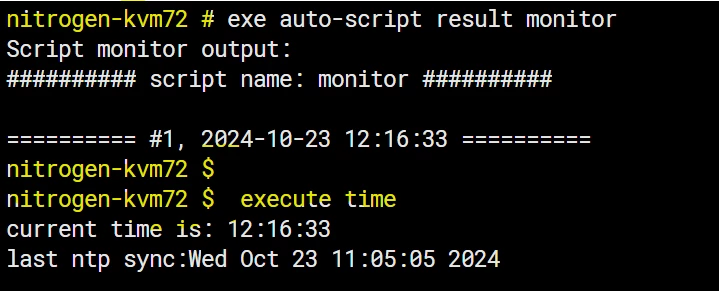
The auto-script will place temporary files on the disk.
To verify if the auto script is still running and also show the current size of the output of a specific script run:
execute auto-script status
auto-script_test <-- Running, output file size: 567.3K.
When the configured max output size is reached, the script will stop and change the status from 'running' to 'executed'.
The command will then show the final file size.
execute auto-script status
auto-script_test <-- Executed, output file size: 11.1M.
The temporary files of the auto-script are stored in '/tmp/$$auto-script$$/'.
The total size of all auto-script files can be checked with the following commands:
fnsysctl df -k
fnsysctl df -h
fnsysctl ls -al /tmp/$$auto-script$$/
fnsysctl du -aLL /tmp/$$auto-script$$
Example outputs:
fnsysctl df -h
Filesystem Size Used Available Use% Mounted on
none 1.4G 362.2M 1.0G 25% /tmp
... cut ...
fnsysctl ls -al /tmp/$$auto-script$$/
drwxr-xr-x 2 0 0 Tue Jan 7 10:22:52 2025 60 .
drwxrwxrwt 56 0 0 Tue Jan 7 10:30:14 2025 5060 ..
-rw-r--r-- 1 0 0 Tue Jan 7 10:22:48 2025 11617598 auto-script_test.out <- 11,08 MB.
fnsysctl du -aLL /tmp/$$auto-script$$
11348 /tmp/$$auto-script$$/auto-script_test.out
11348 /tmp/$$auto-script$$ <----- 11,08 MB.
Note:
The 'fnsysctl' command requires Super Admin access to execute. FortiGate will produce an error otherwise.
For further information, see Troubleshooting Tip: fnsysctl command returns Unknown action 0.
Note:
Starting from FortiOS v8.0.1-build 0185, the auto-script engine only allows information-gathering commands (get, diagnose); 'execute' commands are not permitted in auto-script. Thus, backup using the auto-script feature will fail with the message 'unknown action or command is unavailable in auto-script'.
Related documents:
Technical Tip: How to restart/kill all processes with the 'fnsysctl' command
Technical Tip: Configuring an automated script for daily FortiGate configuration backups
Technical Tip: How to clear the unit inventory list from FortiGate in particular interval